
Overview
This guide provides an overview of the permissions required and the processes for creating, editing, and deleting appointments. It also explains how to sign for appointments using the mobile app.
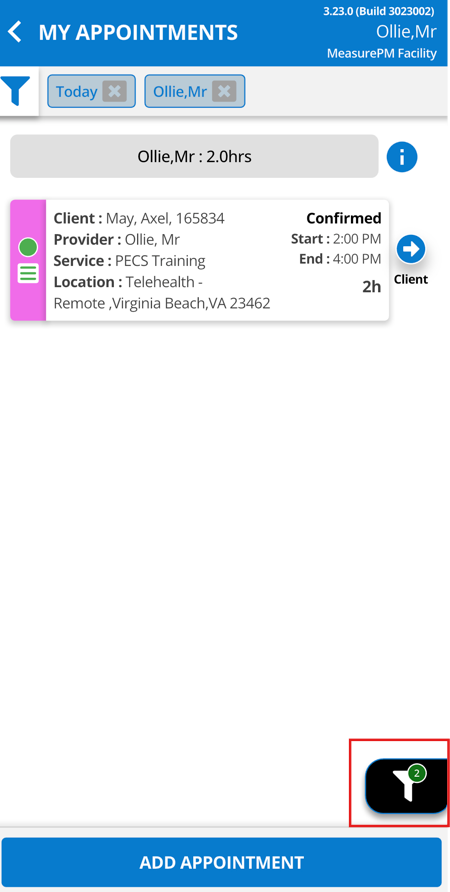
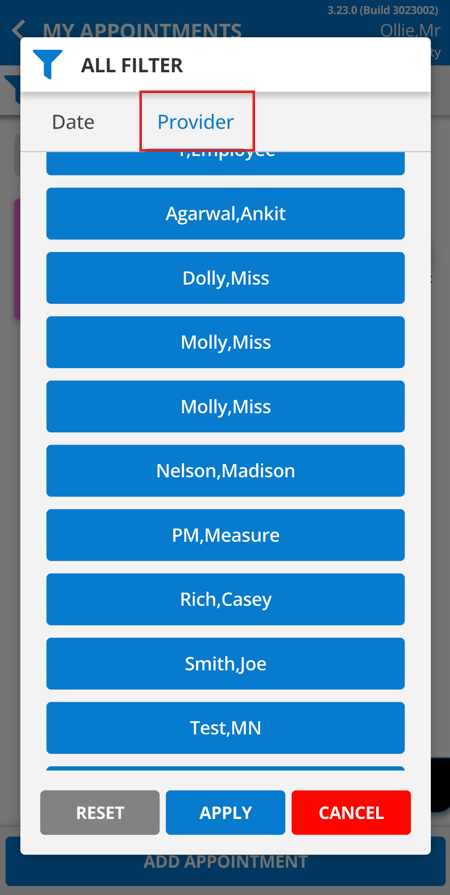
Viewing Other Employee Schedules
Enabling the following permission allows users in this group to view other employee’s schedules on the Mobile-App and on the Web. Note that all employees can see their own schedule on the Mobile-App, regardless of their permission. 
 |  |
Creating New Appointments
For Self
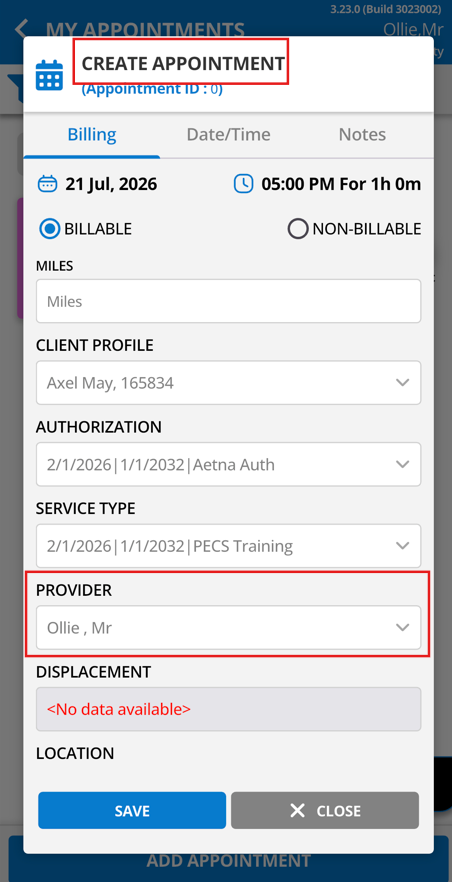
Enabling the following permission allows users to add appointments for themselves only, on the Mobile-App and on the Web. 
For Self & Others
Enabling the following permission allows users to create appointments for themselves and others on the Mobile-App and on the Web. *Note: This permission must be selected as well as the permission described above. This permission is a restriction to the pervious permission.

 | 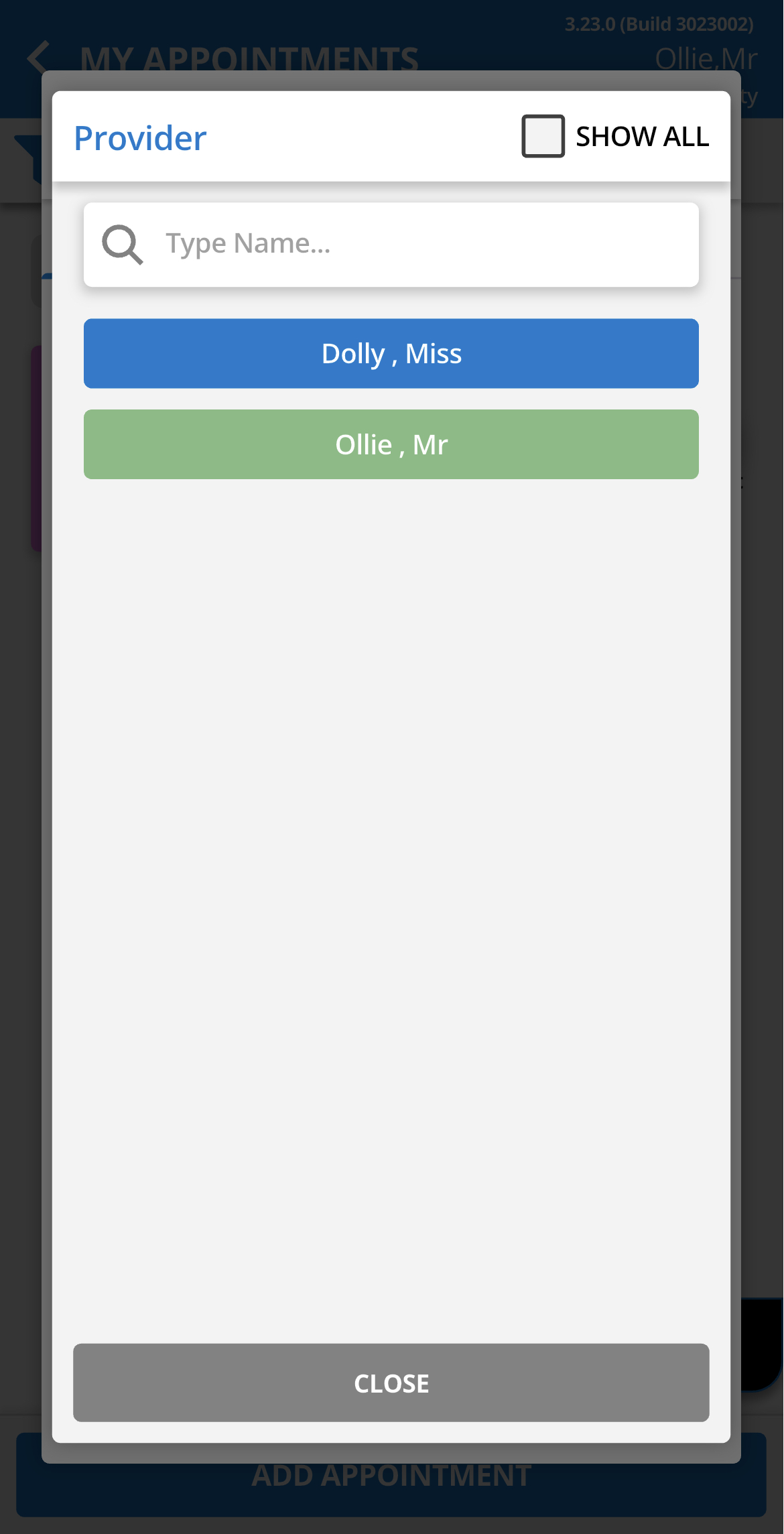 |
In the event that the following is enabled:

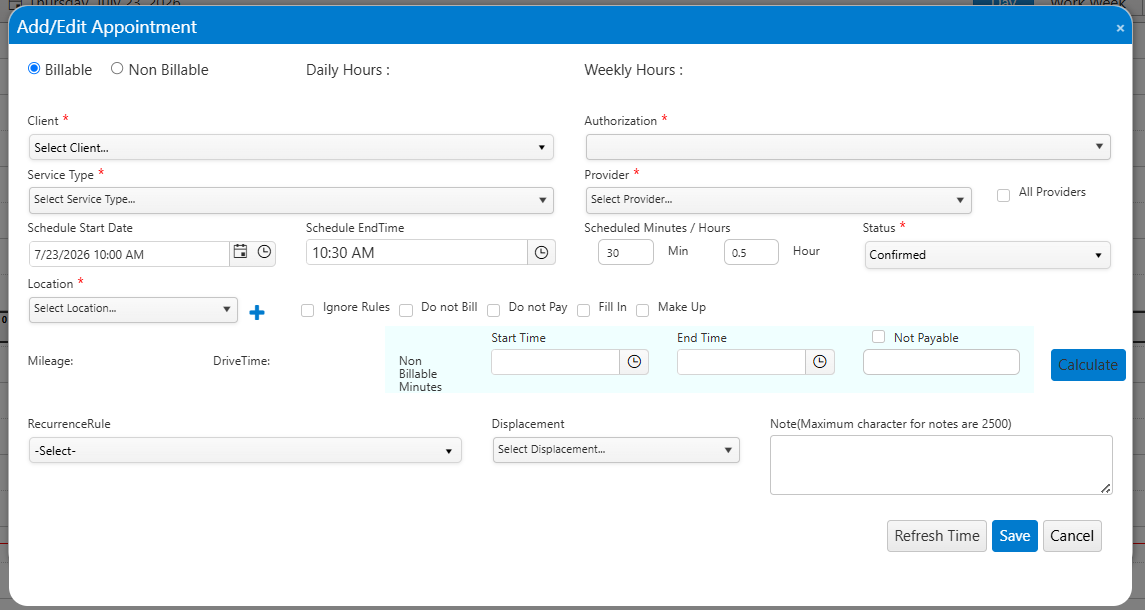
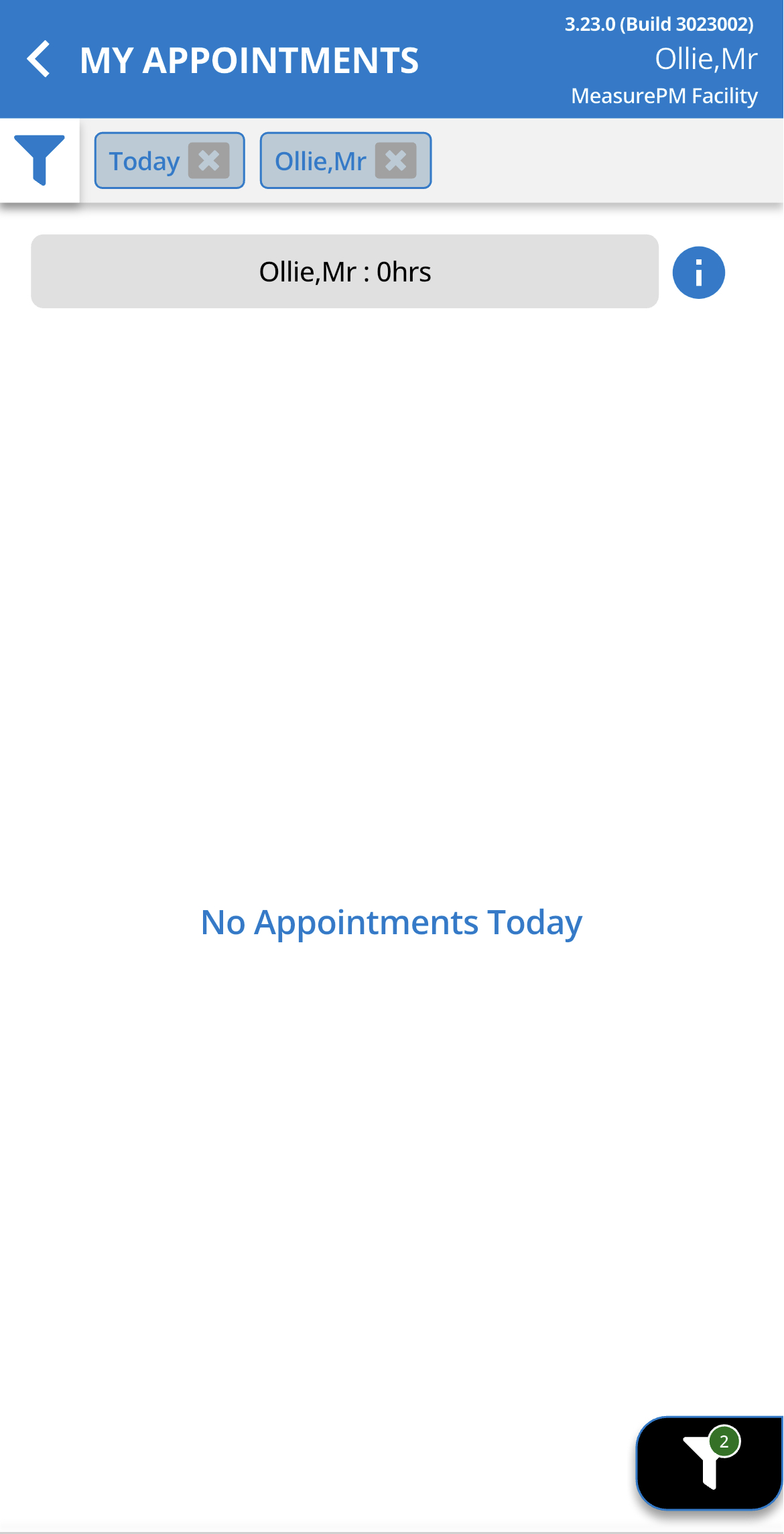
and the following is disabled:  users will be able to create appointments for themselves and others on the Web, but will not be able to create appointments for themselves and others on the Mobile-App.
For example their view would appear as:
| Web | Mobile |
 |  |
Deleting Appointments
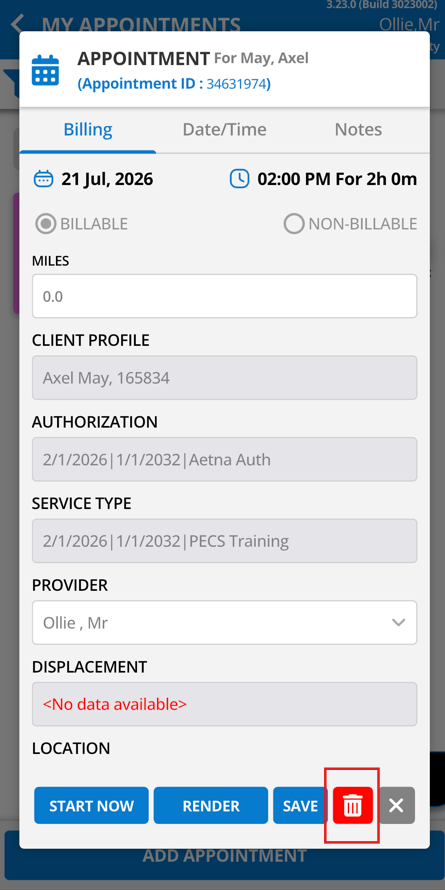
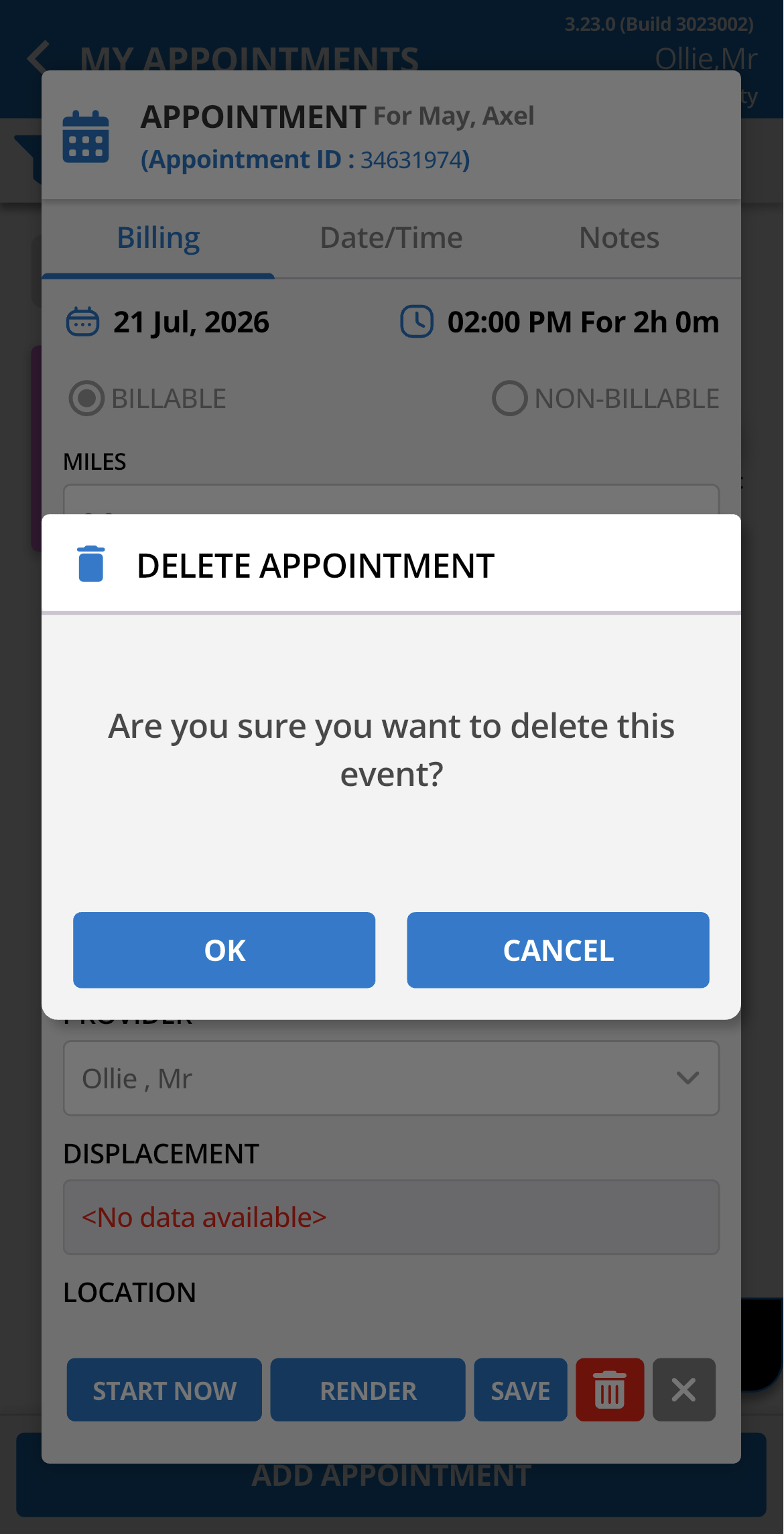
Enabling the following permission allows users to delete appointments on the Mobile-App.

 |  |
Editing and Rendering Existing Appointments
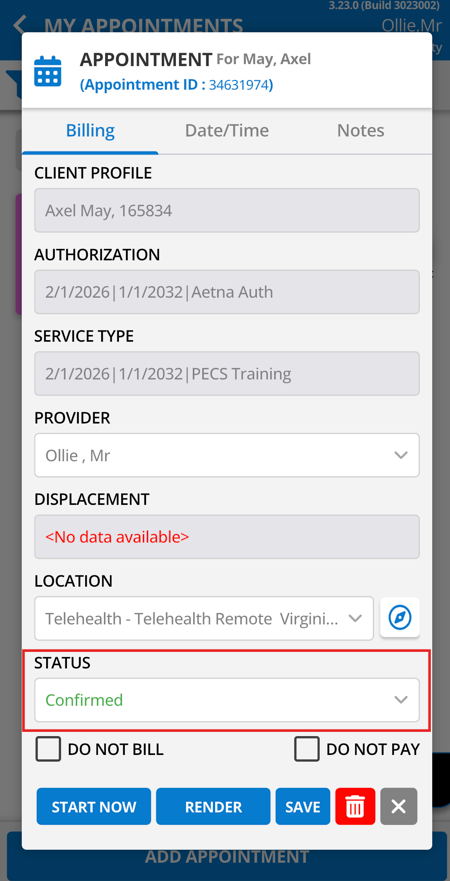
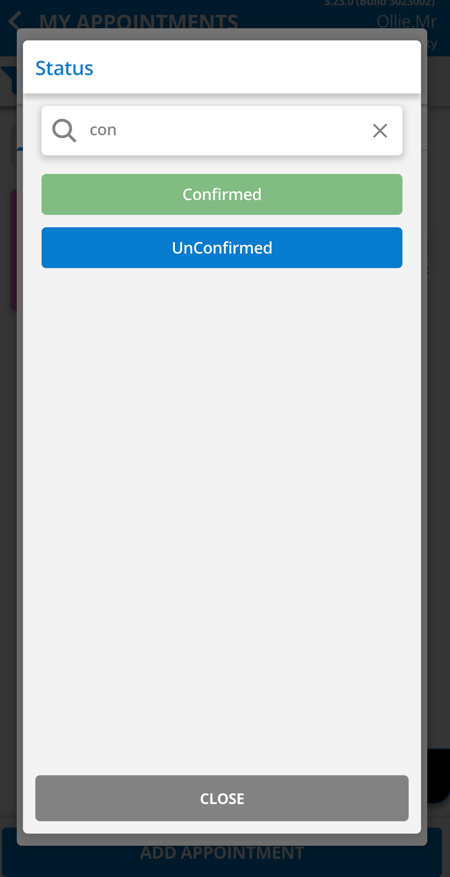
Changing the Status of the Appointment
Enabling the following permission allows the users in this group to change the appointment status of existing appointments, via the Mobile-App. *Note: All users can RENDER their appointments on the Mobile-App, regardless of permission.

 |  |
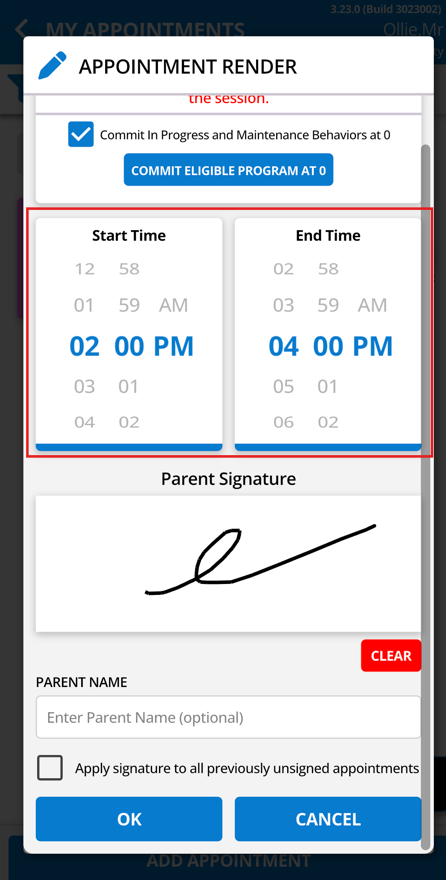
Adjusting the Rendered Time
Enabling the following permission allows the users in this group to render the appointment for a different start and end time than when the appointment was scheduled for.

Rendered Time Restrictions
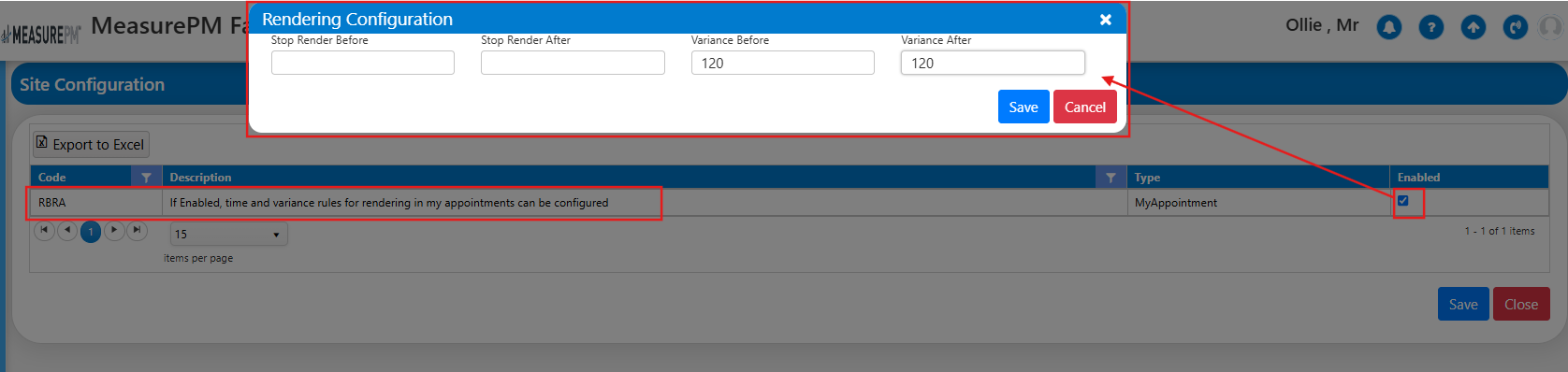
RBRA Rule
Enabling the following site configuration will allow time and variance rules to be put in place for rendering appointments. The values entered into the Stop Render and Variance rule boxes will be in minutes.
Stop render before/after: Places restrictions around how long a staff has to perform the act of rendering the appointment before or after the scheduled start/end time of an appointment.
- For example, if an appointment is scheduled 8:00-10:00am and the site has the configuration set to stop render before 10 minutes, the person running the appointment cannot perform the act of rendering prior to 9:50am.
- If stop render after 30 minutes is set, they have until 10:30am to perform the act of rendering.
This is NOT to be confused with adjusting the rendered start/end time, it's the actual act of rendering the appt.
Variance before/after: Creates a window of variance in which the staff can adjust the start/end time of the appointment.
- For example, if an appointment is scheduled 8:00-10:00am and the site has set variance before to 10 minutes, the person rendering can adjust the rendered start time of the appointment up to 7:50am.
- If variance is set to after 15 minutes, they can adjust the end time of the appointment up to 10:15am.
Site Configuration:

Configuring:
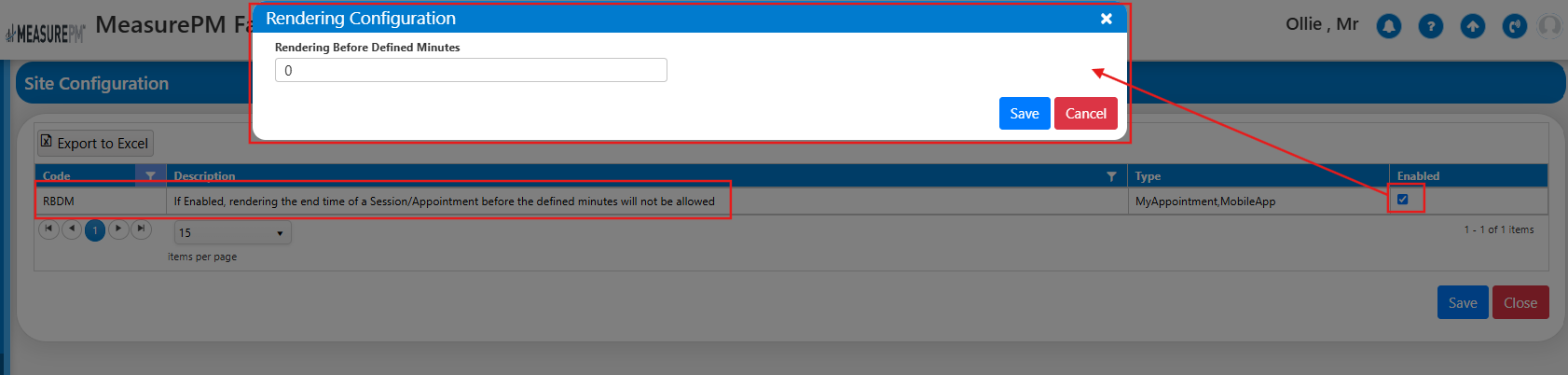
RBDM Rule
Enabling the following site configuration will allow rendering before defined minutes rules to be put in place for rendering appointments. This acts as a simplified version of the above RBRA configuration for sites that only want to control. The value entered into the Rendering Before Defined Minutes box will be in minutes.
Rendering Before Defined Minutes: Places restrictions around how long a staff has to perform the act of rendering the appointment before the scheduled start/end time of an appointment.
- For example, if an appointment is scheduled 8:00-10:00am and the site has the configuration set the defined minutes to 10, the person running the appointment cannot perform the act of rendering prior to 9:50am.
Site Configuration:

Configuring:
Signatures on the Mobile-App
Signature
Enabling the following permission will allow authorized users to collect caregiver or guarantor signatures for the current appointment.

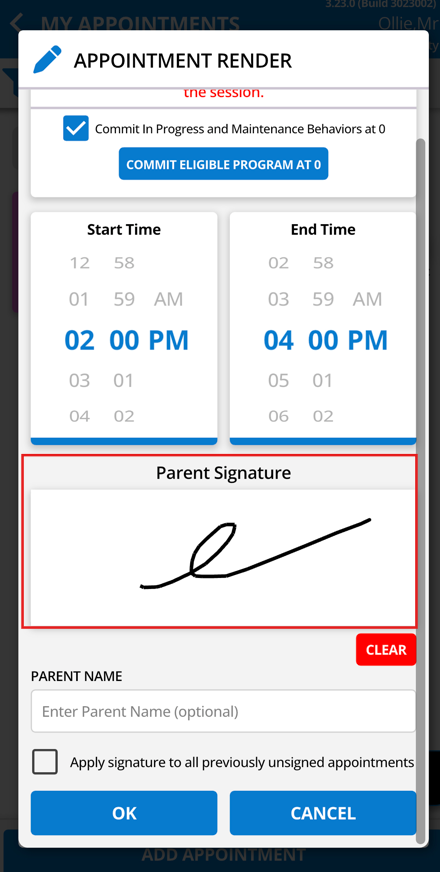
Mandatory Signature
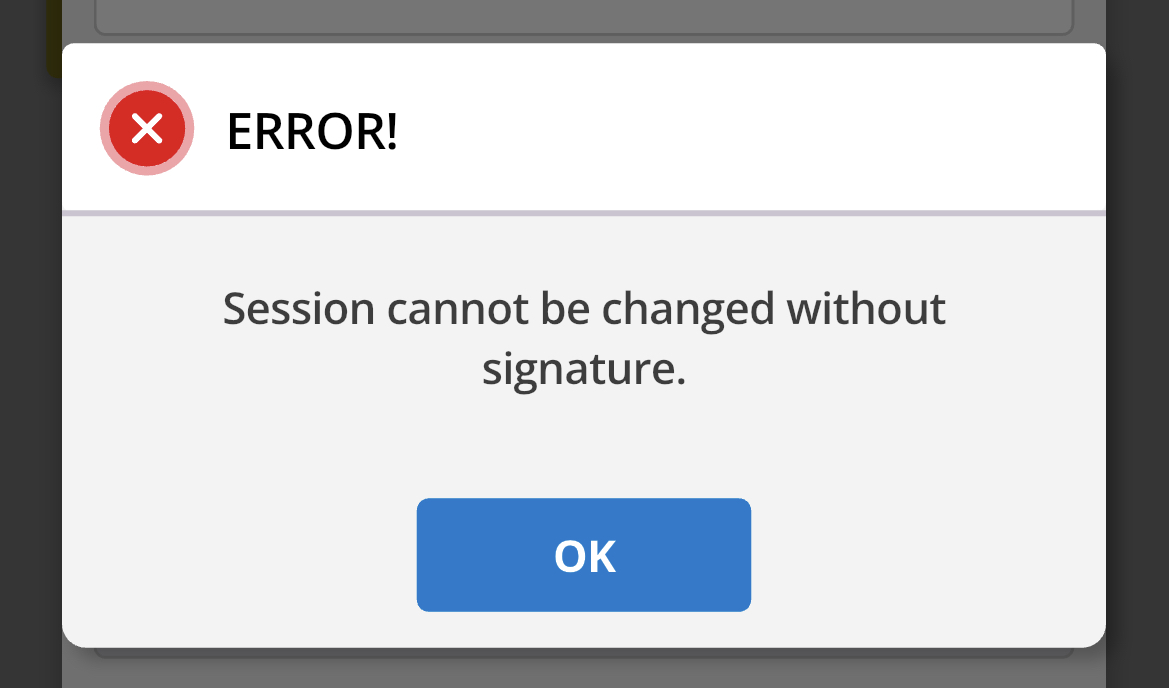
To make the caregiver or guarantor signature mandatory before rendering can occur, the following site configuration can be enabled.

If users attempt to render their appointment without the caregiver or guarantor signature, the following error message will be received.
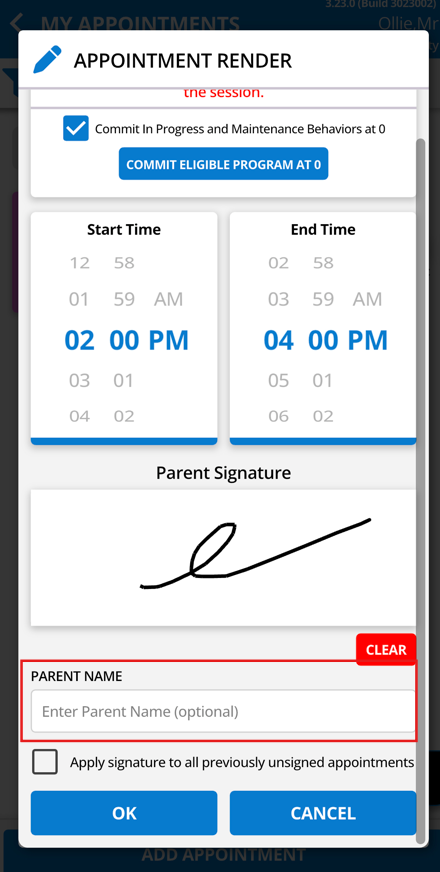
Signature Name
Selecting this option will allow authorized users to type in a caregiver or guarantor name for the current appointment on the Mobile-App.

Mandatory Name
To make the caregiver or guarantor name mandatory before rendering can occur, the following site configuration can be enabled.

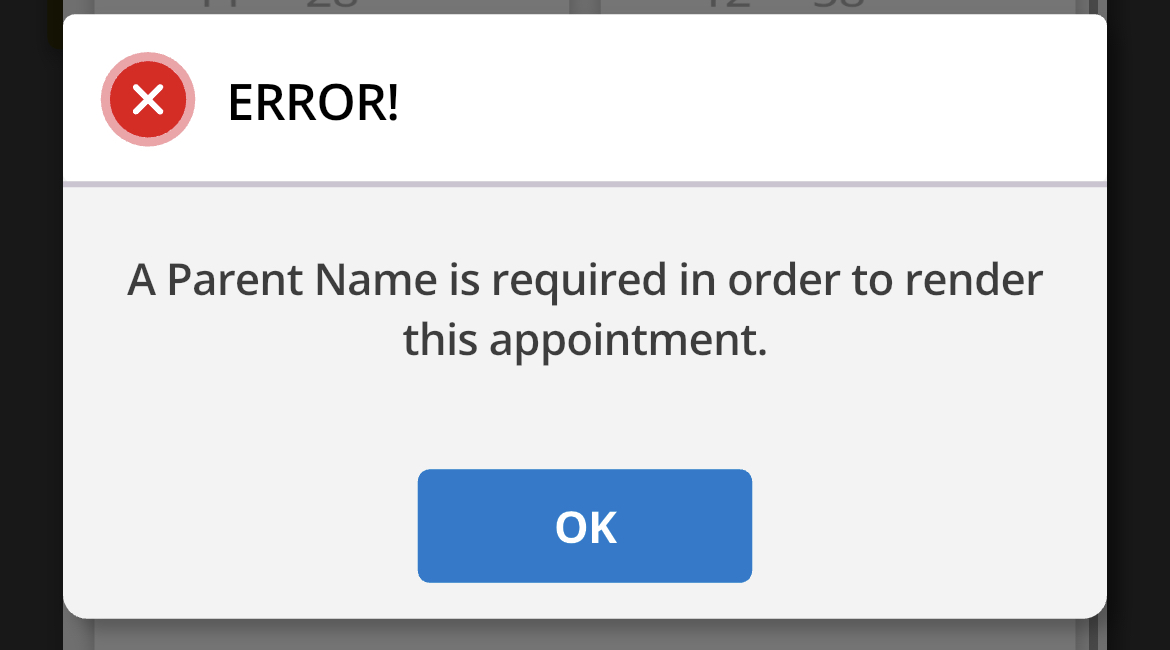
If users attempt to render their appointment without the caregiver or guarantor name, the following error message will be received.
Bulk Signature
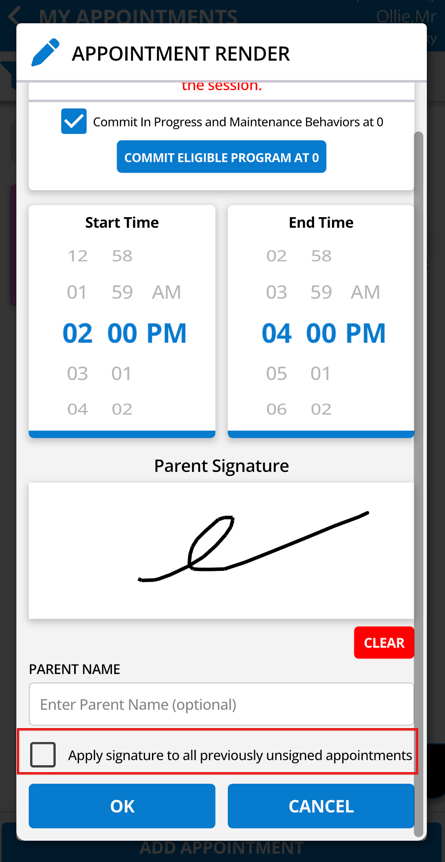
Selecting this option will allow authorized users to collect caregiver/guarantor signatures for any previously rendered and unsigned appointments.

Different Permissions Enabled vs Disabled
Below are example images of having some of the above permissions enabled vs disabled on the Mobile-App.
| No Signature Related Permissions Enabled | 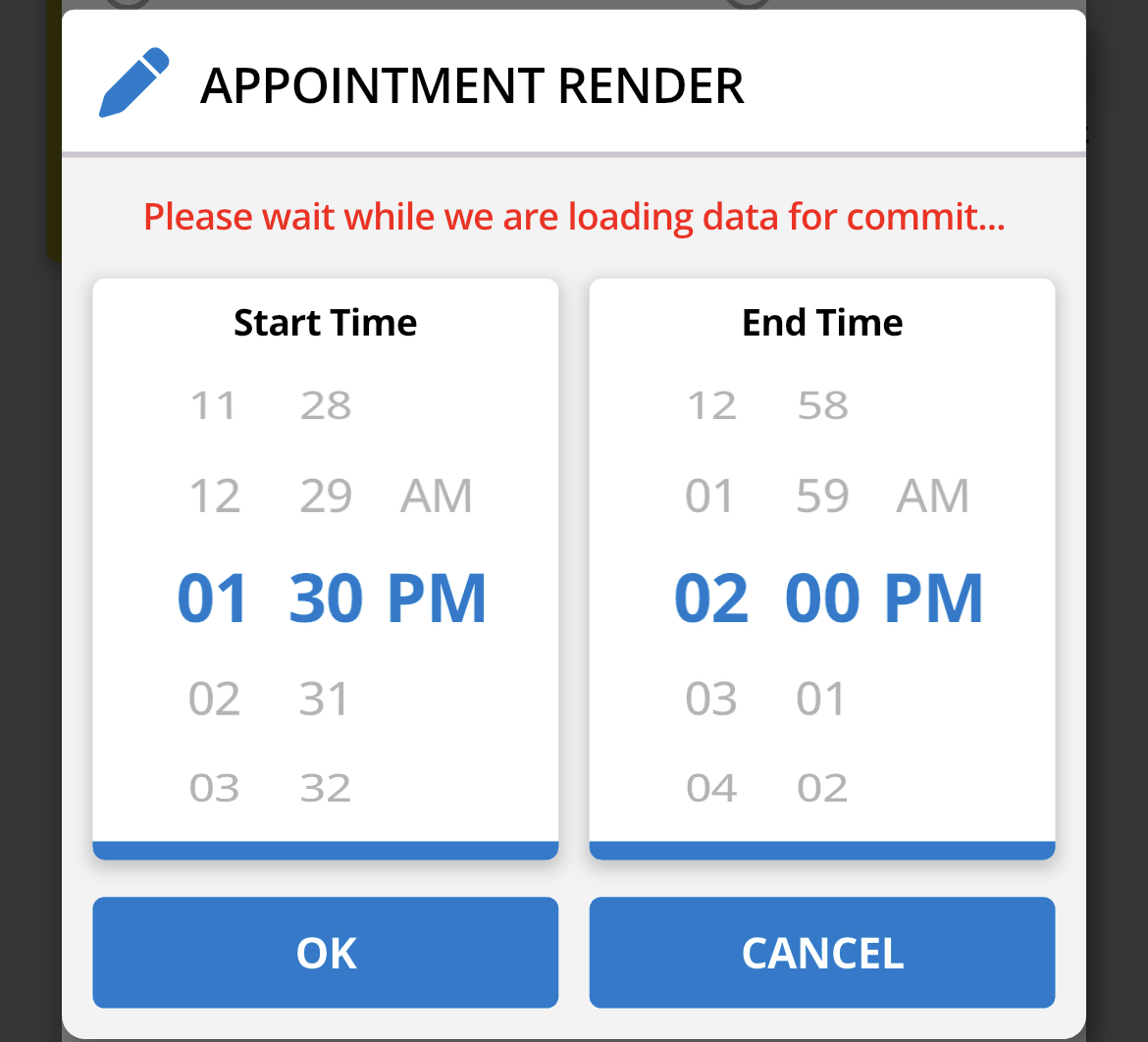 |
| Signature Only Enabled | 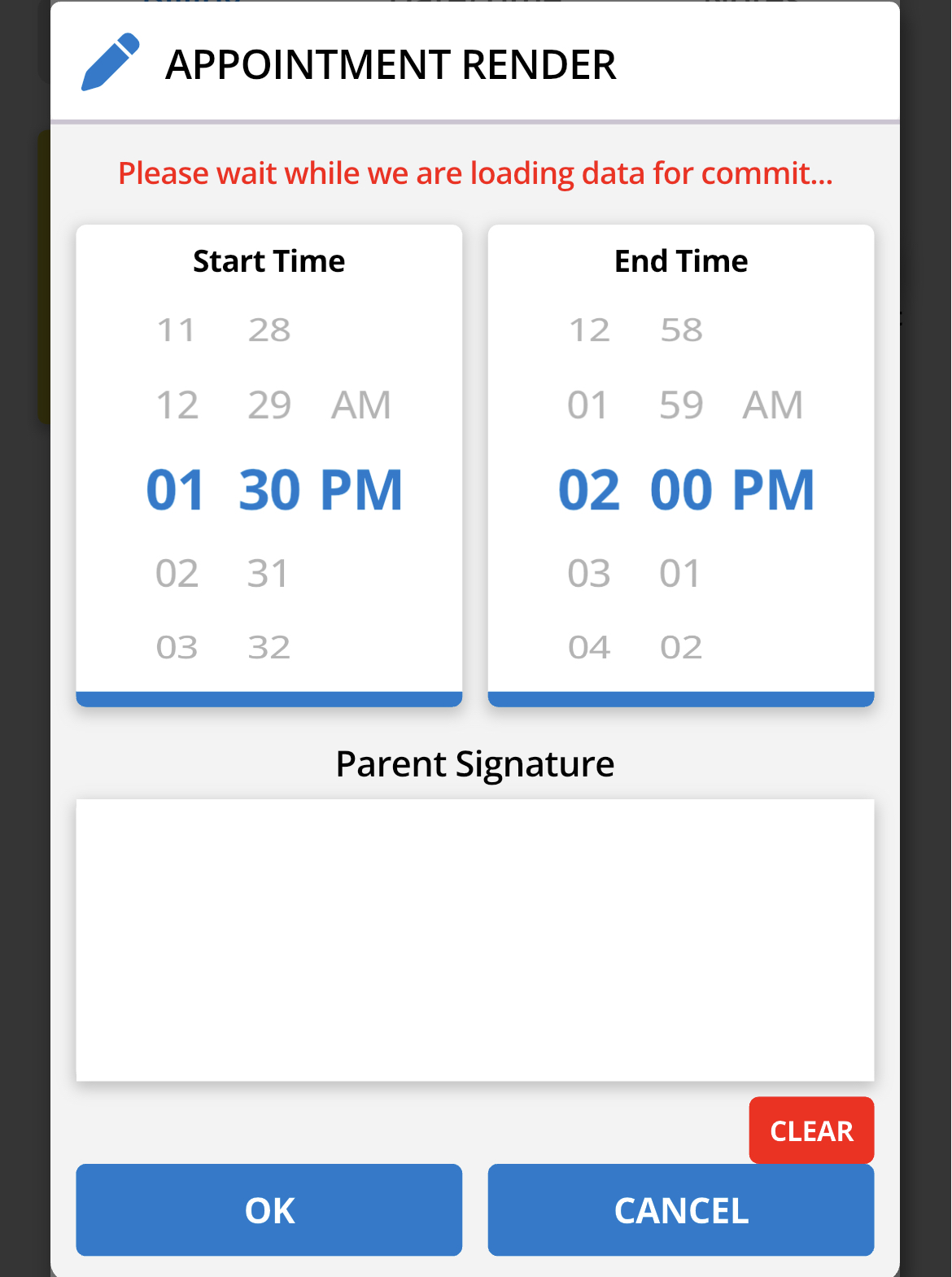 |
| Name Only Enabled | 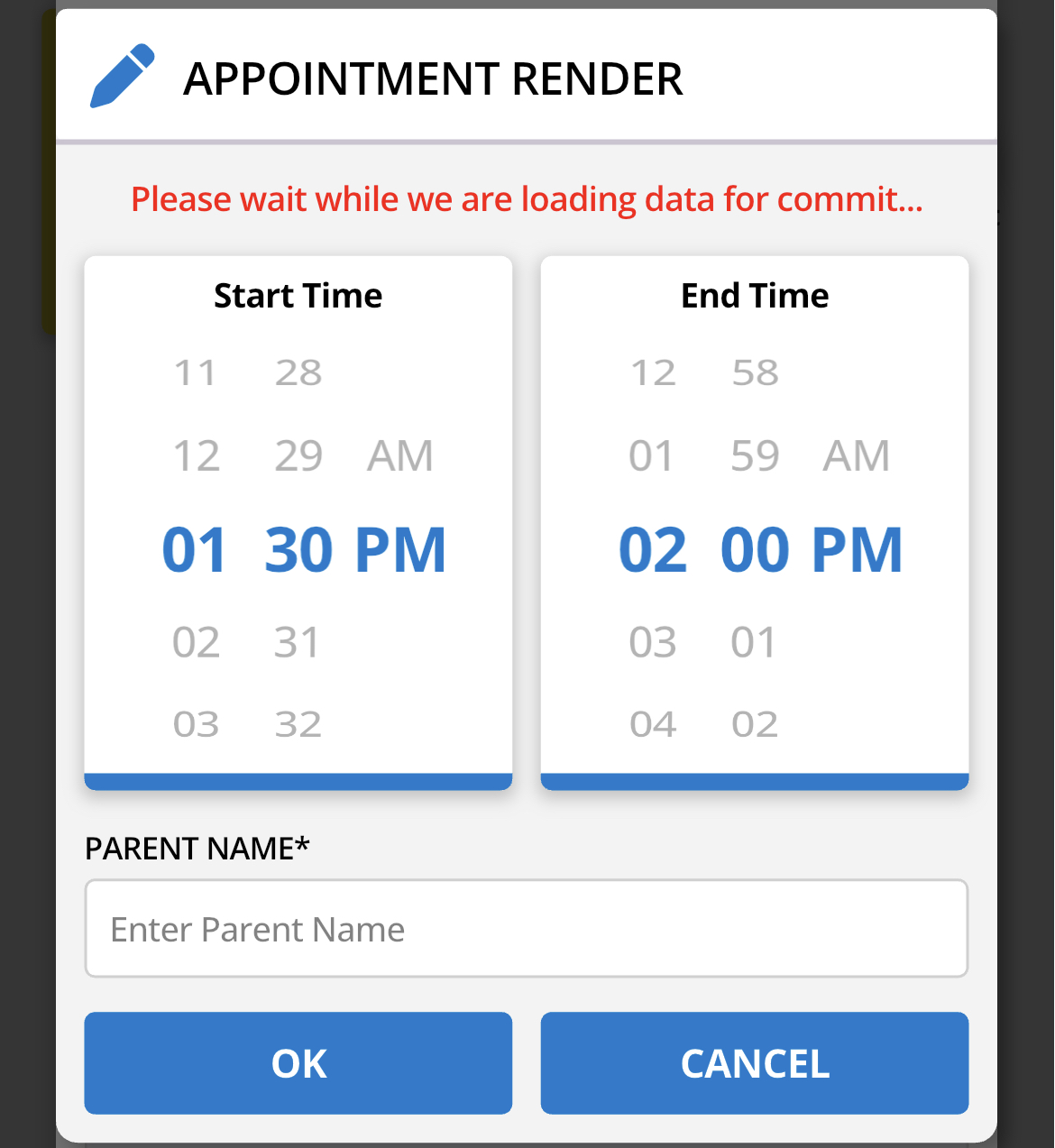 |
For any additional comments or questions, please reach out to support @measurepm.com