
MeasurePM has introduced a new configuration setting designed to support organizations that provide Group Therapy services where one provider is scheduled with two or more clients.
This new feature introduces specific logic for service types that are configured for group therapy using the setting:
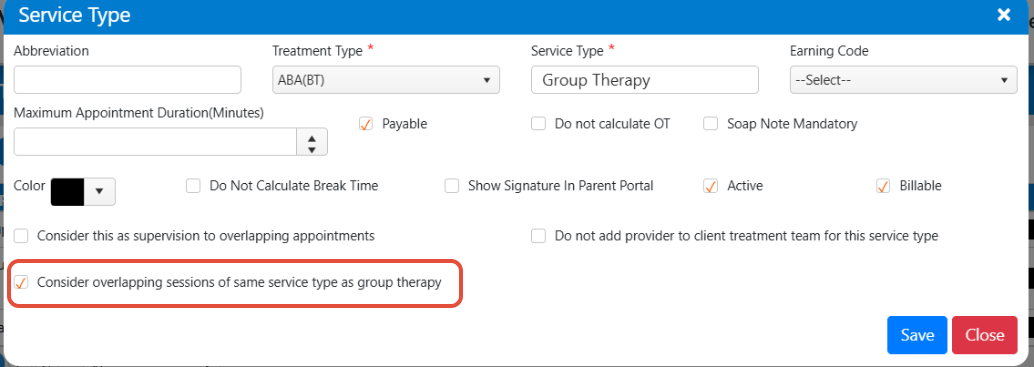
“Consider overlapping sessions of same service type as group therapy.”
When enabled, MeasurePM will:
Allow overlapping appointments for the same provider for that service type
Automatically determine one payable appointment for payroll
Automatically mark any additional overlapping appointments as Non-Payable (Excluded)
Bypass provider double-booking rules only for this service type
This configuration makes it possible to accurately process Group Therapy sessions without manual adjustments.
Enabling the Feature (Service Type Configuration)
To enable this new Group Therapy configuration:
Navigate to Site Settings
Go to Services and Rates
Select Service Types
Choose an existing service type or create a new one (organizations may use any naming convention appropriate for their workflow)
Enable the new setting:
Consider overlapping sessions of same service type as group therapyClick Save
Once enabled, MeasurePM will automatically apply the group therapy payable/excluded logic when overlapping appointments occur for that service type.
Example Scenario
To show how the feature works, for example, two appointments were created using:
The same provider
The same service type
The same date
The same start and end time
And the new Group Therapy setting enabled
Example Appointments
| Detail | Appointment A | Appointment B |
|---|---|---|
| Client | Lauryn Hill | Usher Raymond |
| Provider | Jill Scott | Jill Scott |
| Date | 12/09/2025 | 12/09/2025 |
| Time | 10:00 AM – 10:30 AM | 10:00 AM – 10:30 AM |
| Service Type | Group Therapy | Group Therapy |
Rendering Behavior Using the Example Appointments
MeasurePM applies the new Group Therapy logic when appointments are rendered.
Step 1: Render Appointment A (example: Lauryn Hill)
Expected System Behavior:
Appointment A renders successfully
Appointment A becomes the Payable appointment
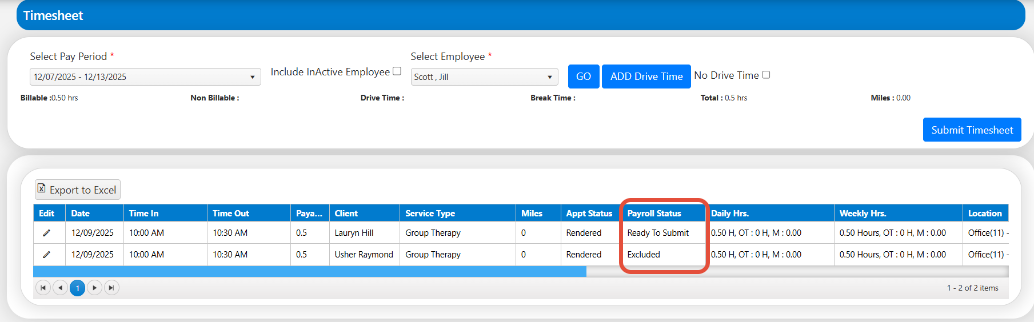
Timesheet displays:
Payable Hours: 0.50
Payroll Status: Ready To Submit
No provider double-booking warning appears
Step 2: Render Appointment B (example: Usher Raymond)
Expected System Behavior:
Appointment B renders successfully
Appointment B is automatically marked Non-Payable (Excluded)
Appointment A remains the Payable appointment
Timesheet displays:
Payable Hours: 0
Payroll Status: Excluded**
This ensures the provider is credited payroll for one session during that block, even if multiple clients were seen.

Timesheet Validation (Using the Example)
After both example appointments were rendered:
Appointment A (Lauryn Hill)
Payable: 0.50 hours
Payroll Status: Ready To Submit
Included in payroll totals
Appointment B (Usher Raymond)
Payable: 0.00 hours
Payroll Status: Excluded
Not included in payroll totals
This confirms that the Group Therapy configuration is working correctly.
Unrender / Rerender Logic (Example)
The system always assigns payable status to the first rendered duplicate appointment.
Example Scenario: Unrender Appointment A
Unrender Appointment A
Appointment B automatically becomes the Payable appointment
If Appointment A is re-rendered afterward:
Appointment A becomes Non-Payable
Appointment B remains Payable
This ensures only one payable appointment exists at any given time.

Billing
This feature affects payroll, not billing.
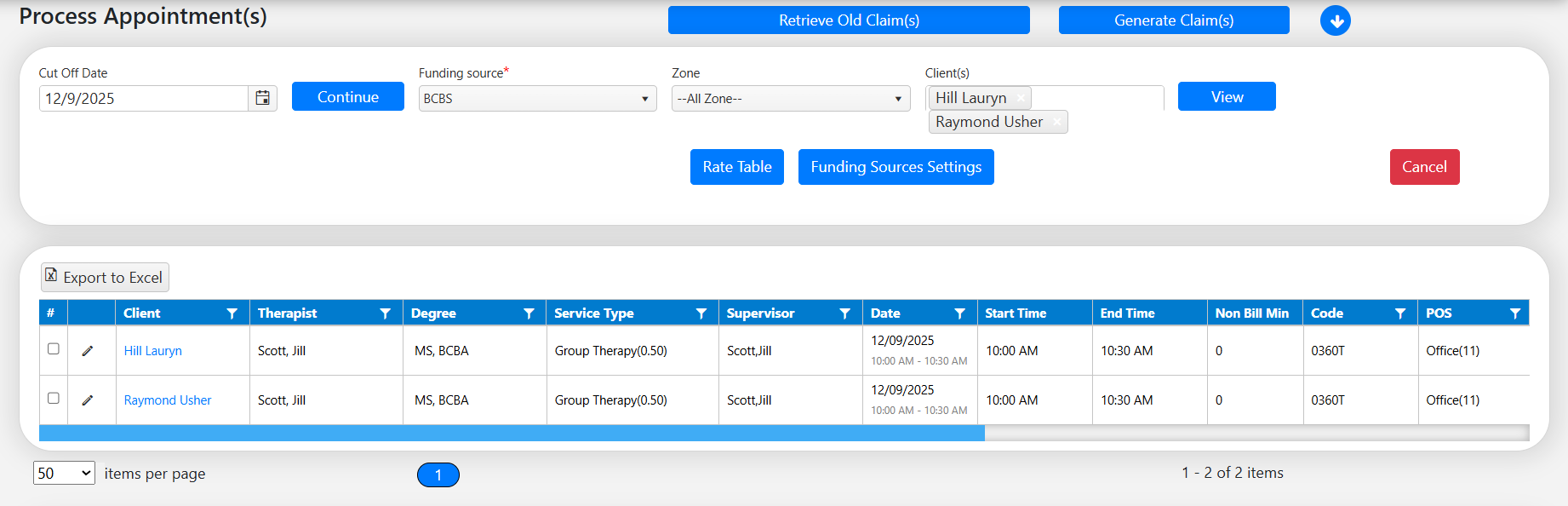
Both example appointments may still appear in Billing > Process Appointments
Summary of Key Behavior
When “Consider overlapping sessions of same service type as group therapy” is enabled:
Overlapping appointments can be rendered without double-booking warnings
Only one appointment becomes Payable
All other overlapping appointments become Excluded
Payable status can shift automatically when appointments are unrendered
Best Practices
Do not manually select “Do Not Pay” when using this feature
Ensure all appointment details match exactly to trigger the logic. That is, if the appointment times do not align, a conflict will show when submitting the timesheet to cue to the staff that there is an error.
Need Assistance?
If you have any questions or need assistance, please contact our Support Team at support@measurepm.com