
MeasurePM now includes the ability to add a Pay-To Address to ANSI (837) claim files for both primary and secondary claims.
When enabled, the Pay-To Address will populate Loop 2010AB in the ANSI file.
This enhancement provides greater flexibility for billing scenarios where payment should be directed to a different address than the billing provider address.
What’s New
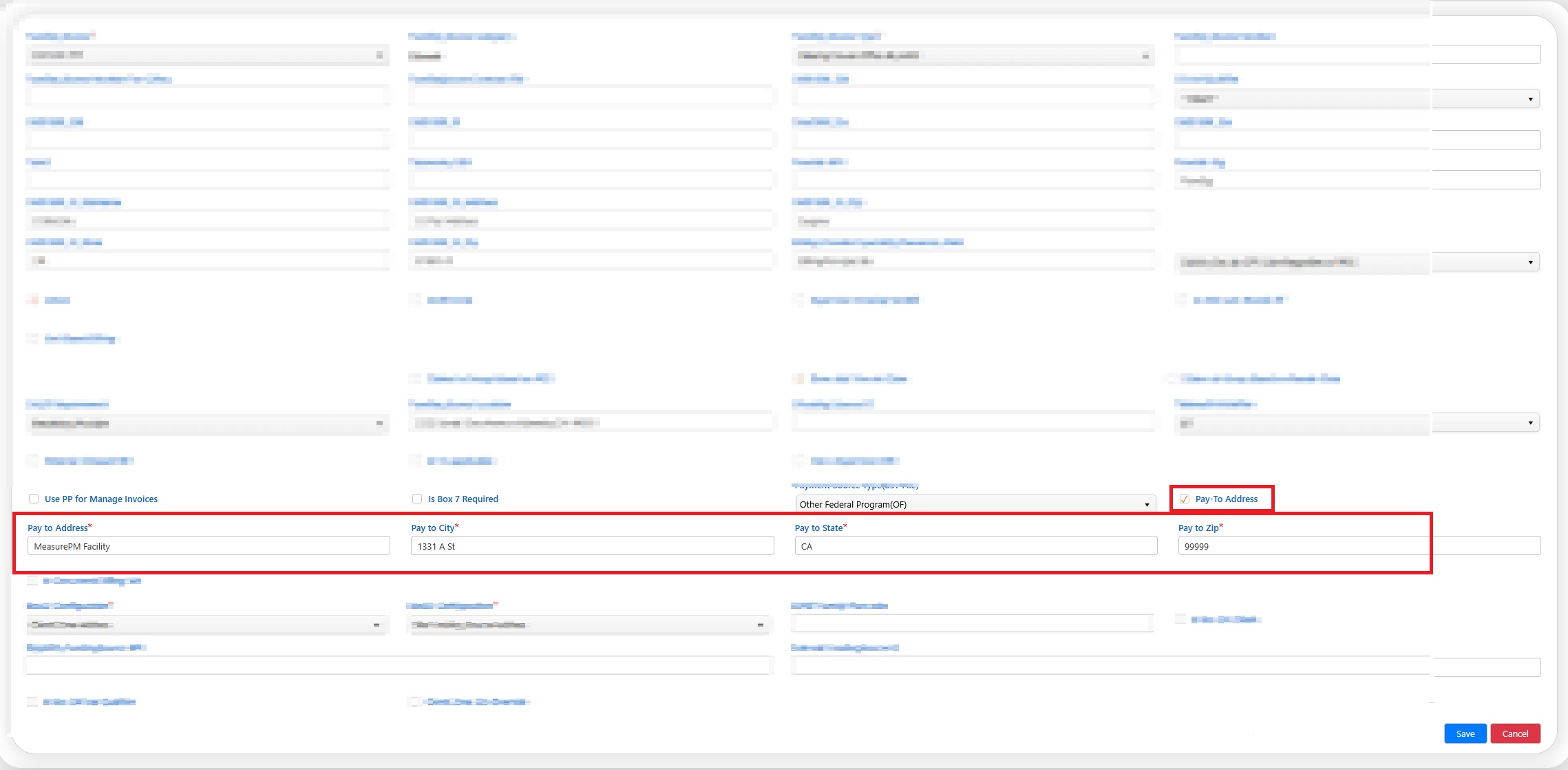
A new option has been added in: Site Settings > Services & Rates > Site Funding Source
You will now see a checkbox labeled: Add Pay-To Address
When this box is selected:
Four text fields will appear.
The information entered will populate Loop 2010AB in the ANSI file.
This applies to both:
Primary Claims
Secondary Claims
If the checkbox is not selected, Loop 2010AB will not be included in the ANSI file.
How to Add a Pay-To Address
Step 1: Navigate to Site Funding Source Settings
Go to Site Settings
Select Services & Rates
Select Site Funding Source Settings
Choose the applicable Funding Source
Step 2: Enable the Pay-To Address Option
Check the box labeled Add Pay-To Address
Four text fields will appear:
Pay-To Address
Pay-To City
Pay-To State
Pay-To Zip
Enter the appropriate information.
Click Save
How It Works
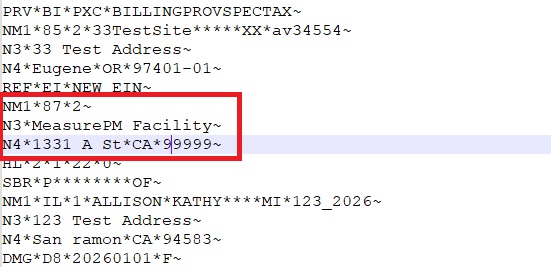
When the checkbox is marked and the address fields are completed:
The ANSI (837) file will populate:
Loop 2010AB
The address information entered will appear in the corresponding segments/elements.
If the checkbox is not marked:
The four text fields will not appear.
Loop 2010AB will not be generated in the ANSI file.
Applies To
This functionality applies to:
Newly generated Primary Claims
Newly generated Secondary Claims
Retrieved Old Claims (837 files)
Retrieved Old Secondary Claims (837 files)
Existing claim functionality remains unchanged.
Verifying the Pay-To Address in the ANSI File
After enabling the Pay-To Address:
Schedule and render a session under the funding source.
Go to Billing.
Bring the session into Stage 1 (Process Appointments).
Generate the claim.
Generate the ANSI (837) file.
Open the file and verify:
Loop 2010AB is present.
The address matches the information entered in Site Funding Source Settings.
You may also verify by:
Retrieving old claims
Generating the 837 file
Confirming Loop 2010AB is included
When the Pay-To Checkbox Is Not Selected
If the Pay-To Address box is not checked:
Loop 2010AB will not be included in the ANSI file.
No Pay-To address segments will be generated.
All other claim functionality remains unchanged.