
Overview
MeasurePM now supports Zone-based EIN, NPI, and Tax ID logic, allowing organizations to generate billing, claims, and post payments based on the specific entity tied to a client’s assigned Zone.
This feature is designed for organizations that:
- Operate across multiple locations or states
- Have different EINs, NPIs, or Tax IDs per location
- Need to keep billing, claims, and payments separated by entity
How This Feature Works
When generating billing, claims, or posting payments, the system will:
- Identify the Zone assigned to the client
- Check if the Zone has:
- EIN
- NPI (32a / 33a)
- Tax ID
- If defined -> use Zone-level values
- If not defined -> fall back to Site-level values
This happens automatically
No manual toggle or override is required
Required Configuration
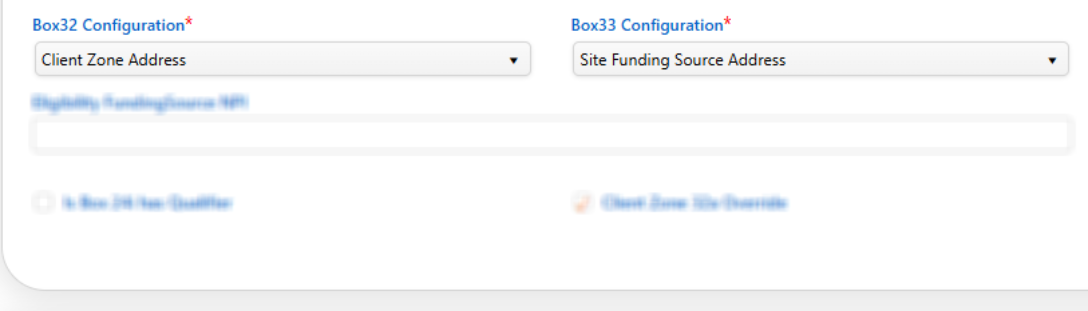
Step 1: Configure Box 32 / 33 Settings
Go to: Site Settings > Services & Rates > Site Funding Sources
- Set Box 32 and/or Box 33 Configuration to Client Zone Address for the funding source that should use Zone-based claim information.
This step is required for Zone-based billing to apply.
Step 2: Configure Zone Information
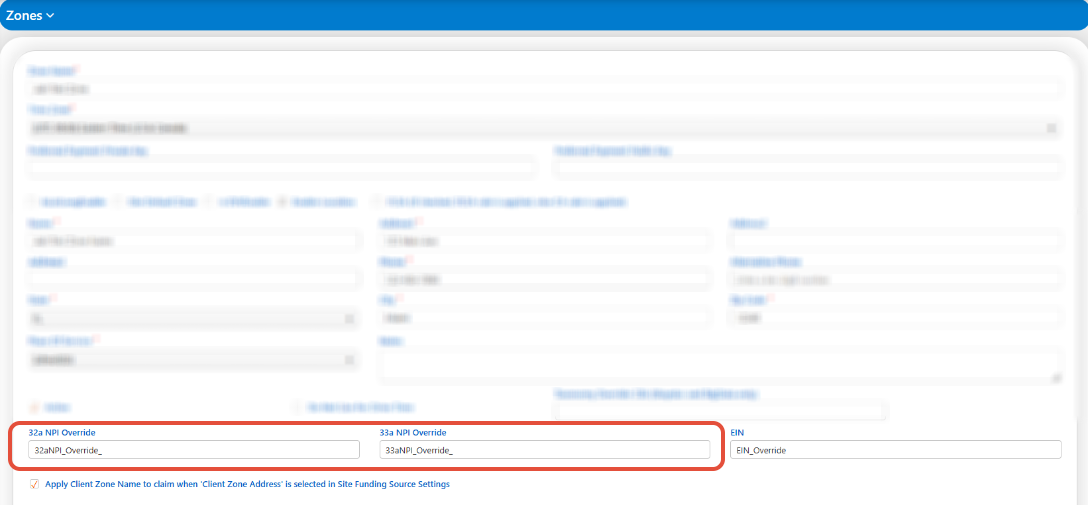
Go to: Settings > Site Details & Rules > Zones
For each Zone, enter (as needed):
- EIN
- NPI (32a / 33a fields)
Important Behavior
- If a value is entered in the Zone -> it will be used
- If left blank -> the system will use Site-level values
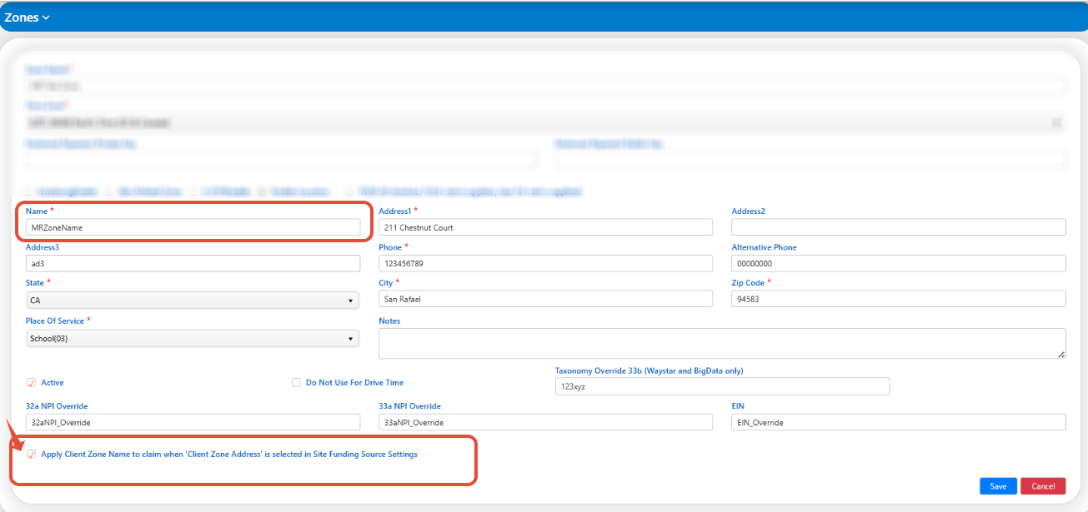
Step 3: (New) Enable Zone Name on Claims
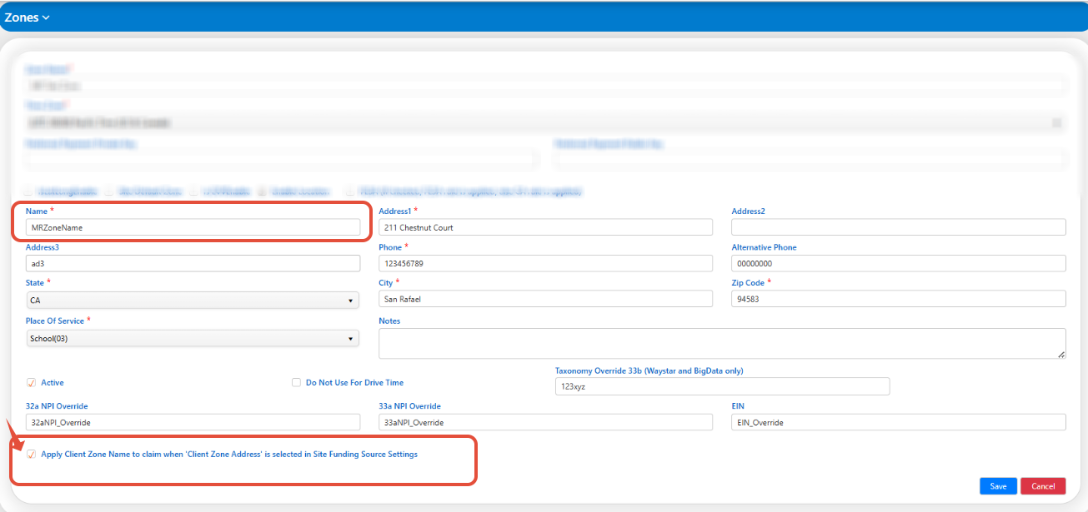
Within Zone Settings, you will now see the option:
“Apply Client Zone Name to claim when ‘Client Zone Address’ is selected in Site Funding Source Settings”
How This Works
- If enabled -> The Zone Name will appear on the claim (Box 32/33 Name field)
- If disabled -> The system will continue using the existing configuration (e.g., Site Name)
Billing Generation (Stage 1)
When billing is generated:
- The system evaluates the client’s assigned Zone
- Applies Zone-level EIN/NPI/Tax ID if available
- Otherwise defaults to Site-level configuration
Claim Generation (Stage 2)
When generating claims (Primary and Secondary):
Identifiers (EIN, NPI, Tax ID)
- Pulled from Zone if configured
- Otherwise from Site
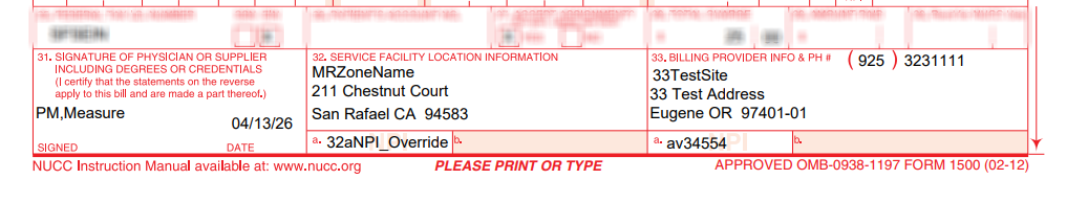
(New) Zone Name on Claim Forms
When the following conditions are met:
- Client Zone Address is selected in Box 32/33
- Zone Name checkbox is enabled
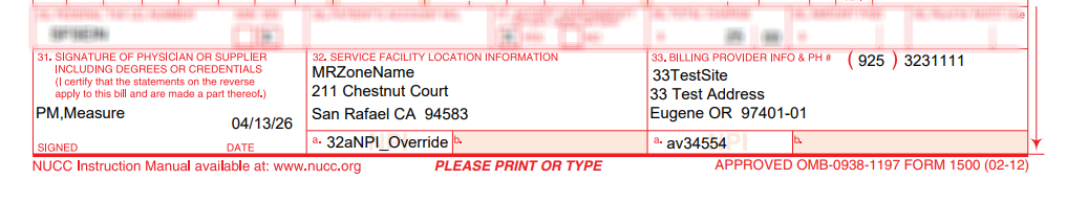
Example: Claim displaying Zone Name when the setting is enabled
The Zone Name will appear on the claim form If Checkbox is Disabled
ERA & Payment Posting
Improved ERA Matching
The system will now attempt to match ERA data using:
- Site-level EIN/NPI, and if not matched
- Zone-level EIN/NPI
Result
- ERAs can now be posted successfully across multiple EINs
- Reduces posting errors for multi-entity organizations
Deposit Filtering by EIN
After posting payments:
- You can filter deposits by EIN
- This allows you to:
- View payments per entity
- Separate financial tracking by location

Reporting Updates
Several billing and financial reports now include an EIN filter.
Examples of Updated Reports
- Billing Details
- Claim-related reports
- Rendered Not Billed
- Scheduled by Appointment Status
Additional financial reports
Need Help?
If you have any questions or need assistance, please reach out to our support team at support@measurepm.com