
Overview
This article was developed to provide MeasurePM users with an overview of how to utilize timers within the Mobile-App.
Access
Timers are only accessible within the client clinical profile. The two most direct ways a clinician can access a client’s clinical profile within the Mobile-App include: (i) through a scheduled appointment, and (ii) through My Clinical Profiles. Note that only those with the required permission granted will be allowed to access My Clinical Profiles.
My Clinical Profiles
Turning this permission on allows users access to the My Clinical Profiles page within the Mobile-App. From this page, users have access to clients. Client access may be dependent on their Treatment Team.

Timer Settings
Once within an appointment, or a selected clients clinical profile, the timer page can be accessed by selecting the Clock icon displayed at the bottom of the Mobile-App screen. Three timers will be available to configure as Stopwatches or Countdowns and can be utilized as needed with the following buttons to select for each: Gear, Start, and Restart. The gear icon will open timer settings, the play icon will start the timer, and the rest icon will reset the timer to it's starting position.
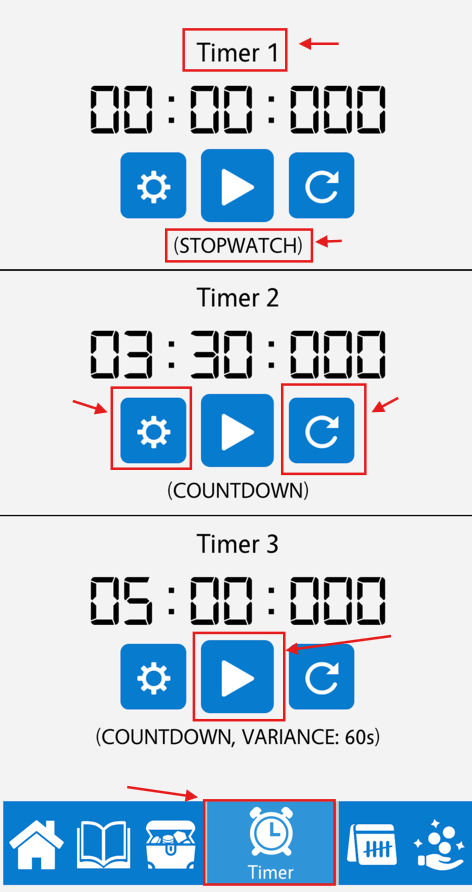
By selecting the gear icon, the Timer Settings will open. From here, you will have the option to rename the timer by selecting "Timer Name (tap to change):". After making any configuration changes, the "OK" button will require selecting. If the "Cancel" button is selected, all configuration changes will be reverted.
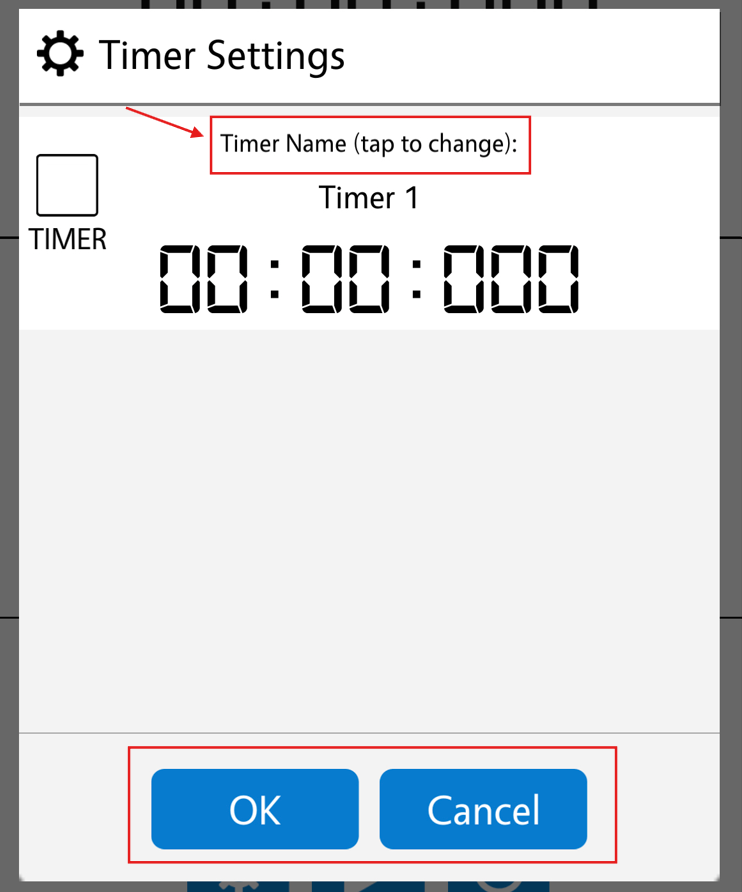
Stopwatch
To configure the timer as a Stopwatch, leave the "TIMER" checkbox unselected within the Timer Settings popup.
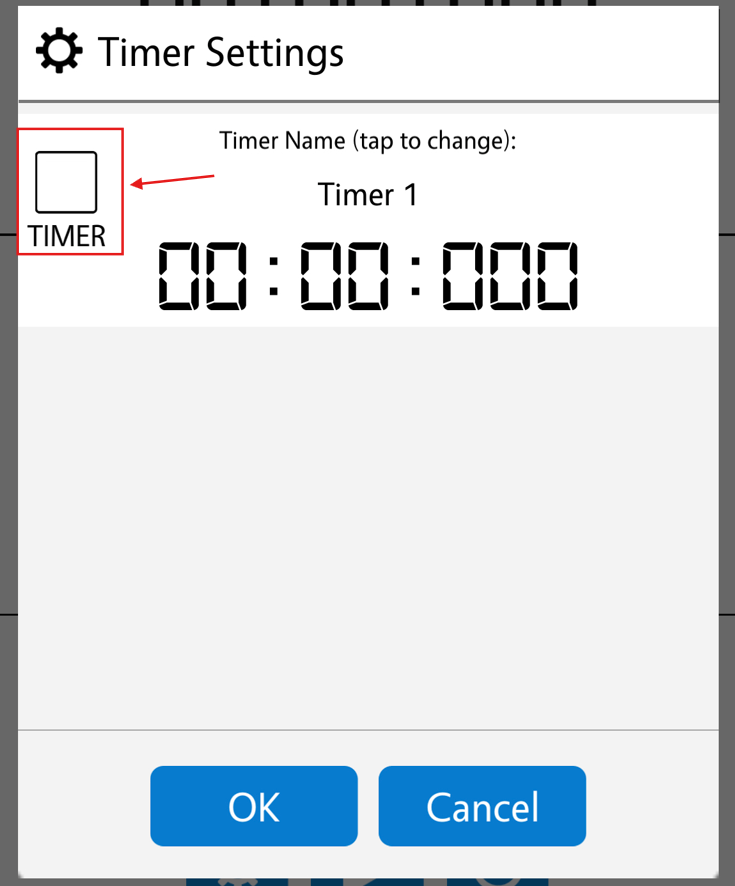
Countdown
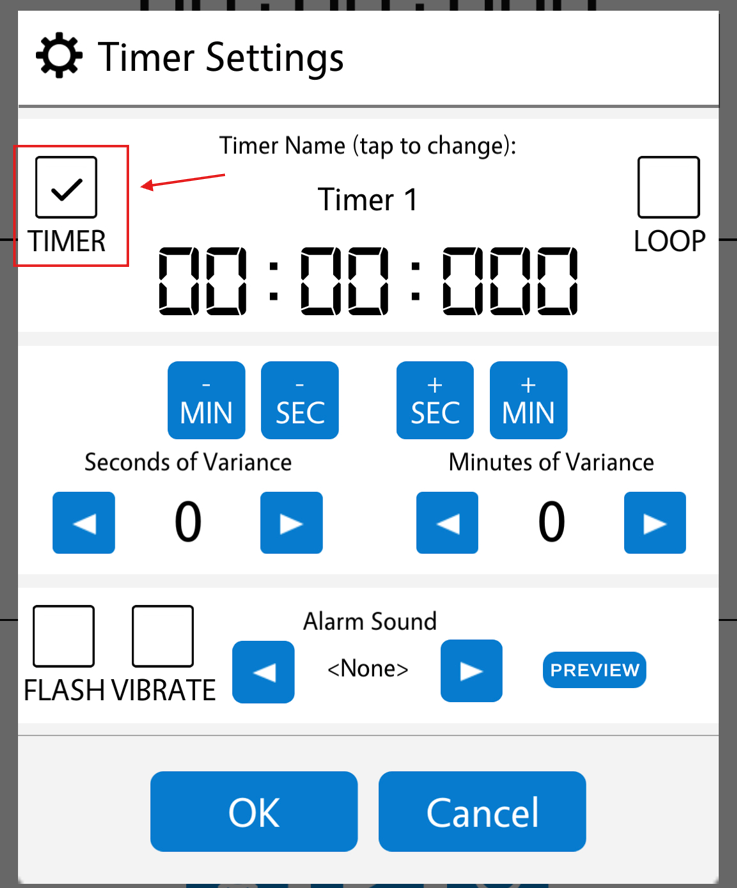
To configure the timer as a Countdown, start by selecting the "TIMER" checkbox within the Timer Settings popup. Once the checkbox is selected, additional configurations will become available.
- By selecting the "LOOP" checkbox, the countdown will restart automatically once completed.
- The - MIN and - SEC buttons will decrease the countdown minutes and seconds.
- The + MIN and + SEC buttons will increase the countdown minutes and seconds.
- The Seconds and Minutes of Variance left and right arrows will vary the duration of the timer by the min/sec indicated.
- Having the "FLASH" checkbox selected will cause the timer icon to pulse green once the countdown has been met.
- Having the "VIBRATE" checkbox selected will cause the device to vibrate once the countdown has been met. Note that some devices may not have a vibrate feature.
- The Alarm Sound left and right arrows will allow the user to select a sounded alarm once the countdown has been met. A preview of the alarm can be listened to by selecting the PREVIEW button to the right.
For any additional questions or concerns, please reach out to support@measurepm.com