Overview
MeasurePM’s new AI SOAP Notes feature allows users to evaluate submitted notes against a ruleset defined by the organization. Providers will receive real-time feedback on the quality of their note, giving them the opportunity to make modifications as needed. Utilizing the feature will yield notes that align with your organizational standards and payer requirements, in addition to reducing time spent by BCBAs manually auditing notes.
SOAP Note Group Page Permission settings
To enable access to the users within a Group, navigate to the Admin section, locate the relevant admin group and click on the Access Key.
A dialog box will open with the page permissions. Click on the Description Filter icon and type SOAP to filter for permissions relevant to this feature.
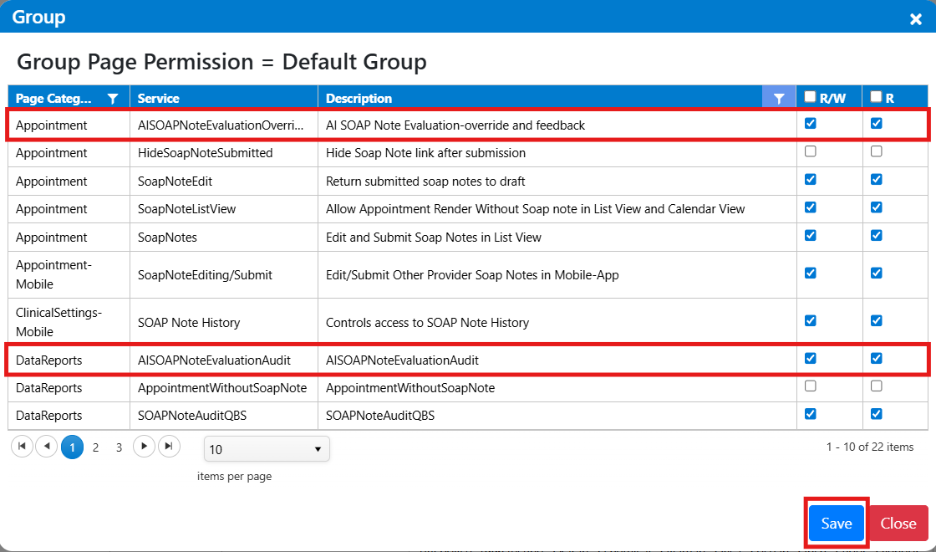
Select the service AISOAPNoteEvaluationOverride and check the boxes R/W(Read/Write) & R(Read). Click Save. This will allow the user to manually override the score provided by the AI Assist and provide feedback that will be used to further train the model.
Similarly, select the service AISOAPNoteEvaluationAudit and check the boxes R/W(Read/Write) & R(Read) active to enable the corresponding report.
Mapping AI Rules to the SOAP Note Properties
A user can configure, at the service-type level, which AI rules from the Rule Library apply to their SOAP note TextArea/TextBox properties. Users can pick and choose rules per property, and the same rule can be applied to multiple properties within a single note if appropriate.
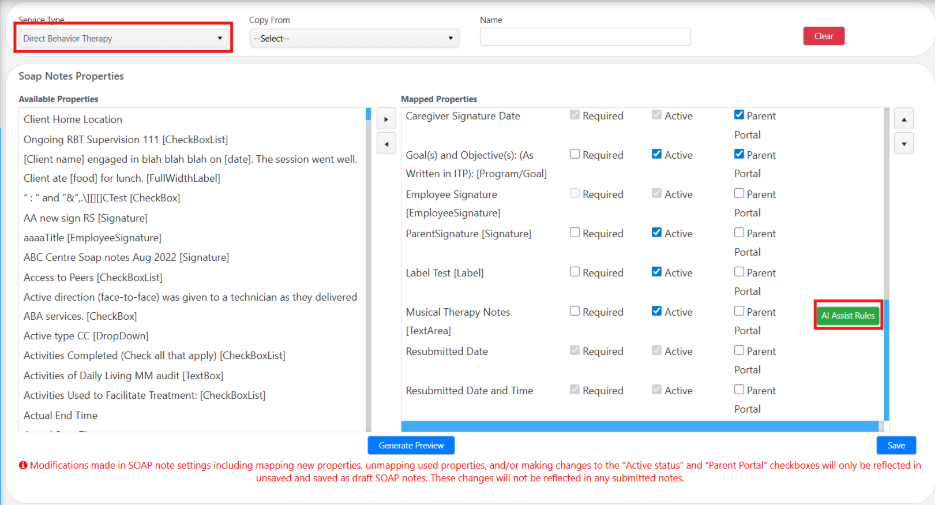
Navigate to Site Settings > SOAP Notes > SOAP Notes Settings to access the AI Assist rules. Select the appropriate service type, for e.g. Direct Behavior Therapy as highlighted below. In the Mapped Properties section, you’ll find a button labeled “AI Assist Rules”. Click the button to map the rules.
The button is visible only when:
- The site has AI SOAP Note Evaluator enabled
- The property type is Text Area or Text Box
To enable AI SOAP Note Evaluator, please reach out to us by submitting a ticket to support@measurepm.com
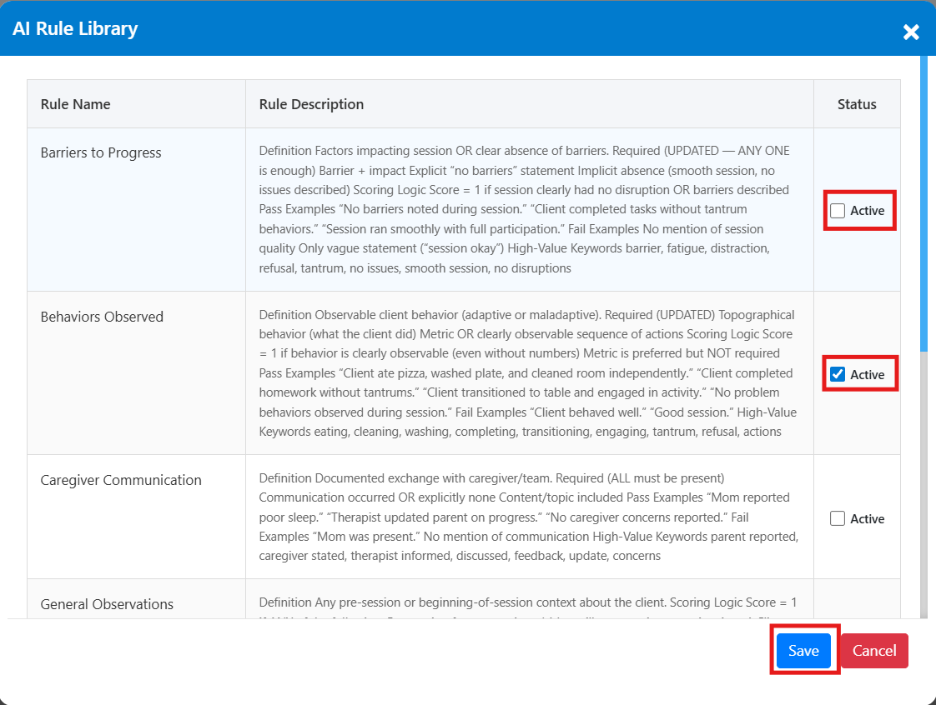
The AI Rule Library pop-up will appear. Locate the appropriate rules for your SOAP note and mark it active or inactive based on your needs. Click the save button when you have made your selections.
Using the AI Assisting feature:
To perform an evaluation, the SOAP note must be in the submitted status. There are three ways to evaluate a note once it has been submitted.
1. Appointments > List View:
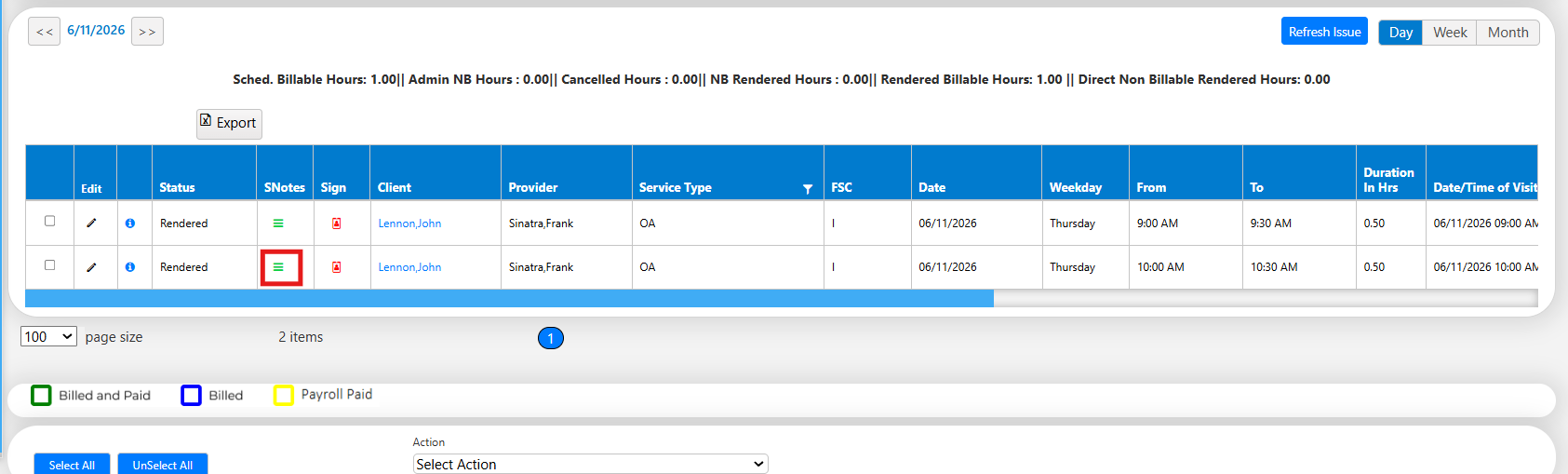
Navigate to the Appointments section and click on List view. Select the relevant filter criteria to return a list of appointments and their notes.
From the filtered results, click on the hamburger icon in the SNotes column. As a reminder, a green icon indicates a submitted note. A red icon will indicate the note has not yet been submitted.
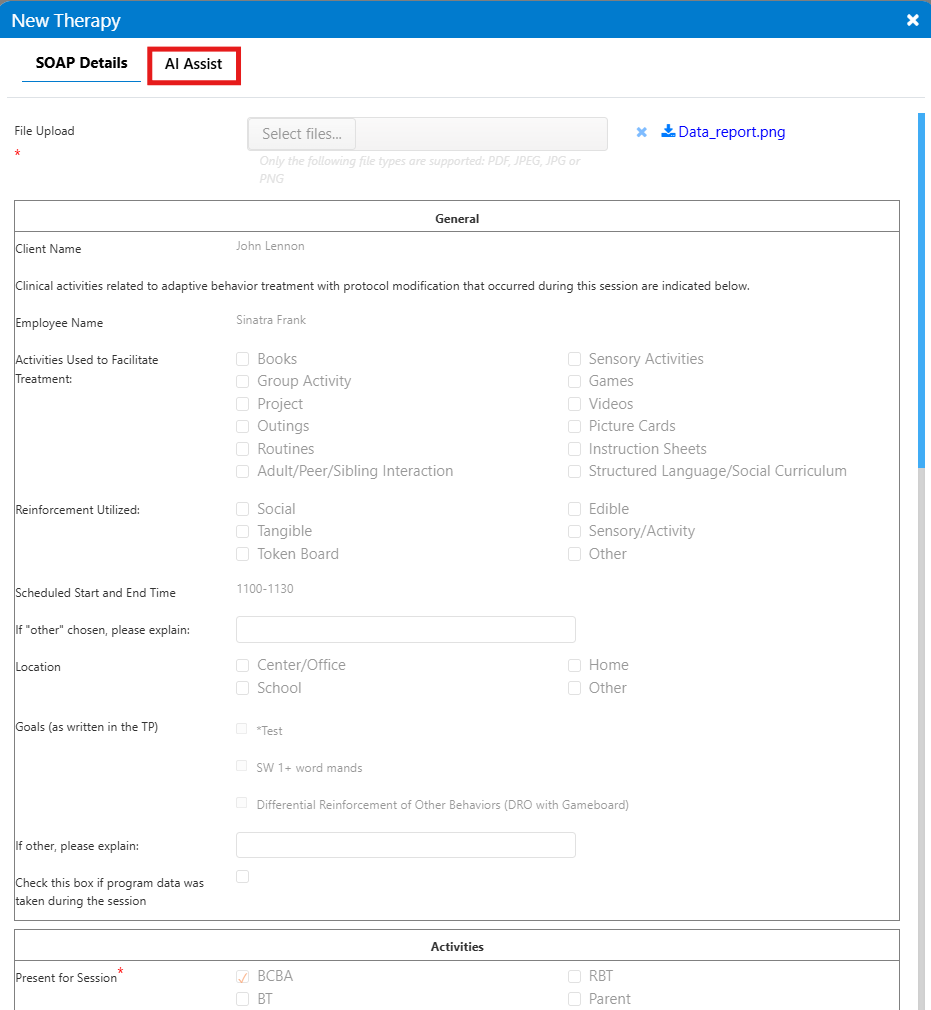
Upon opening the SOAP Note, there will be a new tab labeled “AI Assist”.
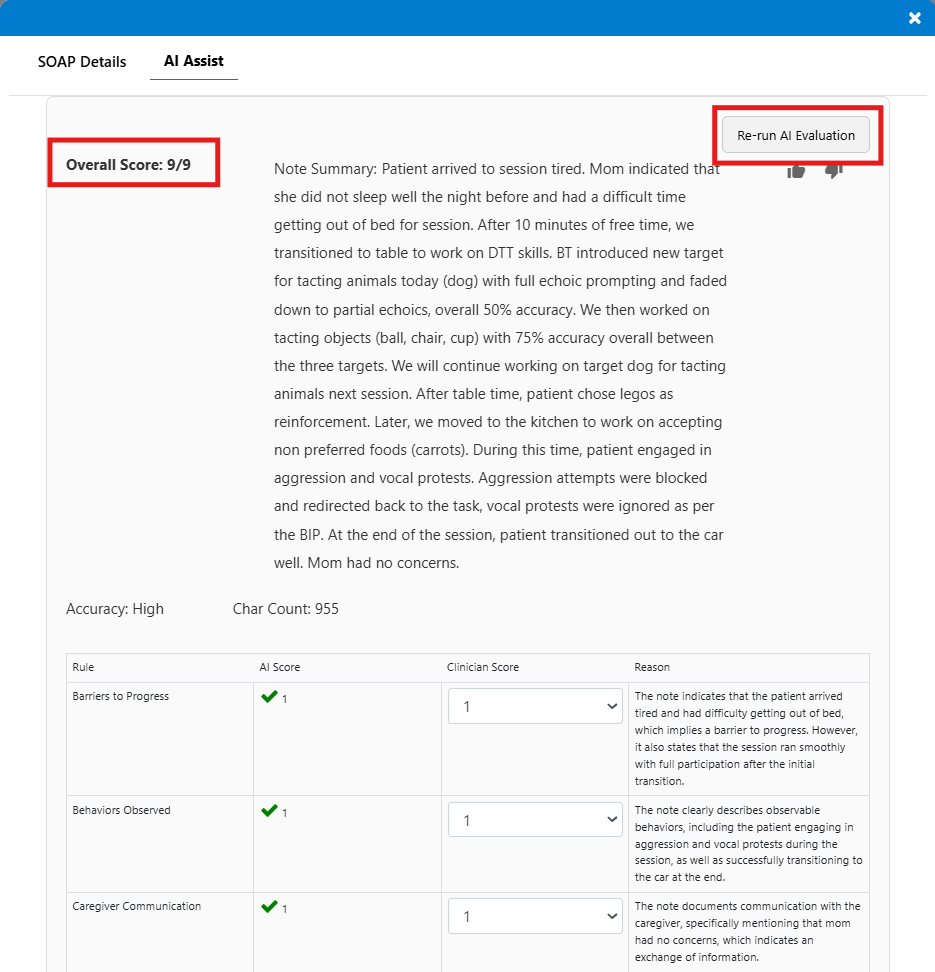
Click on the Run AI Evaluation button as highlighted below. Once you click the button, you will see that the AI Evaluation is in progress and you will be notified once the AI Evaluation is ready.

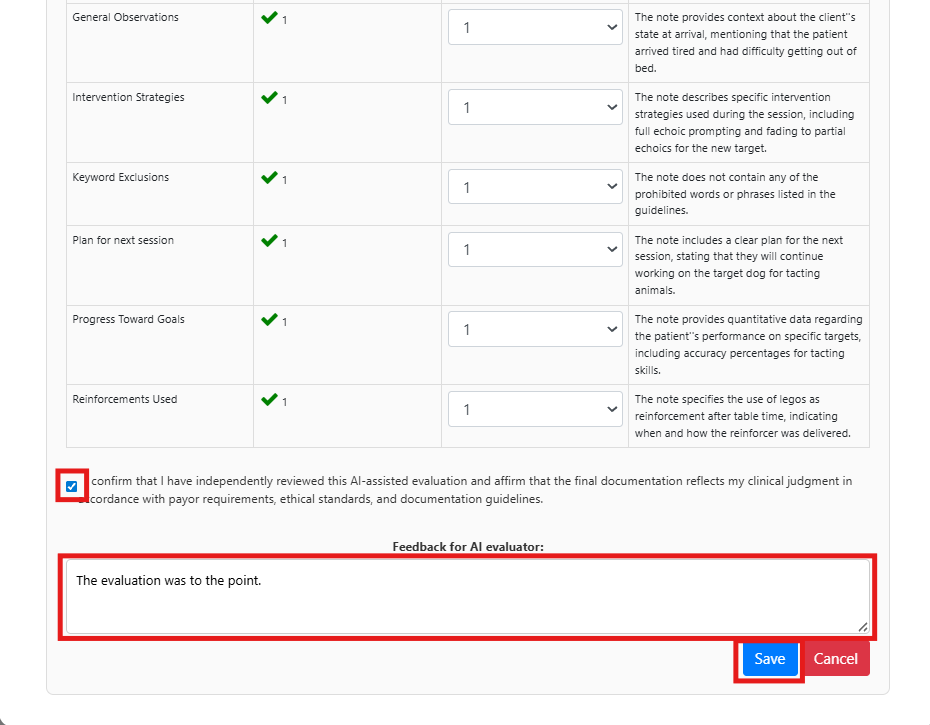
An overall score will be generated according to the number of rules you have selected per property for the selected service type. Depending upon your permissions, you may override the score if appropriate using the Clinician Score column. Should the clinician disagree with any of the scores the evaluator provides, we highly recommend marking the attestation check box and providing a brief explanation as to why in the feedback box. This feedback will be used to help train the model further for further evaluations.
To give quick overall feedback, you can also click the thumbs up or down button.
2. My Appointments > List Appointments:
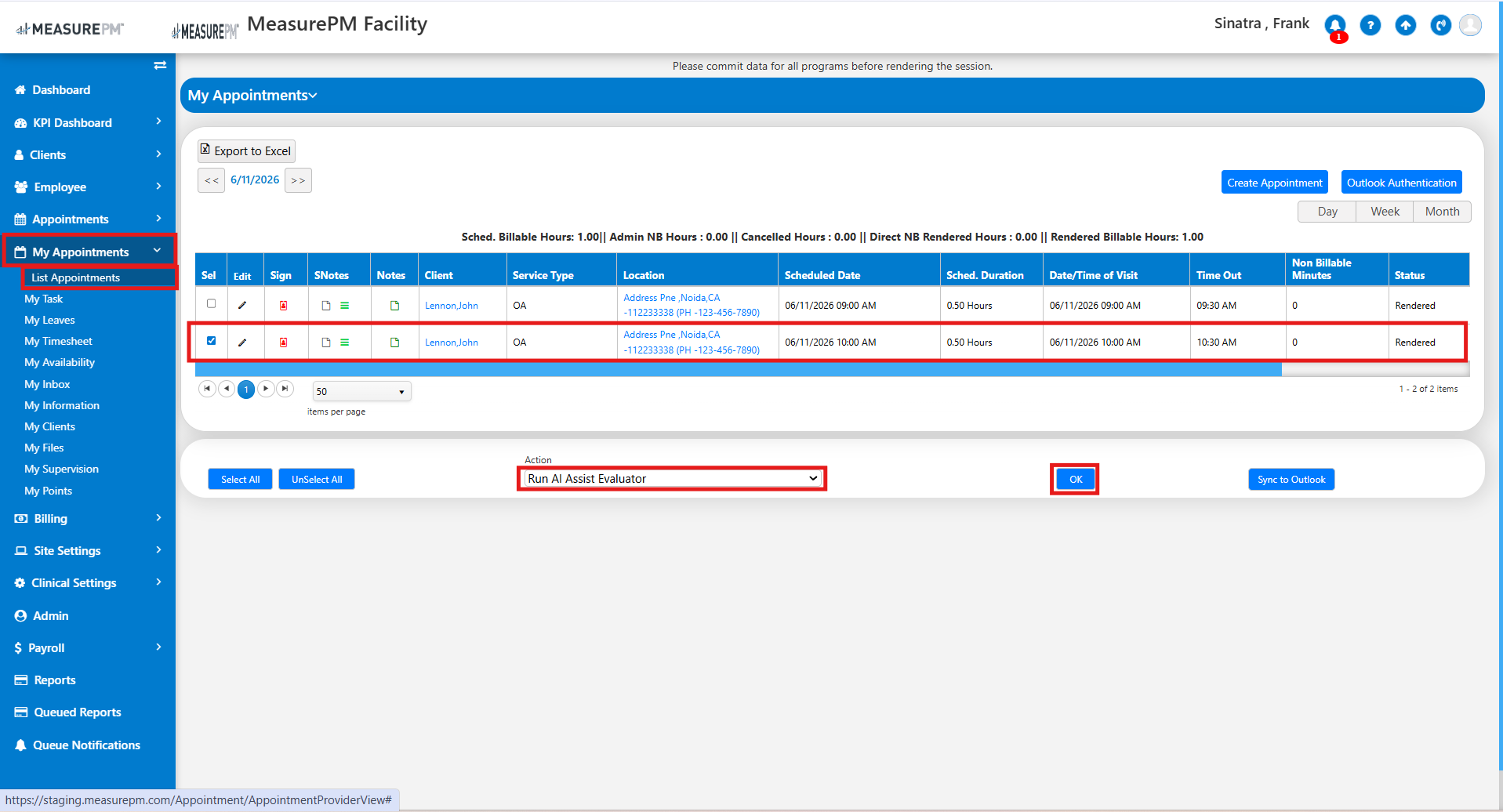
The other way to access the AI Assist Feature is to Navigate to My Appointments > List Appointments.
Select the appointment of interest by clicking on the check box. Select Run AI Assist Evaluator in the action dropdown as highlighted and click on the Ok button. The AI Evaluation will now be ready for the selected SOAP note.
Alternatively, you can click the hamburger icon and navigate to the “AI Assist” tab and follow the same steps described for List View. Of note, the clinician score override and feedback box are not exposed on this page. These fields are only accessible to supervisors with List View access assuming the corresponding permission is enabled.
3. Mobile App:
The third way to access the AI Evaluation is via the mobile app. The Supervisor override and feedback field are not visible on the mobile app, similar to List Appointments.
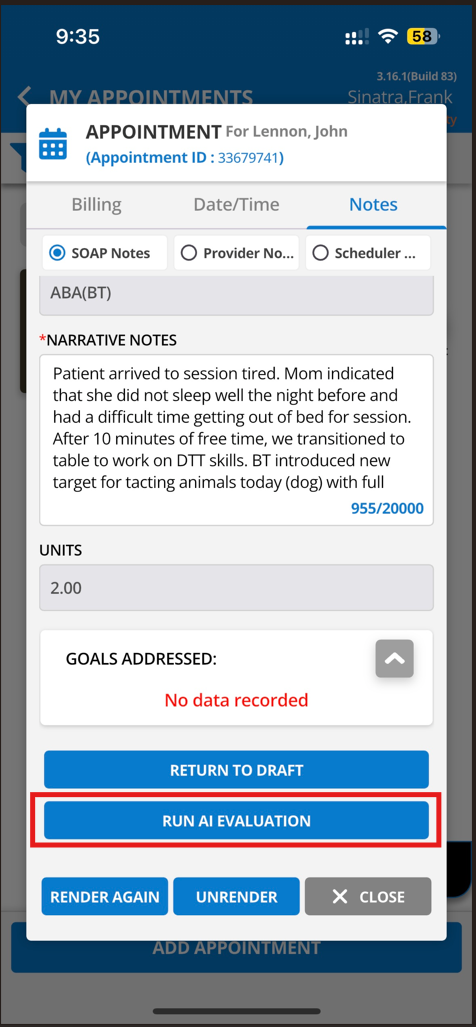
Navigate to the Submitted SOAP note and verify that the Run AI Evaluation button is visible. Click the Run AI Evaluation button.
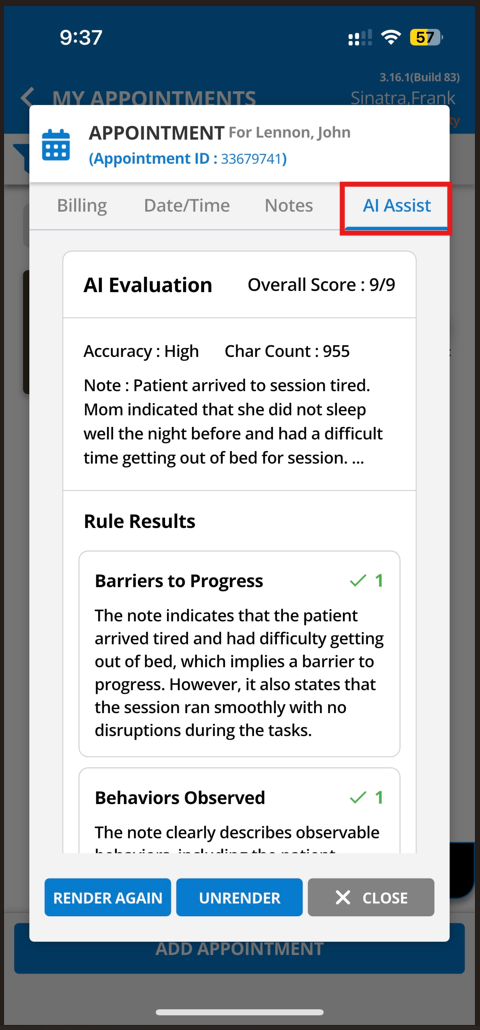
Observe that the AI Assist tab is now visible at the top section. Verify the AI evaluation.
Accessing AI Evaluation Data Reports:
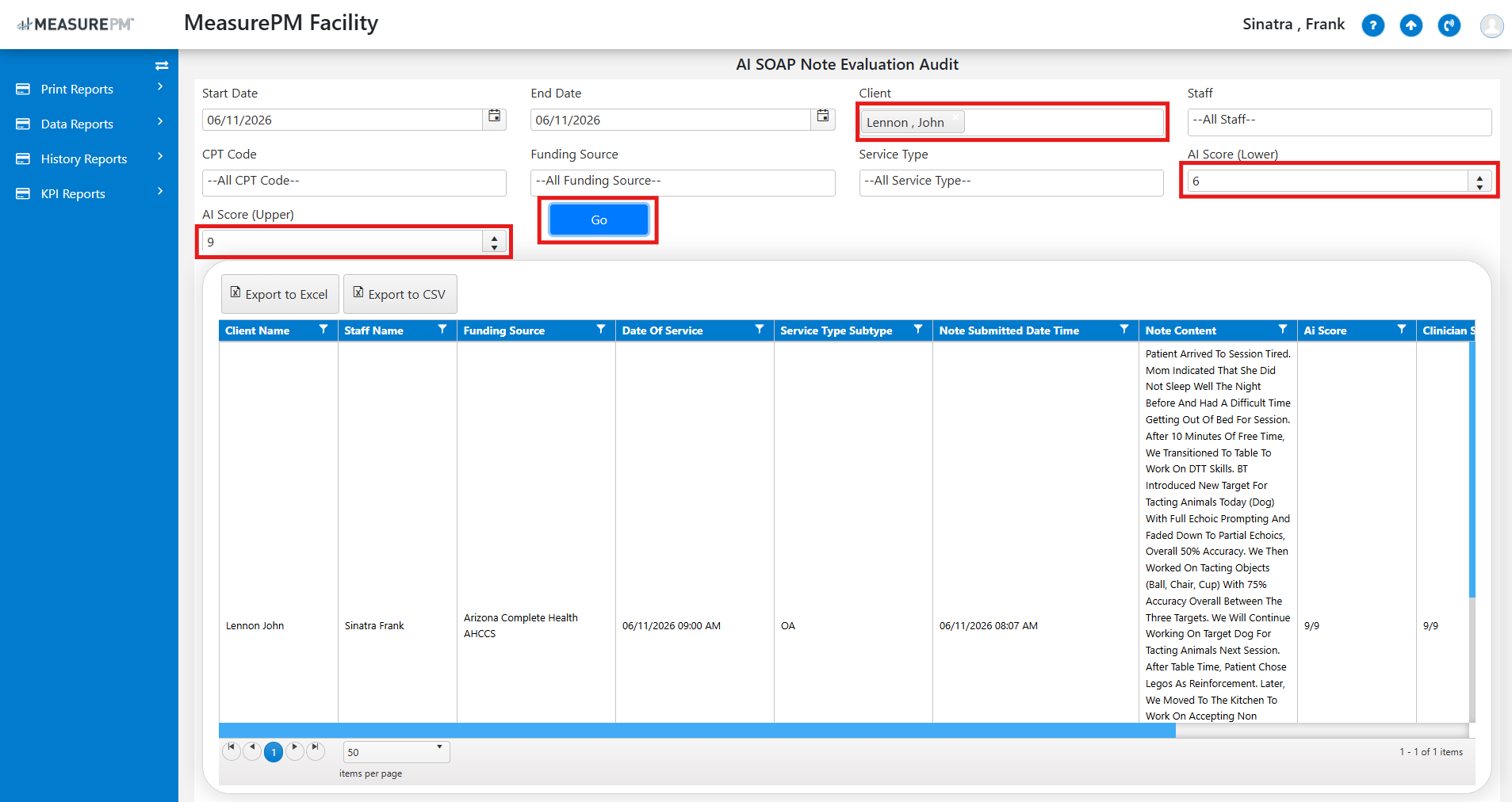
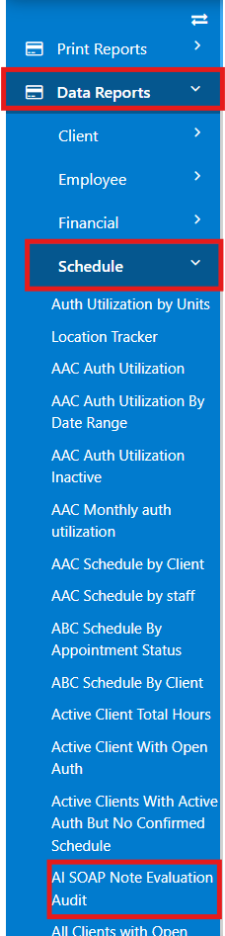
To access the AI Evaluation Report, navigate to Data Reports > Schedule > AI SOAP Note Evaluation Audit as highlighted below.
Select the Client and any other filter criteria as appropriate. You can also set the AI Score (Lower and Upper limit) range to further narrow down the results and identify notes that require attention.