
MeasurePM allows authorized users to add existing Programs and Behaviors from the Library or create new Programs and Behaviors directly within a Client Clinical Profile.
Programs and Behaviors created directly from the Client Clinical Profile can remain specific to that client or, when appropriate, be added to the site’s Program or Behavior Library for use with other clients.
TABLE OF CONTENTS
- Accessing the Client Clinical Profile
- Programs
- Behaviors
- Important Notes
Accessing the Client Clinical Profile
1. Go to Clinical Settings.
2. Select Client Clinical Profiles.
3. Locate the client.
4. Select the Edit/Pencil icon for the appropriate Client Clinical Profile.

Note: A client may have more than one Client Clinical Profile. Confirm that you are working within the correct profile before adding a Program or Behavior.
Adding a Program from the Library
Use “Add from Library” when the Program already exists in the site’s Program Library.
1. Select “Add Program”.

2. Select “Add from Library”.

3. Search for or locate the Program.
4. Select the Program by clicking on the button.
5. Select  .
.
6. The Program is added to the selected Client Clinical Profile.
Creating a Program Directly for a Client
Use Create Program when you need to create a Program specifically for the client without first creating it in the Program Library.
1. Select “Add Program”.

2. Select “Create Program”.

3. Enter the Program name.
4. Complete the required Program information.
5. Select “Save”.
6. The Program is added directly to the client’s Clinical Profile.
Adding a Program to the Program Library from Client Clinical Profile
If the Program may be useful for other clients, authorized users can add it to the site’s Program Library.
When Creating the Program
1. Select “Add Program” → “Create Program”.
2. Complete the Program information.
3. Select “Also add this program to the Program Library at the bottom of the page”.

4. Select “Save”.
The Program will be added to both:
- The current Client Clinical Profile.
- The Program Library.
Add Programs to the Library Later
A client-specific Program can also be added to the Program Library after it has been created.
1. Open the Program from the Client Clinical Profile.
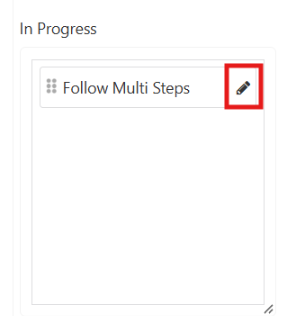
2. Select “Add to Library”.

3. Review the Program information.
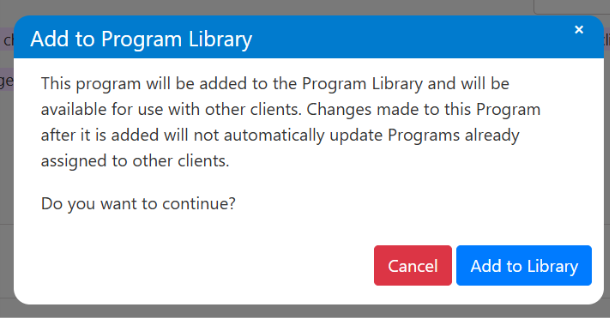
4. Confirm the action by Clicking “Add to Library”
5. The Program remains on the client’s profile and becomes available in the Program Library.
Adding a Behavior from the Library
Use “Add from Library” when the Behaviors already exists in the site’s Behavior Library.
1. Select “Add Behavior”.

2. Select “Add from Library”.

3. Locate the Behavior.
4. Select the Behavior by clicking on the  button.
5. Select 
6. The Behavior is added to the selected Client Clinical Profile.
Creating a Behavior Directly for a Client
1. Select “Add Behavior”.

2. Select “Create Behavior”.

3. Enter the Behavior name.
4. Complete the required Behavior information.
5. Select “Save”.
6. The Behavior is added directly to the selected Client Clinical Profile.
Adding a Behavior to the Behavior Library from Client Clinical Profile
When Creating the Behavior
1. Select “Create Behavior”.
2. Complete the Behavior information.
3. Select the checkbox at the bottom of the page.

4. Select “Save”.
The Behavior will be added to both:
- The current Client Clinical Profile.
- The Behavior Library.
Add Behaviors to the Library Later
A client-specific Behavior can also be added to the Program Library after it has been created.
1. Open the Program from the Client Clinical Profile.
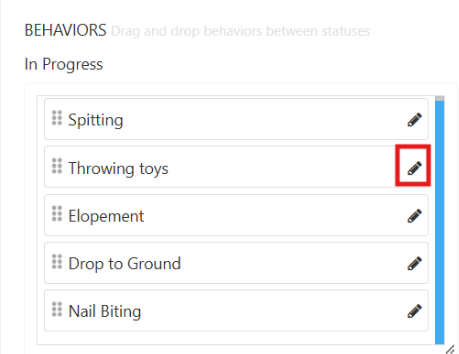
2. Select “Add to Library”.

3. Review the Program information.
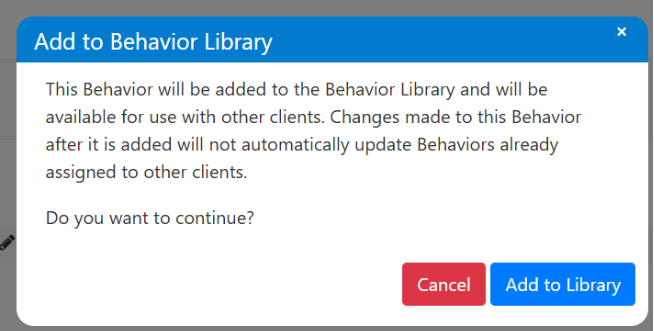
4. Confirm the action by Clicking “Add to Library”
5. The Program remains on the client’s profile and becomes available in the Program Library.
Permissions
The options available depend on the permissions assigned to the user’s employee profile.
Relevant permissions may include the ability to:
- Create Programs within the Client Clinical Profile.

- Create Behaviors within the Client Clinical Profile.

- Add client-level Programs to the Program Library.

- Add client-level Behaviors to the Behavior Library.

Existing Program and Behavior configuration permissions still apply.
For example, permission to create a Program does not automatically provide permission to edit every Program configuration, such as measurement type, targets, prompting, or success criteria.
If an option described in this guide is not visible, verify the permissions assigned to your employee profile.
Important Notes
- Programs and Behaviors do not need to be created in the library before they can be added to a client.
- A Program or Behavior created directly for a client remains client-specific unless it is added to the appropriate Library.
- Adding an item to the Library later does not remove it from the original Client Clinical Profile.
- Programs and Behaviors created for the client appear with other Programs and Behaviors within the Client Clinical Profile. There is no separate client-specific Library.
- If an item with the same name already exists in the shared Library, MeasurePM will not create another duplicate Library item.
- Client-level creation and Add-to-Library actions are completed on the Web-App.
For any additional questions or concerns, please reach out to support@measurepm.com