
You can edit Program and Behavior names directly within a Client Clinical Profile. This allows you to customize the name for an individual client without changing the original Program or Behavior name in the Library.
The ability to edit names is permission-based and is available on both the Web and Mobile.
TABLE OF CONTENTS
Editing Program/Behavior Names on Web
You can edit the name of a Program/Behavior that has already been added to a Client Clinical Profile.
The Program/Behavior may have been added from the Program/Behavior Library or created directly within the Client Clinical Profile.
1. Open the appropriate Client Clinical Profile.
2. Navigate to the Programs/Behavior section.
3. Locate the Program/Behavior you want to rename.
4. Go into the program/behavior configuration by clicking the  icon.
icon.
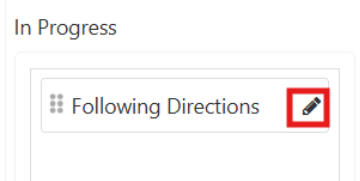
5. Once in the Program/Behavior page, click the  icon next to the Program/Behavior name.
6. Enter the new Program/Behavior name.

7. Click  to Save.


8. Click  to exit without saving your changes.
Note: Editing the Program/Behavior name changes the name for this Client Clinical Profile only. It does not change the original Program/Behavior Library name.
Editing Program/Behavior Names on the Mobile-App
Program and Behavior names can also be edited from the Mobile-App when the appropriate Mobile permission is enabled.
1. Open the appropriate client in the Mobile-App.
2. Navigate to the client’s Programs.
3. Locate the Program you want to rename and navigate to the Program info page
4. Select the lock icon to edit the Program name.
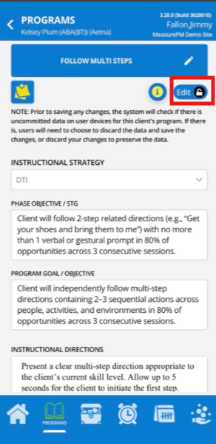
5. Click the  icon next to the Program/Behavior name.
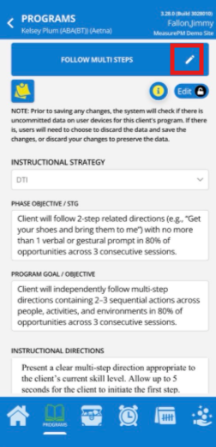
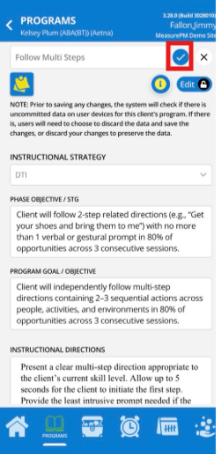
6. Enter the new name.
7. Save your changes.
Note: Web and Mobile name-editing permissions are managed separately. A user may have permission to edit names on one platform but not the other.
Permissions
The ability to edit Program and Behavior names depends on the permissions assigned to the user’s employee profile.
- Edit Program names within the Client Clinical Profile on Web

- Edit Program names within the Client Clinical Profile on Mobile

- Edit Behavior names within the Client Clinical Profile on Web

- Edit Behavior names within the Client Clinical Profile on Mobile

If the option to edit a name is not available, confirm that the applicable permission is enabled for the user’s employee profile.
What Happens When a Name Is Changed?
Editing a Program or Behavior name does not create a new Program or Behavior.
For example:
Program Library Name: Functional Communication Training
Client Clinical Profile Name: Requesting Help or a Break
The client will see Requesting Help or a Break, while the original Program Library entry remains Functional Communication Training.
The name change:
- Applies only to the selected Client Clinical Profile.
- Does not change the Program or Behavior Library name.
- Does not affect other clients using the same Library item.
- Does not remove previously collected data.
- Does not create a new Program or Behavior.
- Keeps existing data and graphs associated with the same Program or Behavior.
- Displays the updated client-specific name across the applicable Web and Mobile views.
Duplicate Names
- Two Programs/Behaviors within the same Client Clinical Profile cannot have the same name.
- If the name you enter is already being used within that Client Clinical Profile, enter a different name before saving.
For any additional questions or concerns, please reach out to support@measurepm.com