
Overview
The Location Tracker report allows organizations to review a provider's recorded location at the time an appointment is rendered and compare it with the scheduled appointment location. This can help administrators identify location discrepancies and support internal monitoring and verification workflows.
To capture location data, the required site configuration must be enabled, and providers must allow location access while using the MeasurePM mobile app.
Important: Location tracking records the provider's location when rendering an appointment. It does not continuously track the provider throughout the session.
Step 1: Enable GPS Coordinates
Select Site Setting >Site Details & Rules >Site Configuration.
In the Code column, click the filter icon and search for
GEIA.Enable the checkbox for this feature and select "Save"

Step 2: Enable Location Tracking for the Applicable Zone
Navigate to Site Setting > Site Details & Rules > Site Configuration.
Select the Zones tab.
Locate the applicable zone and click the pencil icon under the Edit column.
Enable the IsLatLongEnable checkbox.
Save your changes.
Repeat these steps for any other applicable zones that require location tracking.

Step 3: Enable Location Services on the Provider's Mobile Device
Providers must allow location access while using the MPM mobile app so their location can be captured when rendering appointments.
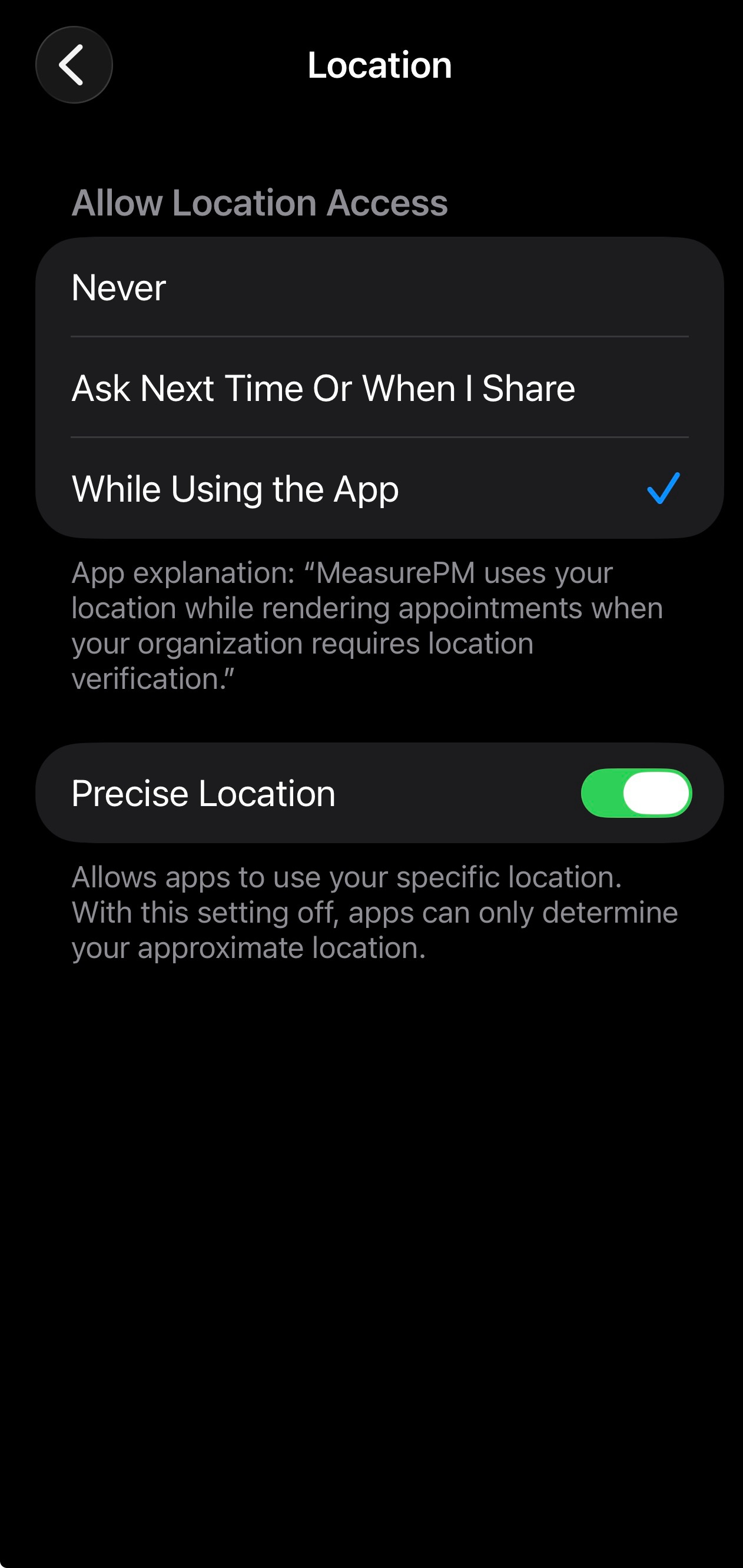
iPhone (iOS)
Open Settings on the iPhone.
Select Apps.
Find and select MPM (MeasurePM).
Tap Location.
Select While Using the App.
Enable Precise Location, if available.
If Location is not listed under MPM, navigate to Settings > Privacy & Security > Location Services, ensure Location Services is enabled, and check the MPM app settings.
Android
Open Settings on the phone.
Tap Apps.
Find and select MPM (MeasurePM).
Tap Permissions.
Select Location.
Choose Allow only while using the app.
Enable Use precise location, if available.
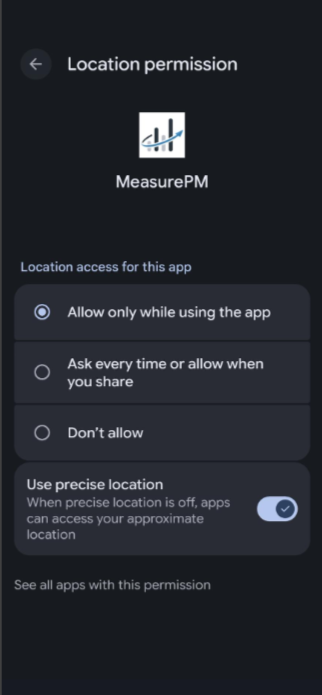
The exact wording may vary depending on the Android device and operating system version.
After updating these settings, close and reopen the MPM mobile app before attempting to render an appointment.
Step 4: Access the Location Tracker Report
Log in to the MeasurePM web application.
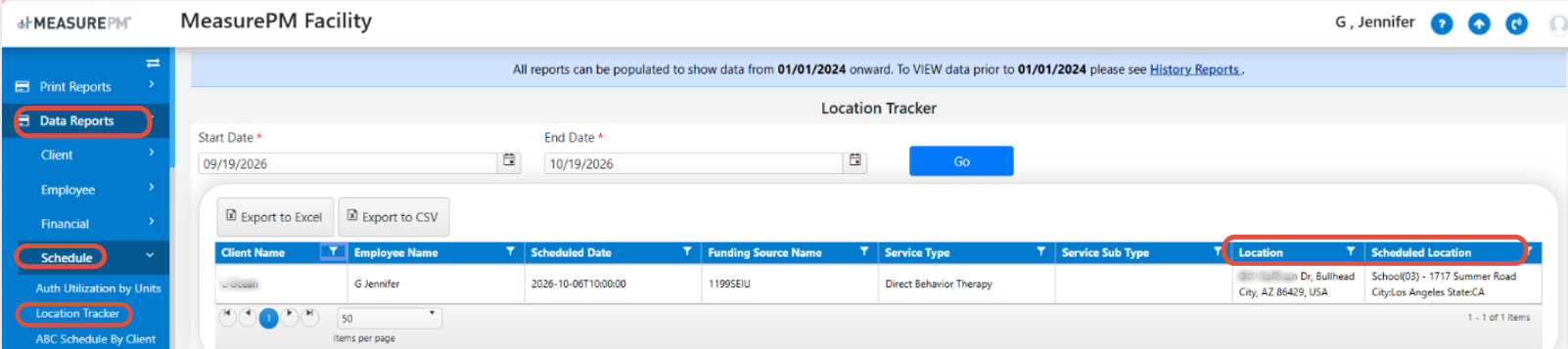
Navigate to Reports > Data Reports > Schedule > Location Tracker.
Review the location information for the relevant appointments.
Understanding the Report
The report includes the following columns:
Scheduled Location: Displays the location assigned to the appointment.
Location: Displays the provider's recorded actual location when it differs from the scheduled location.
Use these fields to compare the scheduled appointment location with the provider's recorded location at the time of rendering.
For any additional questions or concerns, please reach out to support@measurepm.com