
Overview
MeasurePM’s Success Criteria feature allows you to configure and monitor specific success criteria in your program data. When success criteria is met you have the option of being notified, and then subsequently making manual changes to your targets/prompts to move the program along, or you can set the criteria in such a fashion that progression of targets/prompts will occur automatically. For details on manual progression, please see this guide, and for details on automated progression, please see the details below.
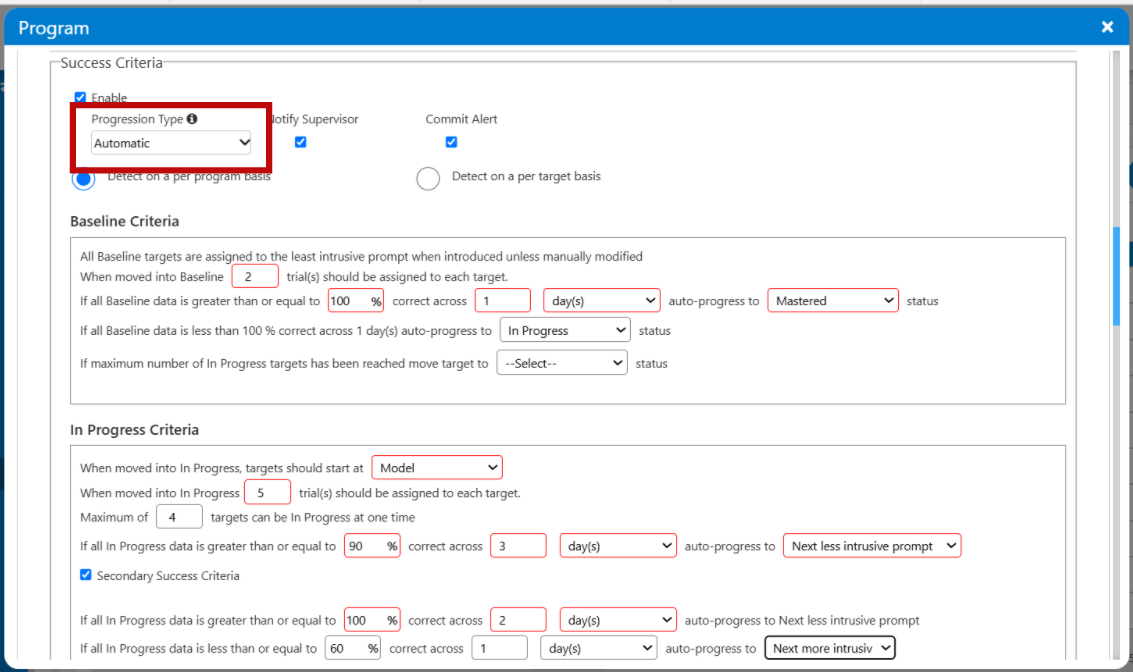
Configuring Automated Success Criteria
Automated success criteria can be be configured at the Program Library and Client Profile levels as long as the relevant site configuration is turned on.
Site Flag
Though auto-progression is a helpful tool, it is an optional feature. If, as an organization, you would prefer auto-progression to not be available for use, you can turn off the capabilities via the site configuration flag. To do so, navigate to Site Settings > Site Details & Rules > Site Configurations > disable the flag "AUTO" as highlighted in the image below.
Note that if the flag is turned off, only manual progression will be available for use in the Program Library and Clinical Profiles.
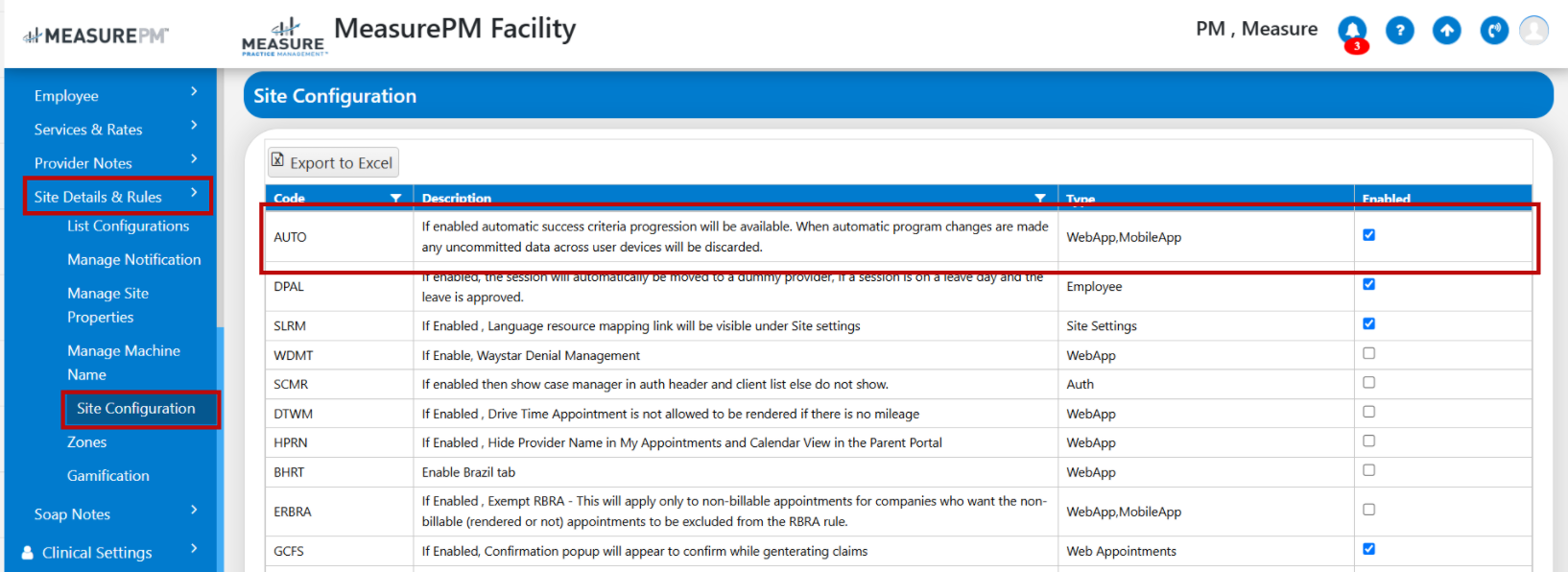
If the flag "AUTO" is enabled, automated success criteria can be be configured at the Program Library and Client Profile levels. Any configuration made at the Library level will remain when mapping the program to Client Profiles, however, no changes will be made to Client Profiles which already have the program mapped. To make changes after mapping, please make edits in the Client Profile.
Configurations- Program Library and Web Clinical Profile
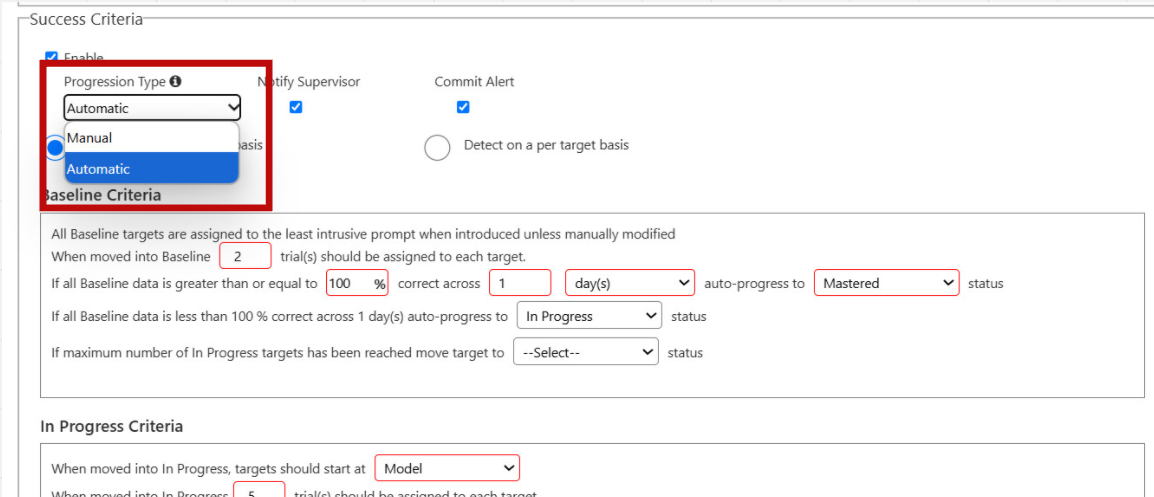
Navigate to the program library by selecting Clinical Settings > Program Library from the left hand navigation menu. From there choose either a Site Program or a VB-MAPP program to edit or add a new program. Alternatively, you can modify program configurations at the client level. Once within a client profile, select the pencil icon beside one of the mapped programs to edit. Once within the configuration page for the program in the library or profile, scroll down to the success criteria section. By default, manual will be chosen as the progression type, however you can modify the progression type simply by selecting the drop down menu and choosing Automatic. As soon as Automatic is chosen, the Success Criteria section will update and display new configuration choices. Most notably, there will be one section to configure criteria for each active target status.
Settings
Info icon: Directly beside the Progression Type header there is a small info icon. If chosen a pop up with explanation of the different progression types will show.

Notify supervisor checkbox: If chosen, all users indicated as supervisors on the client clinical profile will be notified of when success criteria is met. If automatic progression is chosen, this notification will also indicate which actions occurred as a result of the progression.
Commit alert checkbox: If chosen, the user running the appointment on the Mobile-App will be notified of success criteria detection after committing the data.
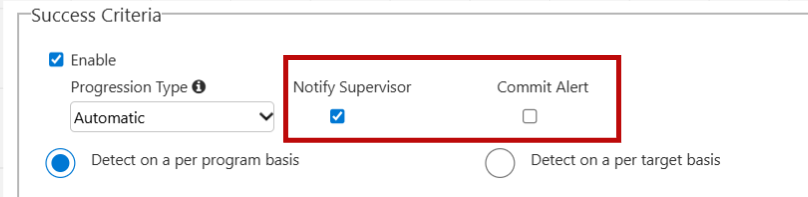
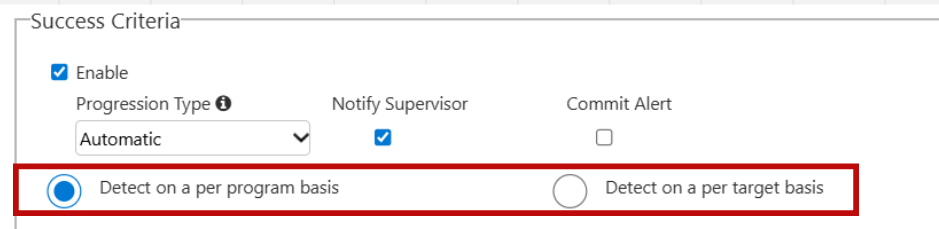
Detect per program button: With automatic progression, detection on a per program basis really means detection on a per status basis. All committed data of the same status will be evaluated together, and progress together as a result. For example, the prompt level for all In Progress targets would not be faded until the In Progress data committed met the outlined status.
Detect per target button: With automatic progression, detection on a per target basis indicated that committed data will be evaluated on an individual target basis. For example, if one In Progress target met criteria and one did not, the prompt would only be faded for the target the met criteria and no auto-progression would occur for the target that did not.
Note that on web and mobile-app graphs, the data point in which success criteria was detected will be highlighted in green. When per program is detection occurs, the data point will be highlighted when criteria for any status is met. When per target detection occurs, the data point for that target only will be highlighted green. To see this, you must filter by the individual target.
Criteria Per Status
Library vs Profile Example
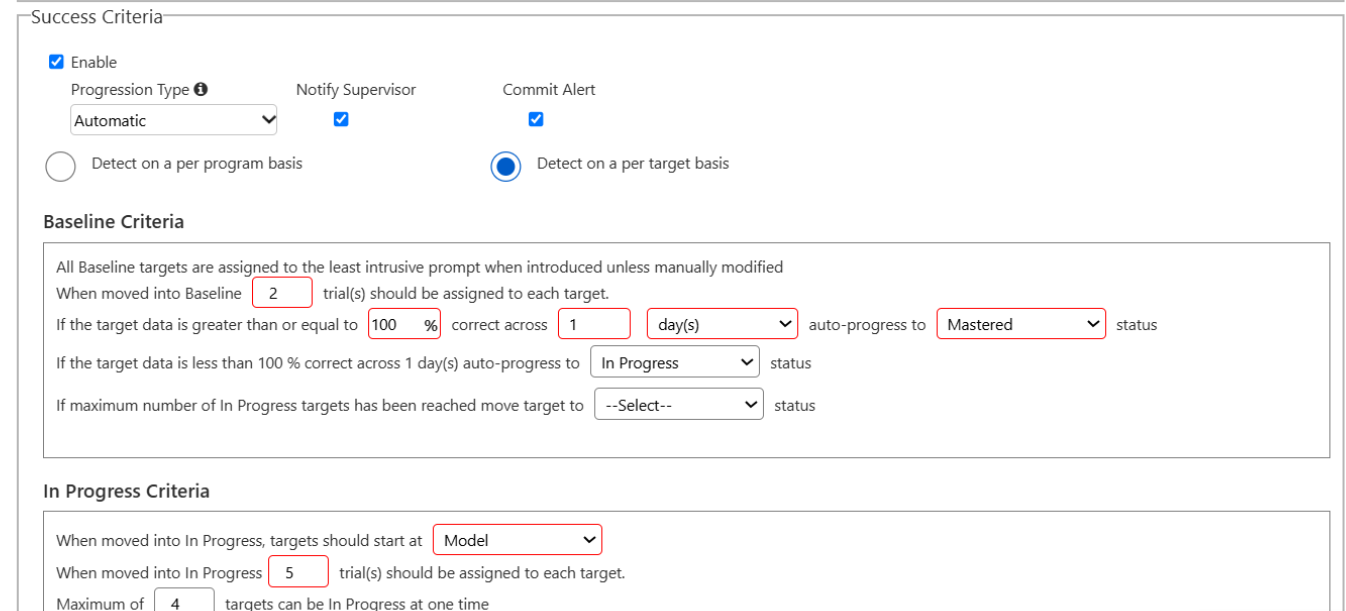
The process of editing the criteria under each individual status varies across library and profile. In the library, all statuses are shown to you at once and you can edit at your leisure. Where as in the profile, there are summary statements displayed until editing is unlocked. If you do not have permission to edit, you will only ever be eligible to see the summary statements.
Library example:
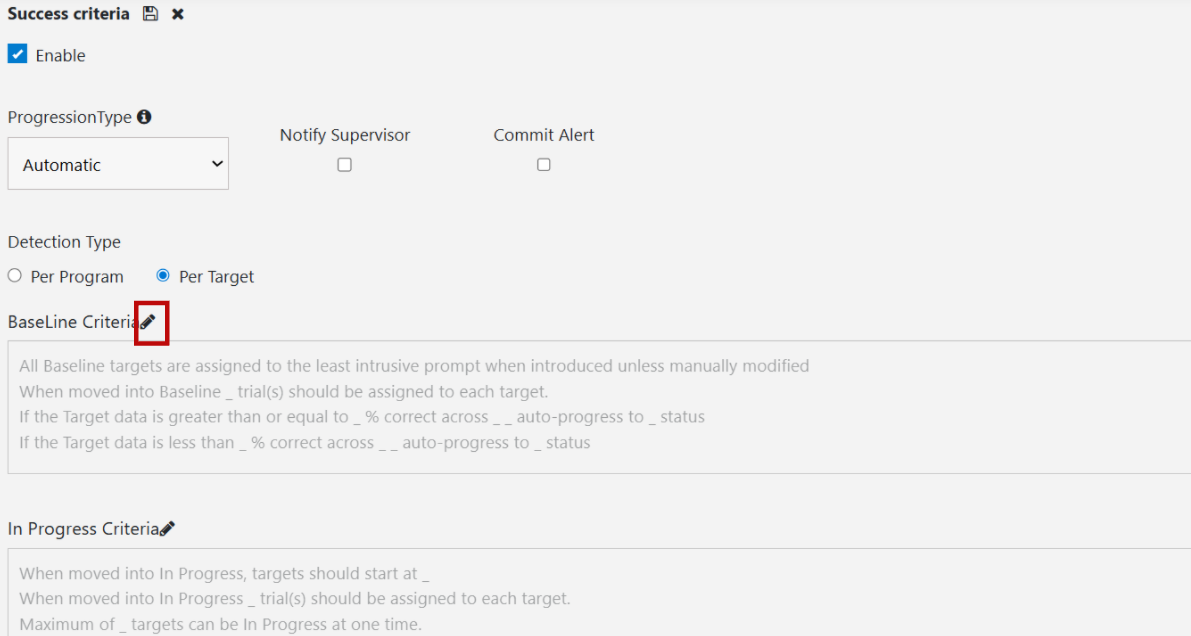
Profile example: In the below example, you can see only summary statements are displayed. I.e., an in-editable view only statement which describes the criteria in a brief format. If you see blanks in the summary statement, as you do in the image below, it is indicating the areas in which criteria has not yet been filled in. Note that the pencil icon needs to be selected beside the status headed for editing of the criteria to become unlocked. If you do not see the pencil icon, it is indicating you do not have permission to edit.
Once editing is unlocked, you can make configuration edits, the same as you would in the library. Once edits are complete, select the floppy disc icon to save or the x to discard. Alternative to selecting the floppy disk/x icon beside each status, you can select beside the Success Criteria header, and that action will save or discard all changes at once.
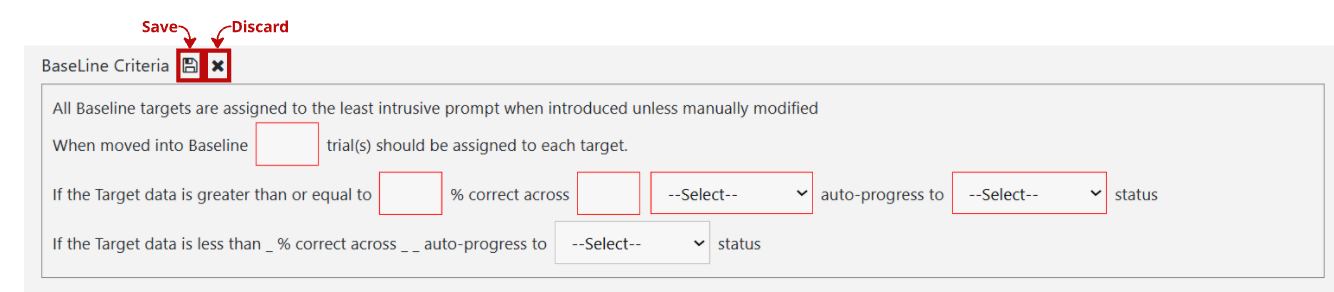
Within each status on the profile or library you will see several statements with fillable fields. Any field that is outlined in red is indicating it is a mandatory field to fill out before being eligible to save the configuration. All other fields are optional. Note that if a status is entirely not filled out, it will not be included in auto-progression.
Baseline Criteria
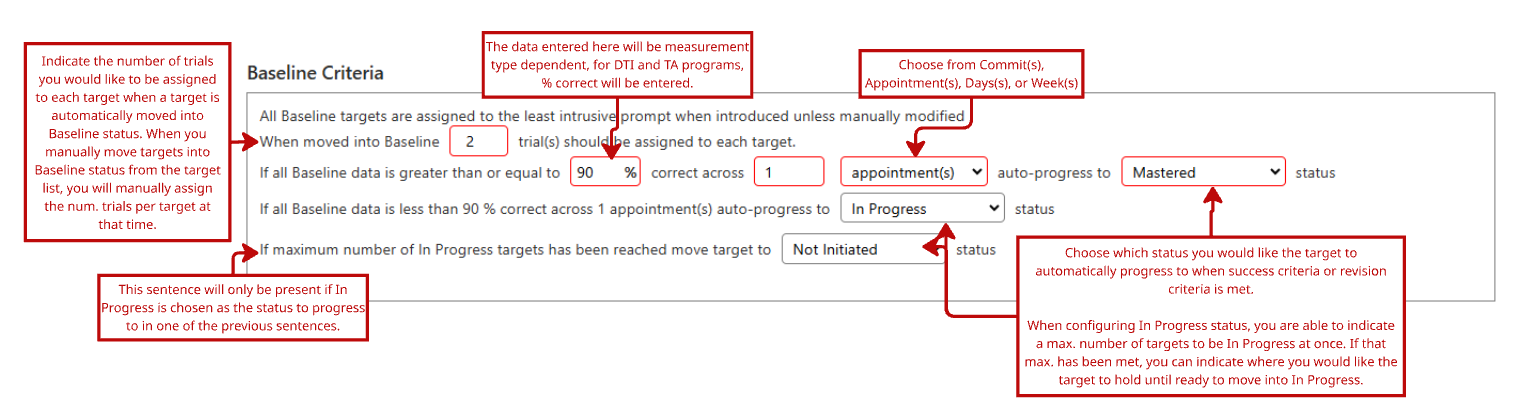
Below is a sample of what it may look like when configuring Baseline criteria from the program library perspective when the per program configuration is selected. By default, all targets that automatically progress to Baseline status will be assigned to the least intrusive prompt in your prompt hierarchy (i.e., the prompt at the top of your prompt list). All other statements in the status are fillable, where you can indicate number of trials that should automatically be assigned if the target is automatically moved into Baseline. If targets are manually moved into Baseline status, you will indicate the number of trials in the trials section. Next, you will indicate the success and revision criteria, and dictate what status the target, or group of targets should be moved to. See the image below for a sample and detailed explanation.
In Progress Criteria
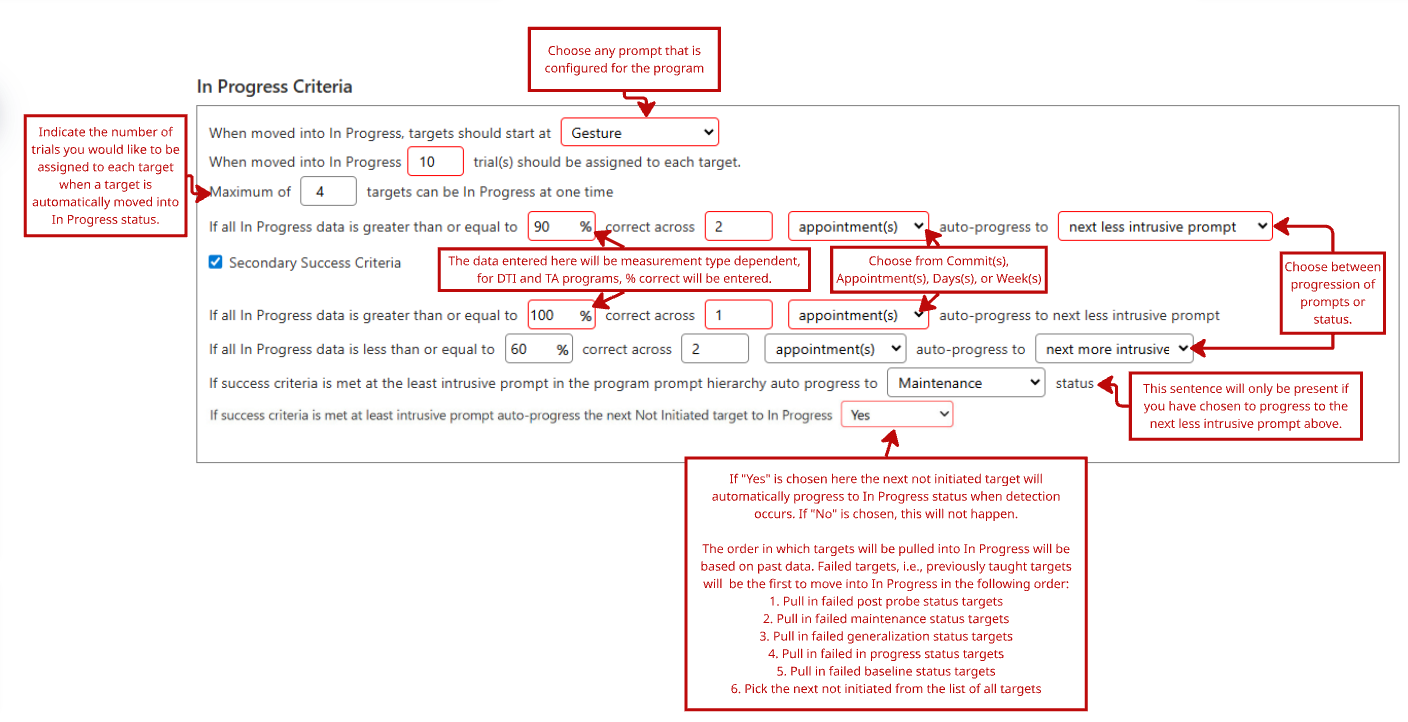
Below is a sample of what it may look like when configuring In Progress criteria from the program library perspective when the per program configuration is selected. Within this status, you will first choose which prompt and how many trials you would like to be assigned to the target(s) when it is automatically moved into In Progress status. From there, indicate your primary, and optionally secondary success criteria's, and single revision criteria. When criteria has been met, you can opt for the target to progress to the next more or next less intrusive prompt, or to progress to another status, such as Maintenance. If progressing through prompts, the next step will be to indicate which status the target(s) should progress to once criteria is met at the least intrusive prompt. Remember that if choosing to progress through prompts, the prompt progression goes by the prompt order as set in the prompt section of the program configuration. Finally, you can indicate if once the target(s) progress to the next status, and there is space to start teaching the next target(s) or reteach previously failed targets, if they should automatically move into In Progress criteria or you can opt to move them into In Progress status manually. See the image below for a sample and detailed explanation. See the image below for a sample and detailed explanation.
Maintenance Criteria
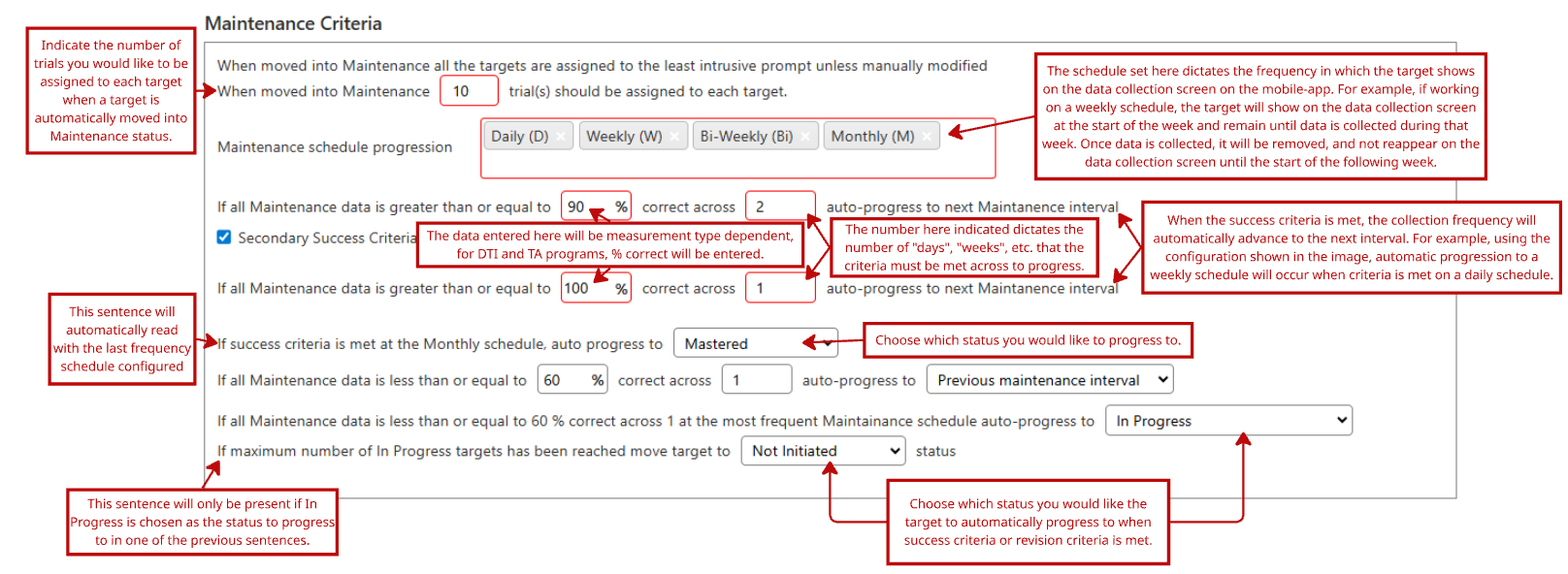
Below is a sample of what it may look like when configuring Maintenance criteria from the program library perspective when the per program configuration is selected. Within this status, by default, all targets will start at the least intrusive prompt. Your first configuration choice is to choose how many trials you would like to be assigned to the target(s) when it is automatically moved into Maintenance status. From there, indicate your Maintenance progression schedule. Daily, Weekly, Bi-Weekly, and Monthly are available options, and you can choose one or more to progress through. The progression schedule chosen dictates the frequency in which the target shows on the data collection screen on the mobile-app. For example, if working on a weekly schedule, the target will show on the data collection screen at the start of the week and remain until data is collected during that week. Once data is collected, it will be removed and not reappear on the data collection screen until the start of the following week. The number you choose next indicates across how many days/weeks/etc. the criteria must be detected across to move to the next Maintenance interval. Next, you will indicate a status for the target(s) to progress to once data is met at the most infrequent interval. You can then indicate revision criteria, should you want to. If at any point, you opt for the target(s) to progress to In Progress status, you will also need to indicate where the targets should progress to should the In Progress status be full (i.e., the max. number of In Progress targets has been met). See the image below for a sample and detailed explanation.
Generalization Criteria
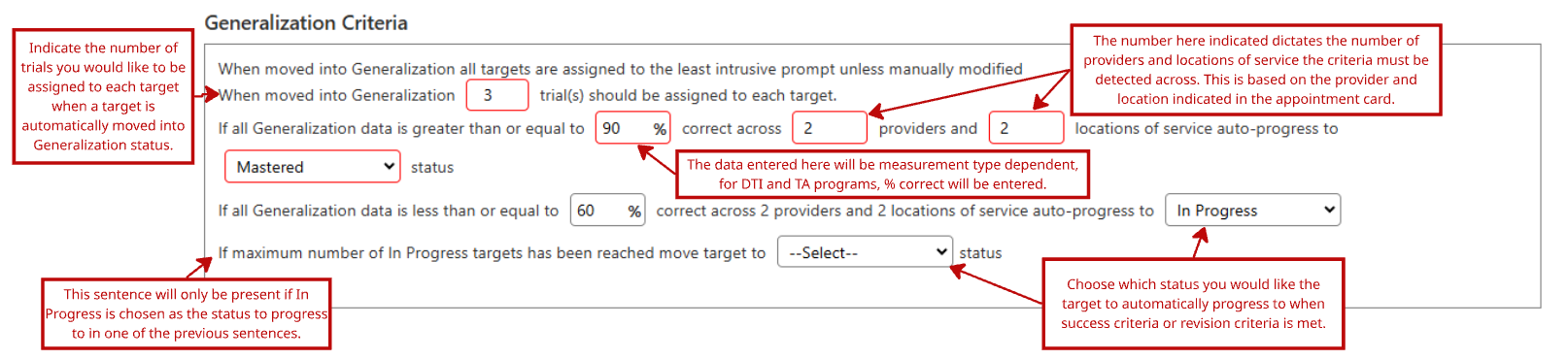
Below is a sample of what it may look like when configuring Generalization criteria from the program library perspective when the per program configuration is selected. By default, all targets that automatically progress to Generalization status will be assigned to the least intrusive prompt in your prompt hierarchy (i.e., the prompt at the top of your prompt list). All other statements in the status are fillable, where you can indicate number of trials that should automatically be assigned if the target is automatically moved into Generalization. Next, you will indicate the success and revision criteria's, and dictate what status the target, or group of targets should be moved to. Notably for Generalization, within the success criteria section, you will be indicating the number of providers and locations of service the criteria must be met across for the target to proceed. This will be identified by looking at the provider and location of service on the appointment card. See the image below for a sample and detailed explanation.
Post Probe Criteria
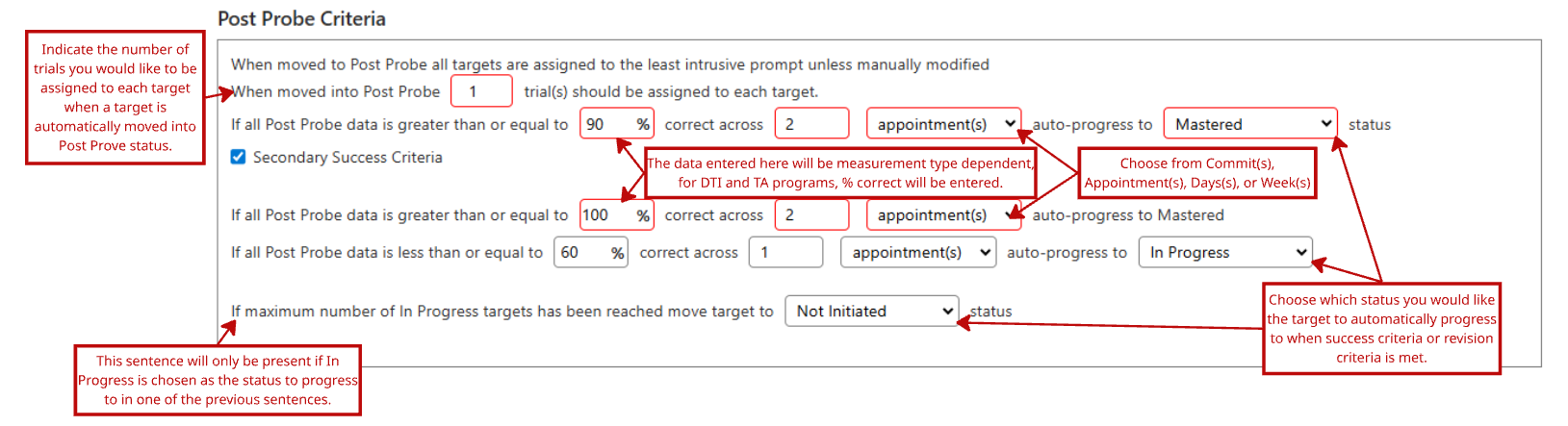
Below is a sample of what it may look like when configuring Post Probe criteria from the program library perspective when the per program configuration is selected. By default, all targets that automatically progress to Post Probe status will be assigned to the least intrusive prompt in your prompt hierarchy (i.e., the prompt at the top of your prompt list). All other statements in the status are fillable, where you can indicate the number of trials that should be automatically assigned if the target is automatically moved into Post Probe. Next, you will indicate the success and revision criteria's, and dictate what status the target, or group of targets should be moved to. See the image below for a sample and detailed explanation.
Client Profile- Mobile
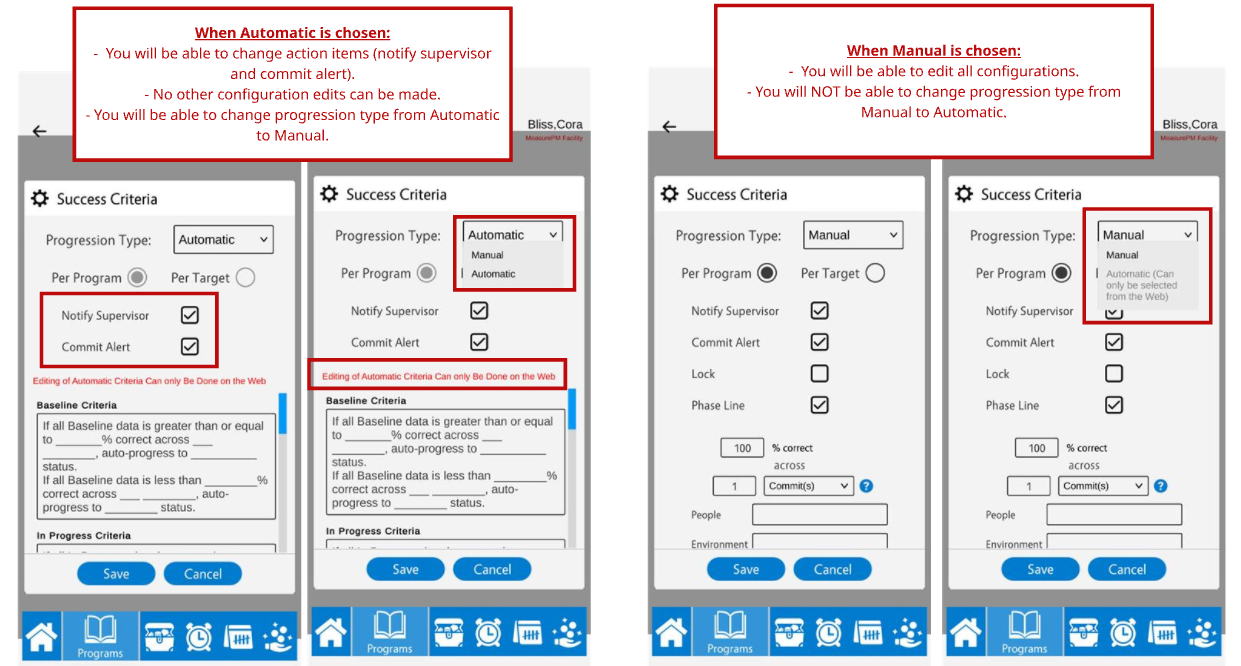
Any configuration set on the web will be displayed on the mobile, however no auto-progression configuration changes can be made on the Mobile-App. Due to complexity, all automatic success criteria changes must happen on the Web platform. The images below highlight the differences in editing capabilities between automatic and manual progression types.
Target Configurations
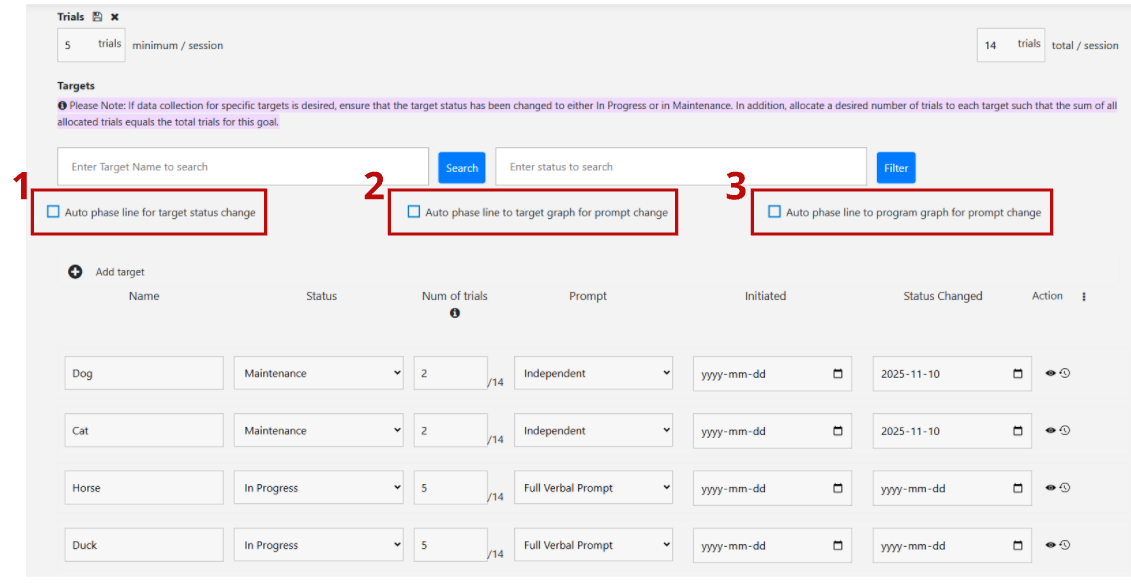
When criteria is met, changes are likely to happen to your targets automatically. This may include prompt changes, status changes, and subsequent number of trial changes. When a status or prompt is changed you can have phase lines populate on your graph automatically. There are 3 different types of phase lines that can be added:
- Auto phase line for target status change: If chosen, an automated phase line will be automatically added to the individual target graph when a status change occurs with the status name. E.g., the label may say "In Progress" or "Maintenance". This line will only show when filtering by individual targets, it will not show when looking at the program graph (i.e., when filtering by "all" targets).
- Auto phase line to target graph for prompt change: If chosen, an automated phase line will be automatically added to the individual target graph when a prompt change occurs with the prompt name. E.g., the label may say "Full Physical" or "Verbal". This line will only show when filtering by individual targets, it will not show when looking at the program graph (i.e., when filtering by "all" targets).
- Auto phase line to program graph for prompt change: If chosen, an automated phase line will be automatically added to the program graph when a prompt change occurs. All prompt names will show when the line is populated. E.g., the label may say "Full Physical, Verbal, Gesture" or "Full Physical". This line will only show when filtering by "all" targets, it will not show when looking at individual target graphs (i.e., when filtering by specific targets).
To have these phase lines enabled, simply select the corresponding checkbox beside each phase line type under the trial section in program configurations.
Reminder- any change made on the Web platform will sync to the Mobile-App and vice versa.
As always, please reach out to support@measurepm.com for inquiries!