
Overview
This article was developed to provide MeasurePM users with an overview of how to view and edit clinical related Domains and Categories.
Configurations
To have access to the Skill Areas/Domains and Categories pages, the following admin permissions will need to be granted.

Selecting this option will allow users access to the Skill Areas/Domains page within the Clinical Settings dropdown.
 Selecting this option will allow users access to the Categories page for Programs within the Clinical Settings dropdown.

Selecting this option will allow users access to the Categories page for Behaviors within the Clinical Settings dropdown.
Once the above permissions have been granted, the pages can be found within the Clinical Settings dropdown.
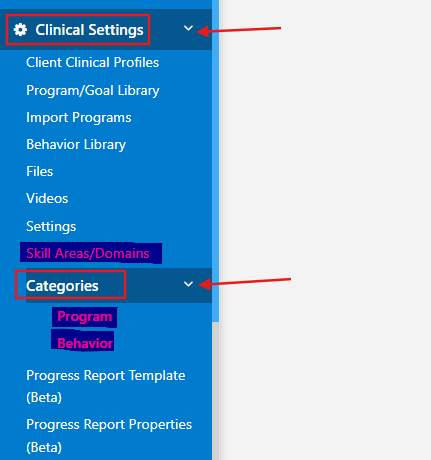
Purpose
Domains and Categories are added for organization purposes across clinical pages. You are able to filter by Domains for Programs, and by Categories for Programs and Behaviors within the following pages on both the Web and Mobile App:
- Clinical Settings - Program/Goal Library
- Clinical Settings - Behavior Library
- + Program Library (Web)
- Program Library (Mobile)
- + Behavior Library (Web)
- Behavior Library (Mobile)
Skill Areas/Domains
Domains are the broadest level of organization and are applicable to Programs only. A domain must be assigned when creating programs in the library to be eligible to save.
Domains
Within this section, Domains used for Programs can be added, edited, or deleted. Domains that are added to Programs will not be able to be deleted.
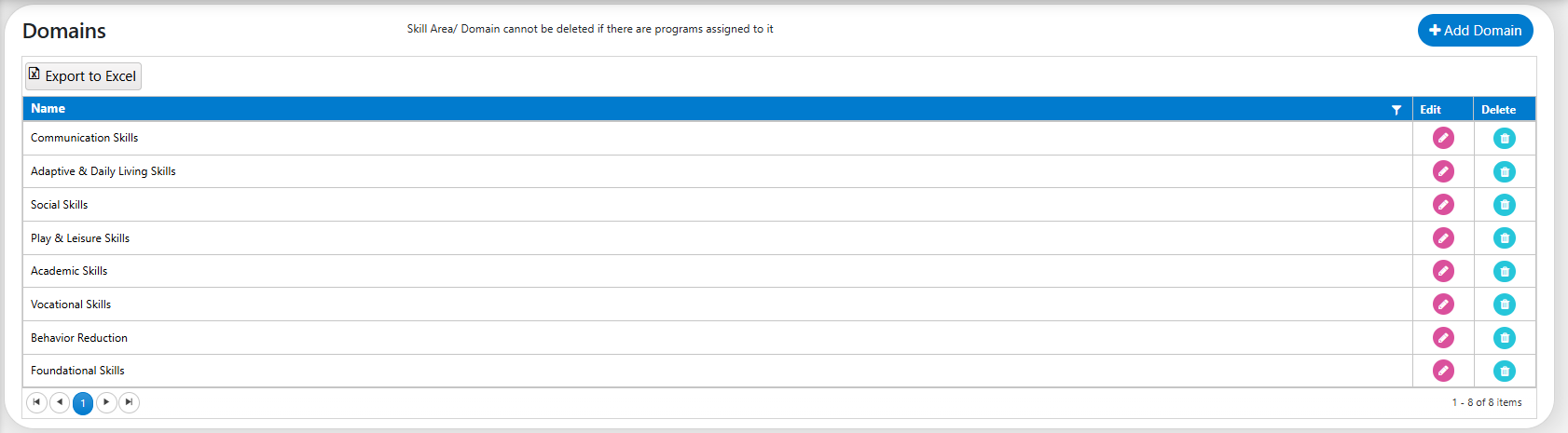
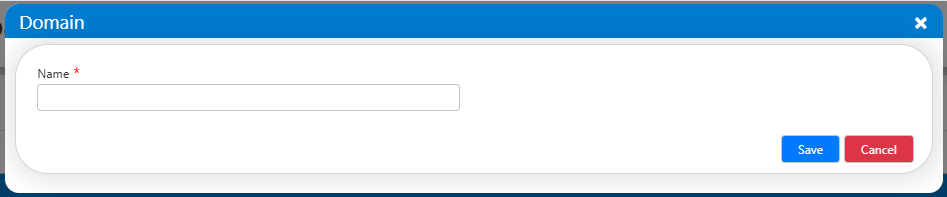
To add a Domain, the + Add Domain button can be selected in the top right hand corner. From there, the Domain name can be input and saved. To edit a Domain, the pencil icon can be selected.
To delete a Domain, the trash can icon can be selected. Before the Domain is deleted, you will first receive a confirmation. If yes is selected, but the Domain is currently added to a Program, you will receive the following error message: You cannot delete this domain because it is currently assigned to a program.

Within the Program/Goal Library, Domain selection is required before the Program can be saved. Domains can also be used to filter when searching for Programs within the Program/Goal Library.
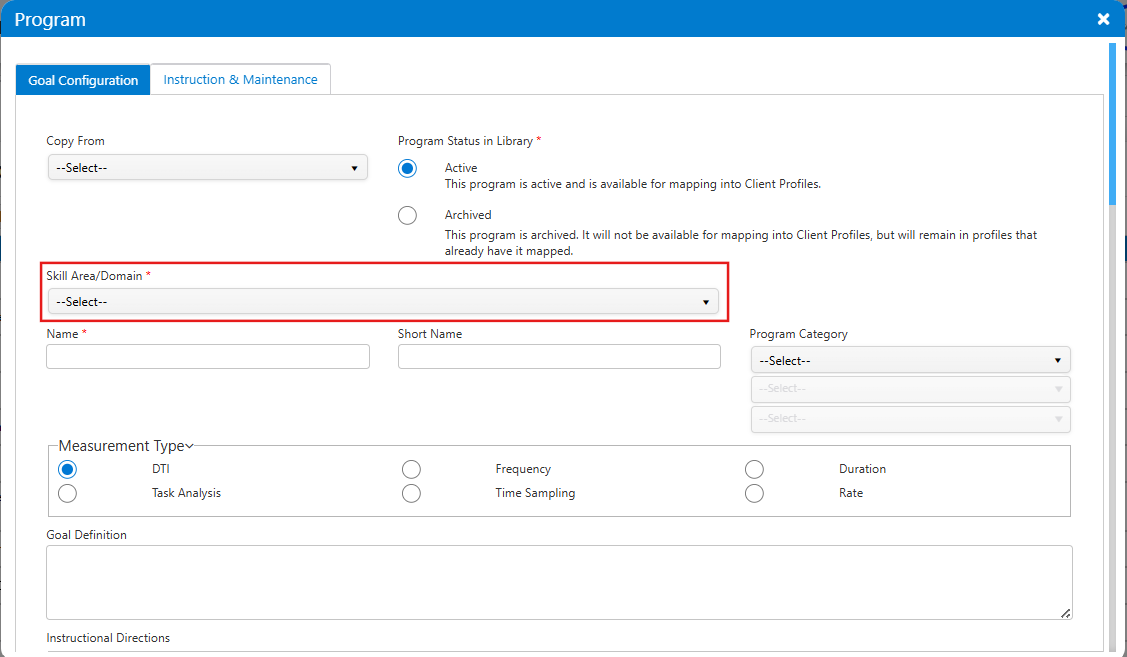
More information regarding adding Programs can be found within the following guide: Adding a Program to Your Library
Categories
Categories and all Subcategories are used for more nuanced organization with Programs and Behaviors. Categories are optional before saving within the Program/Goal Library and Behavior Library.
Program Categories
Within this section, Categories and Subcategories used for Programs can be added, edited, or deleted. Categories and Subcategories that are added to Programs will not be able to be deleted.
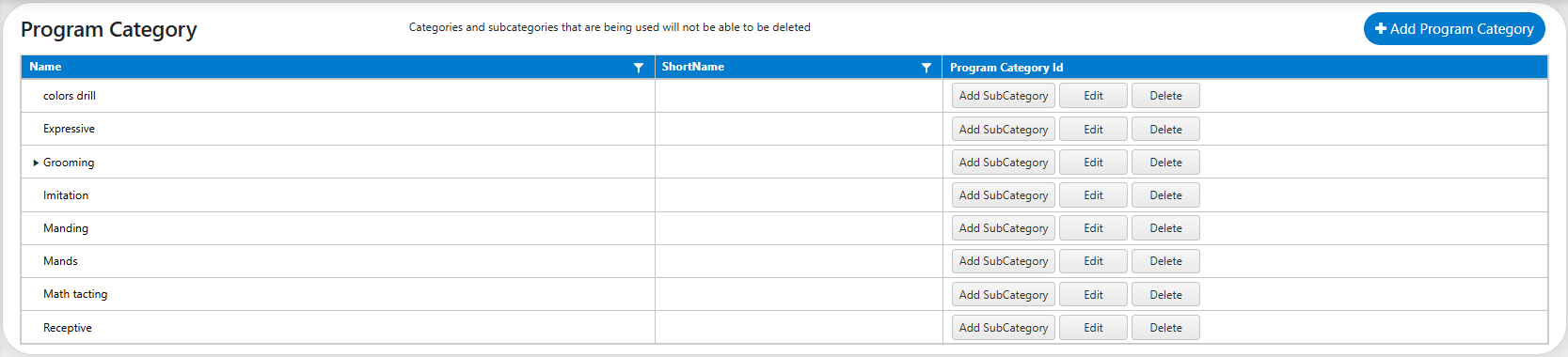
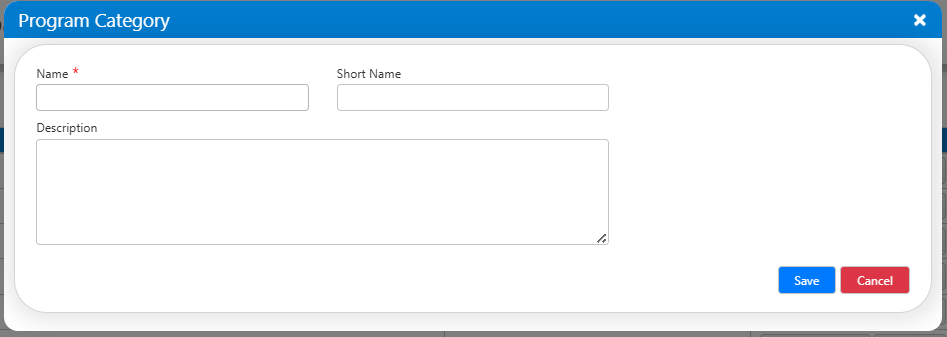
To add a Program Category, the + Add Program Category button can be selected in the top right hand corner. From there, the Program Category name, short name, and description can be input and saved. To edit a Program Category, the Edit button can be selected.
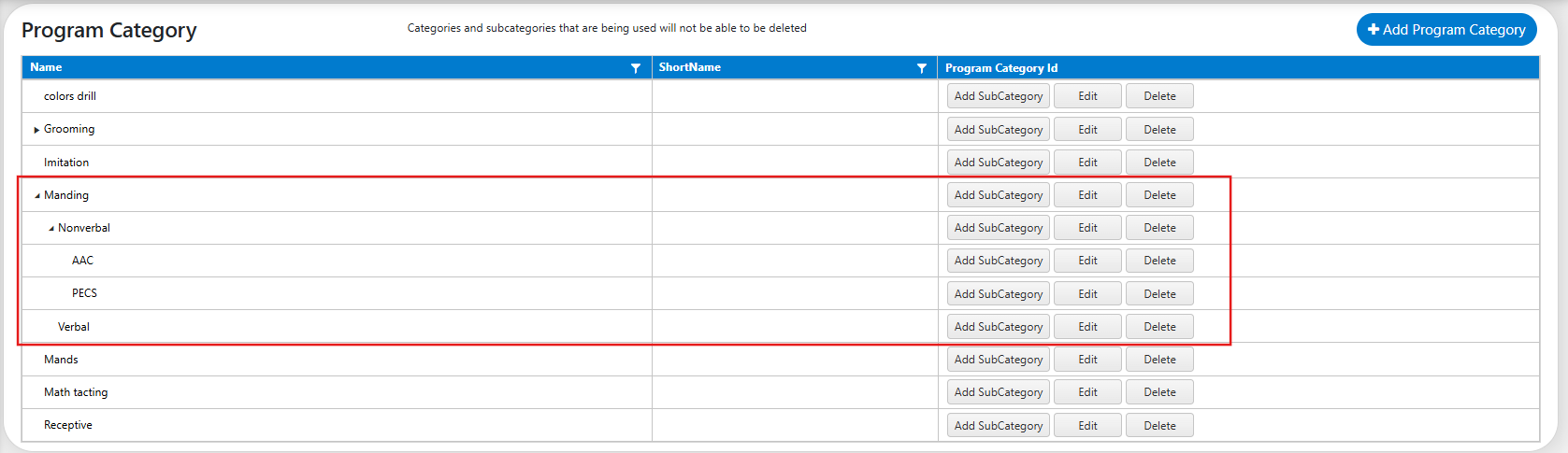
To add a Program Subcategory, the Add SubCategory button can be selected. From there, the Program Subcategory name, short name, and description can be input and saved. Additional Subsubcategories can be added by selecting the Add SubCategory button to the right of a Subcategory. If a Program Category has any Subcategories or Subsubcategories added, a selectable dropdown arrow will display to the left of the Program Category name. Selecting this dropdown arrow will then display all Subcategories. Selecting the dropdown arrow to the left of any Subcategory names will then display all Subsubcategories.
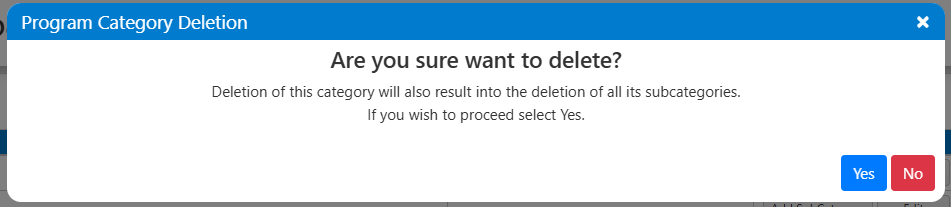
When deleting a Program Category, all associated Subcategories will also be deleted. To delete a Program Category and all associated Subcategories, the Delete button can be selected. Before the Program Category is deleted, you will first receive a confirmation. If yes is selected, but the Program Category is currently added to a Program, you will receive the following error message: This category cannot be deleted because it is used in Program library.
Within the Program/Goal Library, Category and Subcategory selection is optional. Program Categories can also be used to filter when searching for Programs within the Program/Goal Library.
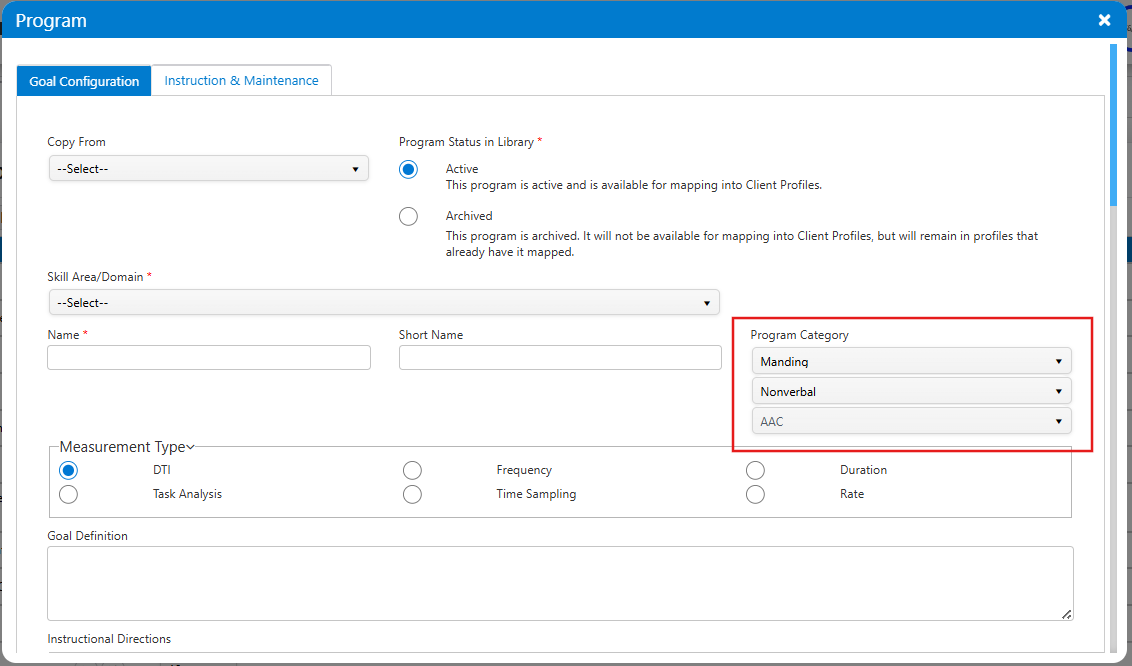
More information regarding adding Programs can be found within the following guide: Adding a Program to Your Library
Behavior Categories
Within this section, Categories and Subcategories used for Behaviors can be added, edited, or deleted. Categories and Subcategories that are added to Behaviors will not be able to be deleted.

To add a Behavior Category, the + Add Behavior Category button can be selected in the top right hand corner. From there, the Behavior Category name and short name can be input and saved. To edit a Behavior Category, the Edit button can be selected.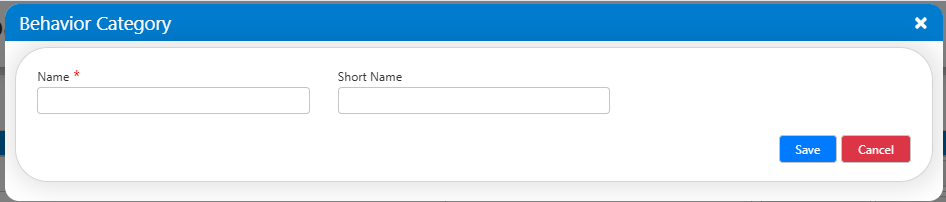
To add a Behavior Subcategory, the Add SubCategory button can be selected. From there, the Behavior Subcategory name and short name can be input and saved. Additional Subsubcategories can be added by selecting the Add SubCategory button to the right of a Subcategory. If a Behavior Category has any Subcategories or Subsubcategories added, a selectable dropdown arrow will display to the left of the Behavior Category name. Selecting this dropdown arrow will then display all Subcategories. Selecting the dropdown arrow to the left of any Subcategory names will then display all Subsubcategories.
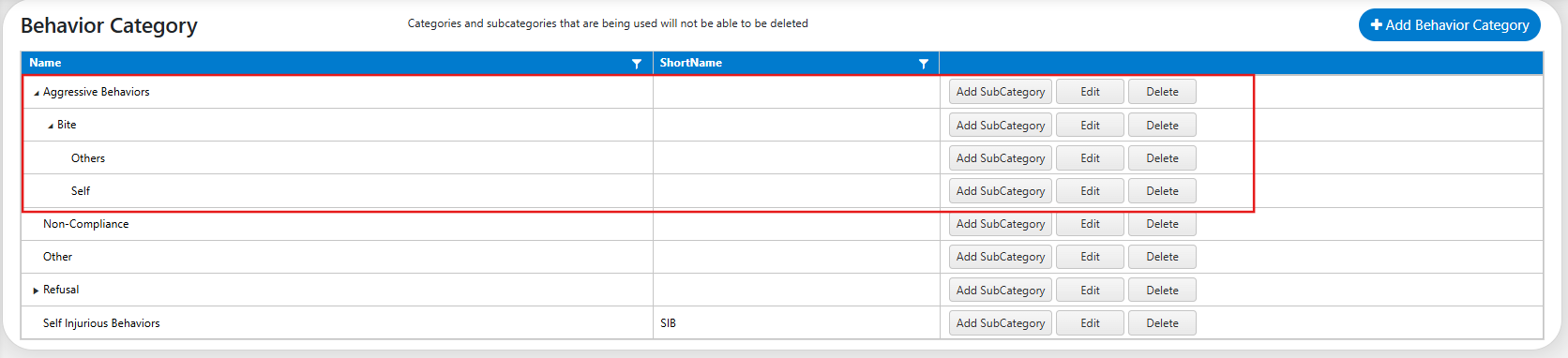
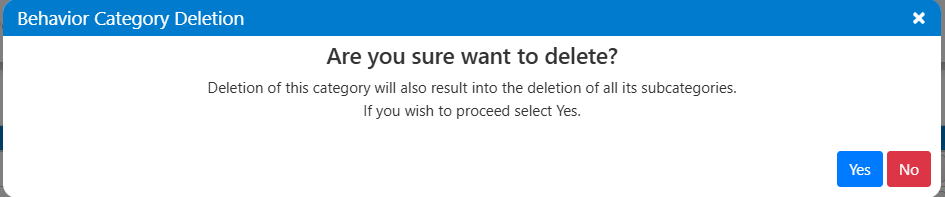
When deleting a Behavior Category, all associated Subcategories will also be deleted. To delete a Behavior Category and all associated Subcategories, the Delete button can be selected. Before the Behavior Category is deleted, you will first receive a confirmation. If yes is selected, but the Behavior Category is currently added to a Behavior, you will receive the following error message: This category cannot be deleted because it is used in Behavior library.
Within the Behavior Library, Category and Subcategory selection is optional. Behavior Categories can also be used to filter when searching for Behaviors within the Behavior Library.
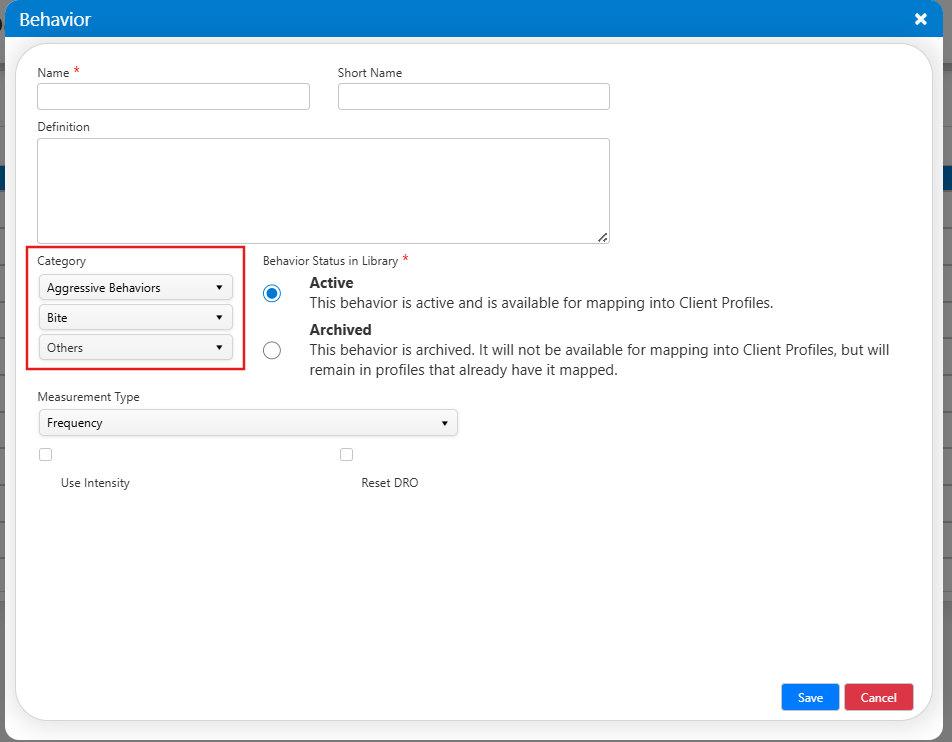
More information regarding adding Behaviors can be found within the following guide: Adding a Behavior to Your Library
For any additional questions or concerns, please reach out to support@measurepm.com