
Overview
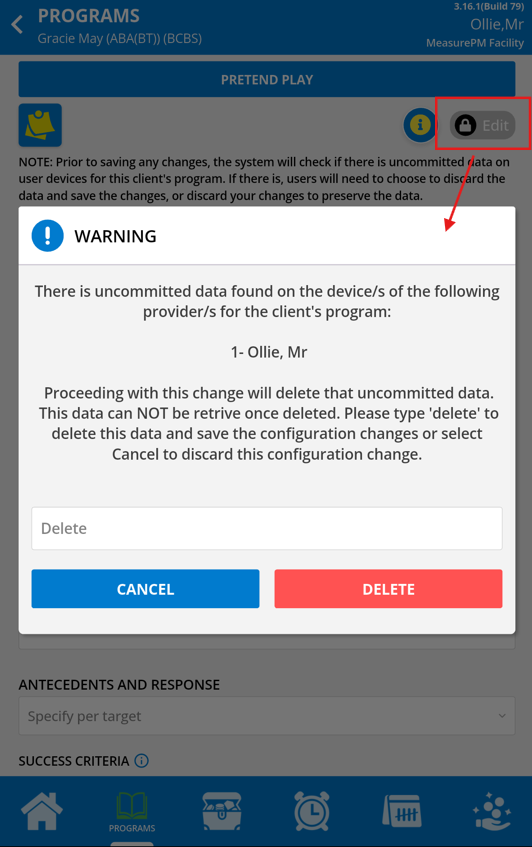
This article was developed to provide MeasurePM users with an overview of how to configure programs at the Client Clinical Profile level from the Mobile-App. While programs can only be added to the library on the Web, they can be mapped (a.k.a. “added”) to client profiles and configured at the client level from both the Web and Mobile-App. Any changes made to programs at the client level have no impact on the site library version of the same program or other Client Clinical Profiles (e.g., Program A modified for Mike Smith has no impact on Program A when mapped to the Melissa Brown’s profile). All configurations made at the client level will be unique to that client’s programs. Any modifications made to mapped programs will sync to the server upon saving, meaning that the updated program configurations will be viewable on the Web and Mobile-App. Additionally, if a program is being configured while there is uncommitted data by a provider, the provider making the changes will be alerted via a automatic pop-up and will have to decide whether they want to: (i) discard the data in order to proceed with changes, (ii) or discard changes allowing the uncommitted data to remain intact.
Accessing the Client Clinical Profile
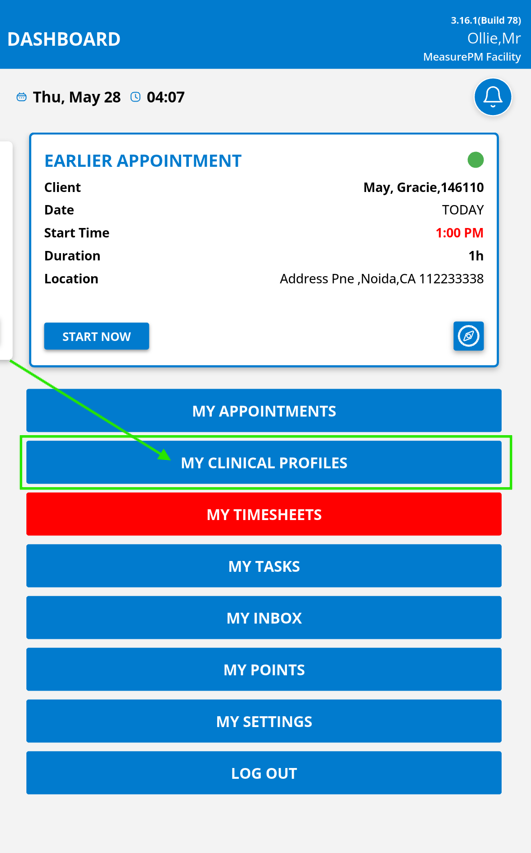
The two most direct ways a clinician can access a client’s clinical profile within the Mobile-App include: (i) through a scheduled appointment, and (ii) through My Clinical Profiles. Note that only those with the required permission granted will be allowed to access My Clinical Profiles.
My Clinical Profiles
Turning this permission on allows users access to the My Clinical Profiles page within the Mobile-App. From this page, users have access to clients. Note that client access may be dependent on assigned Zone and Treatment Teams.

Configurations
Configuring programs is permission based, meaning only authorized individuals from your facility will have this ability. Once you are within the profile you will be able to view all program configurations. However, the following permissions will need to be turned on to make specific changes. Note, the permissions listed below control the ability to make client level programming changes from both the Web and Mobile-App.
Program Mapping
Turning this permission on allow users to map or un-map programs to clinical profiles. It also authorizes users to change the status of the program (In Progress, Maintenance, Mastered, Parent Training, On Hold).

Instructional Strategy (Measurement Type)
Turning this permission on allows users to modify the instructional strategy/measurement type (i.e., DTI, Frequency, Duration, Rate, Time Sampling, and Task Analysis).

Phase Objective/Short Term Goal
Turning this permission on allows users to add or modify the program phase objective or short term goal.

Program/Goal Objective
Turning this permission on allows users to add or modify client level program goals or objectives.
Instructional Directions
Turning this permission on allows users to add or modify client level program instructional or procedural directions.
 Success Criteria
Turning this permission on allows users to configure or modify the mastery criteria for a given instructional goal or program.

Prompt Bank, Prompt Strategy, & Prompt Description
Turning this permission on allows users to add and modify the prompt bank, the selected prompt strategy, and prompt descriptions for an instructional program.

Prompt Level
Turning this permission on allows users to add and modify the assigned/current prompt level for the program.

Antecedent and Response
Turning this permission on allows users to add or modify program antecedents and target responses. Response Type
Turning this permission on allows users to add or modify response types for a given program.
Targets and Trials
Turning this permission on allows users to add, assign, and modify instructional targets as well as allocate the number of trials for each target and the number of trials for the program.

Data Recording Types
Turning this permission on allows users to add and modify the data recording types at the client level for a given program.

Token Board Settings
Turning this permission on allows users to modify the token board settings at the client level for a given program.

Mapping Programs to the Client Clinical Profile
Once in a Client Clinical Profile, you are able to start mapping and configuring programs as long as you have the permission to do so. To map a new program to the profile, start by selecting the Program Book icon displayed at the bottom of the Mobile-App screen, followed by select the Program Library button. Once selected, you will be directed to a new page where all available programs from your site’s Program Library will appear.
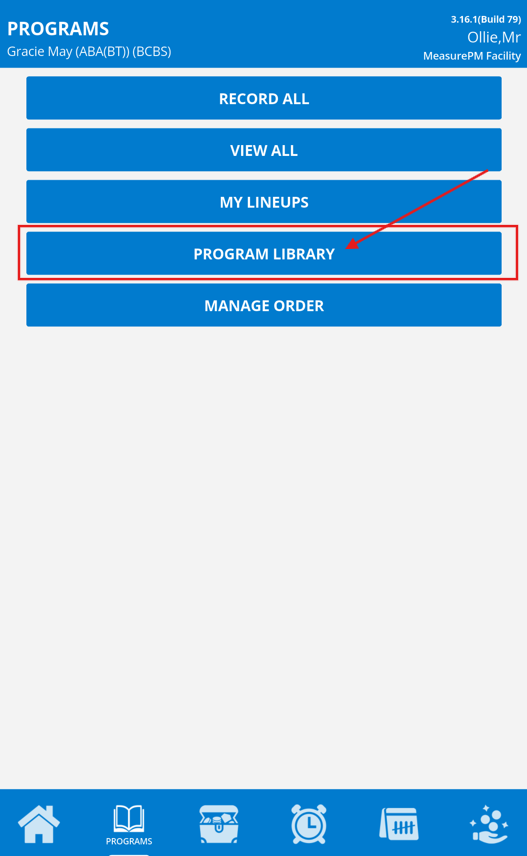
Program Library from the Mobile-App
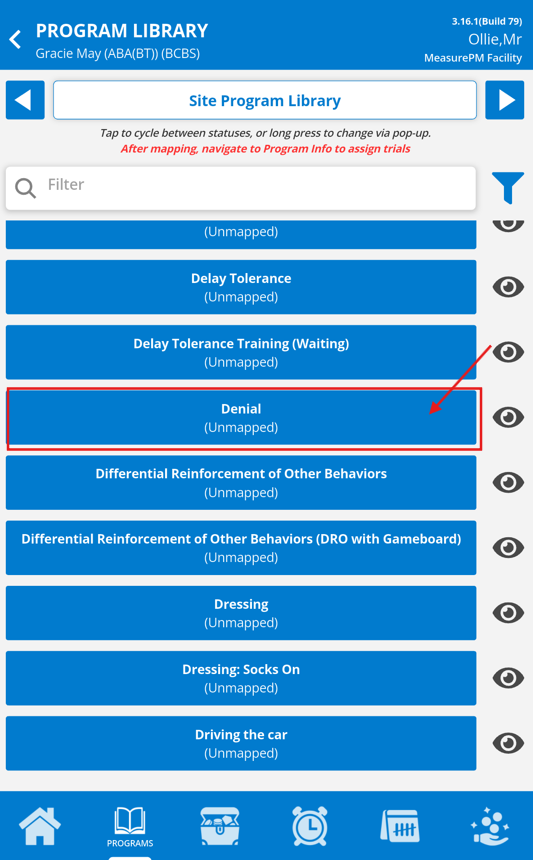
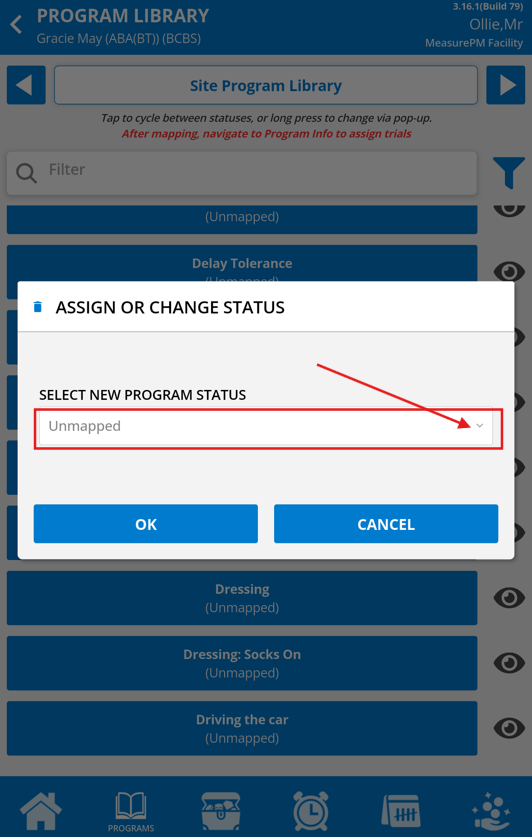
You can assign programs to the client profile from the Program Library on the Mobile-App, or change the status of existing programs in the profile, by selecting the desired program. Tap the program to cycle through the desired statuses, or hold it down for 3 seconds to receive a popup with the dropdown selections.
Additionally, if the required Site Flag and Client Permission has been enabled, VB-MAPP programs will also be available to map from the Mobile-App Program Library by selecting the Left or Right arrows seen next to the Site Program Library header. Our guide for this can be found here.
 |  | 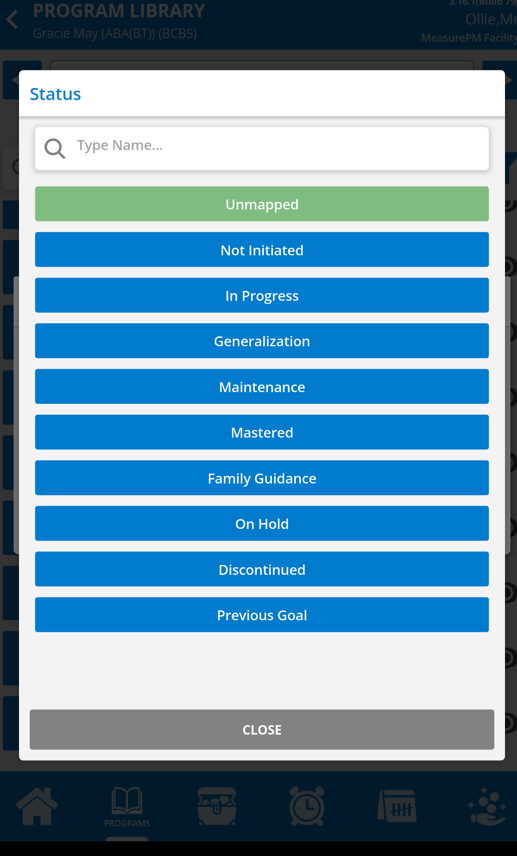 |
The color organization of programs is as followed:
| Blue | Unmapped |
| Grey | Not Initiated |
| Bright Green | In Progress |
| Light Salmon | Generalization |
| Purple | Maintenance |
| Dark Green | Mastered |
| Pink | Family Guidance |
| Yellow | On Hold |
| Dark Salmon | Discontinued |
| Orange | Previous Goal |
Configuring Mapped Programs
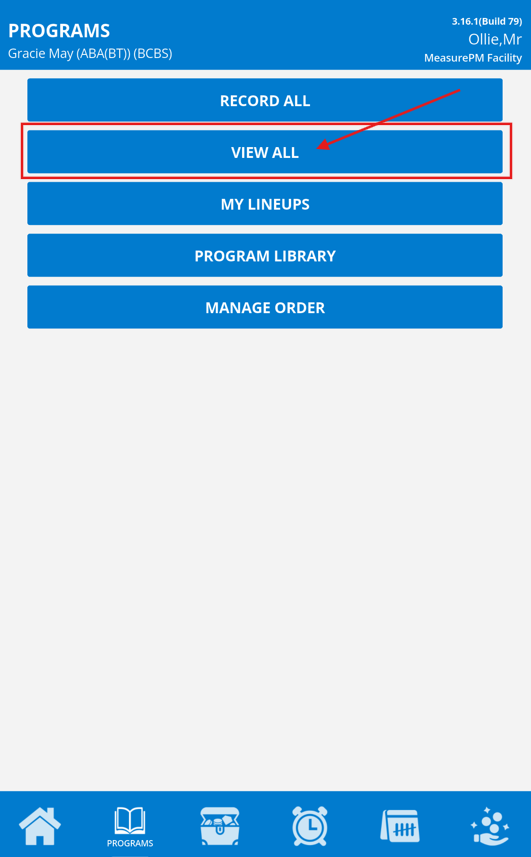
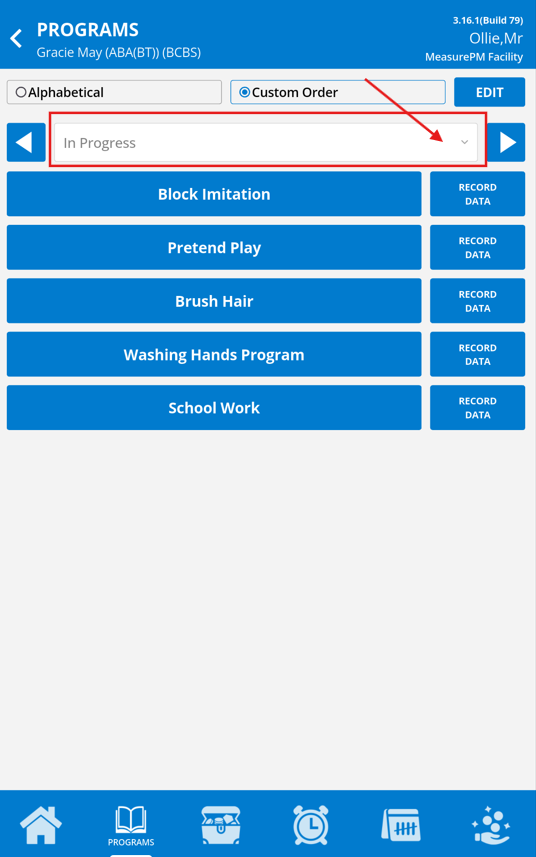
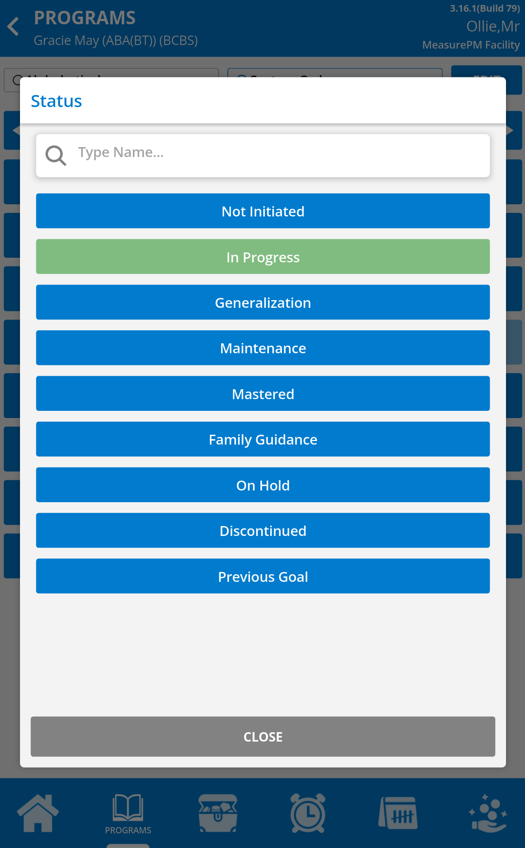
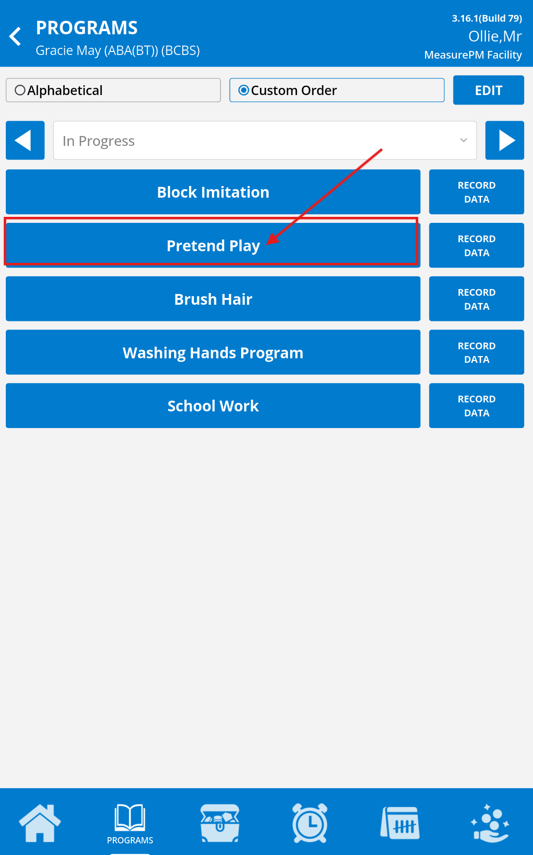
Once in a Client Clinical Profile, you are free to start configuring programs as long as you have the permission to do so. To configure a mapped program, start by selecting the Program Book icon displayed at the bottom of the Mobile-App screen, followed by selecting the View All button. Once within the View All page, all programs mapped will be available. Programs are organized based on the status mapped, which can be changed by selecting the left and right arrows, or the status dropdown.
 |  |  |
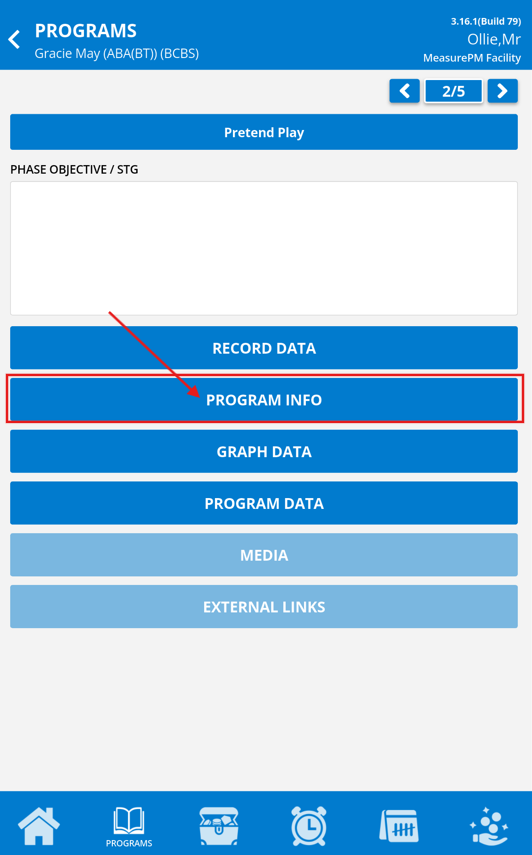
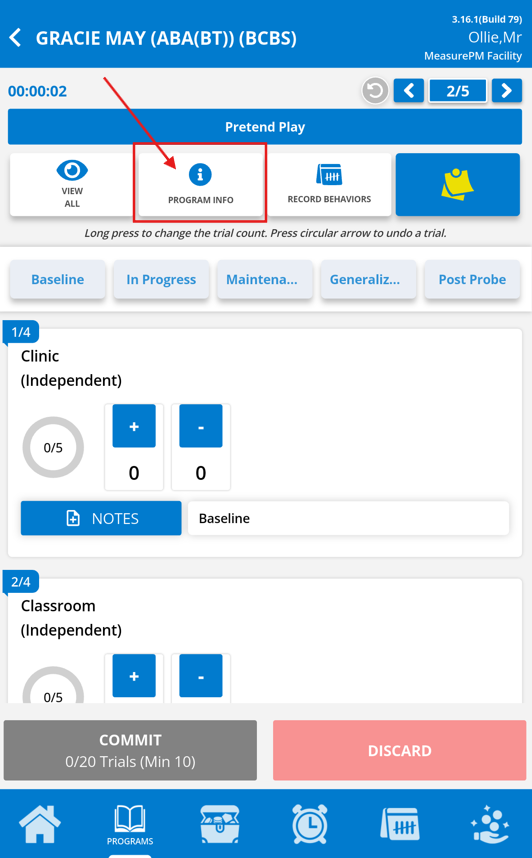
Once the program is selected, the Program Info button can be selected to access the programs configurations. The Program Info page can also be accessed directly from the data collection page by selecting the Program Info button towards the top of the page.
 |  |  |
To edit any configuration, select the 'Tap to Edit' icon in the top right hand corner of the configuration page and editing will be unlocked. Additionally, not all permissions will require enabling to edit, as once one related permission is enabled, the 'Tap to Edit' icon will show. Note that if you do not see the 'Tap to Edit' icon, it is because you do not have an associated permission(s) enabled.
- Instructions and Maintenance
- Instructional Strategy
- Phase Objective/STG
- Program Goal/Objective
- Instructional Directions
- Antecedents and Responses
- Success Criteria
- Response Types
- Phase Line Configurations
- Targets
- Task Steps
- Data Recording Types
- Prompt Bank
- Token Board Settings
- Reference
Instructions and Maintenance
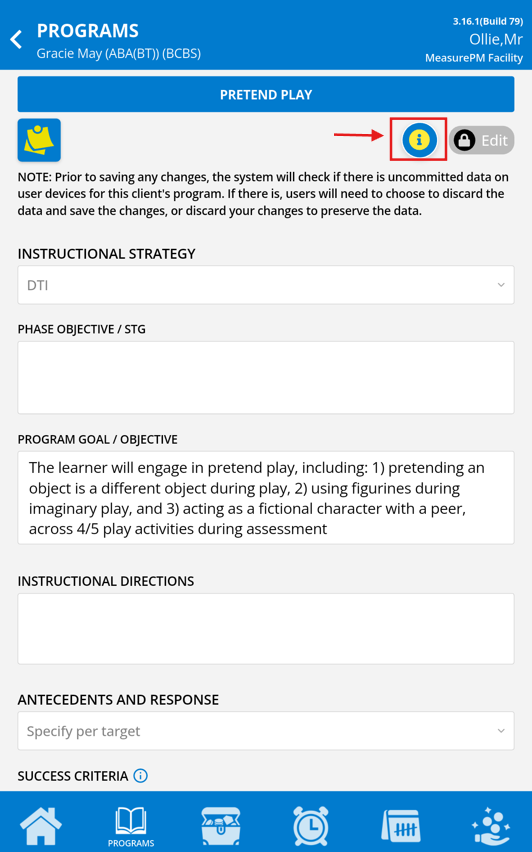
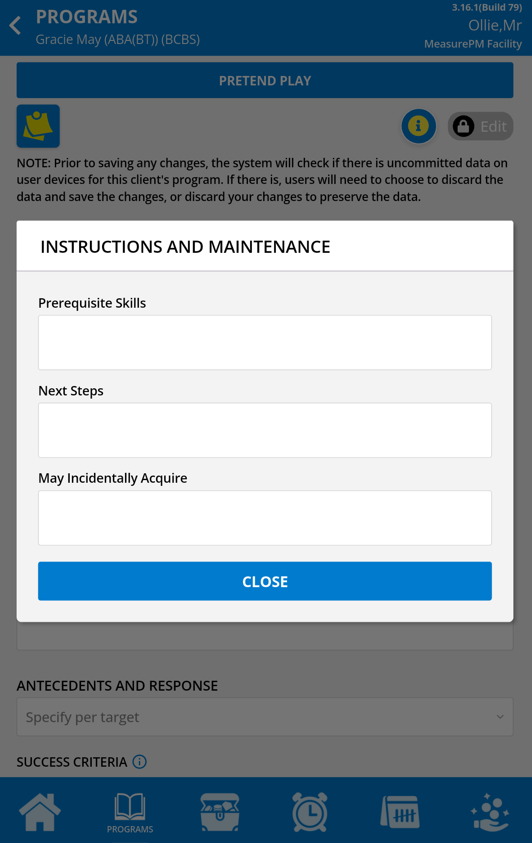
There is a info icon present beside the program name when viewing/editing program configurations at the client level on the Web and Mobile-App. When selected, it will render a pop up displaying Prerequisite Skills, Next Steps, and May Incidentally Acquire. The information will be pulled from the program library and will be view only. Note that if you would like to edit the details it will need to be done within the Program Library on the Web.
 |  |
Instructional Strategy
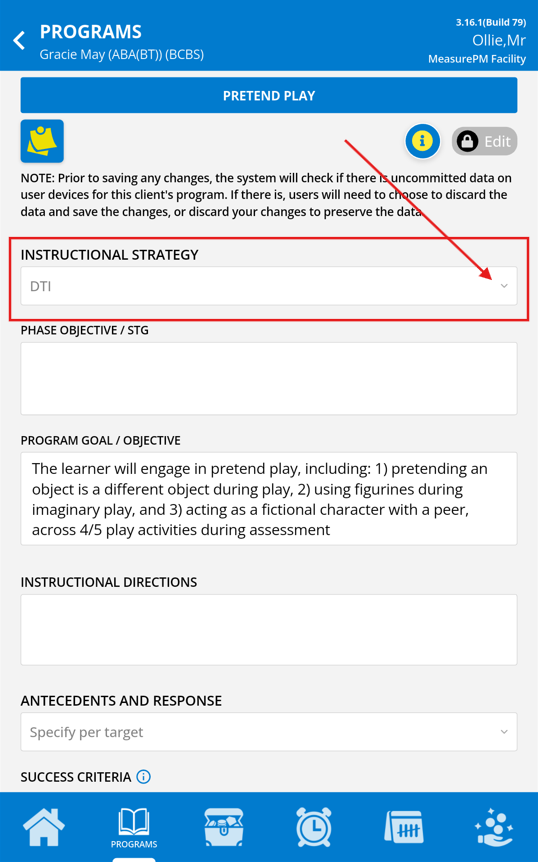
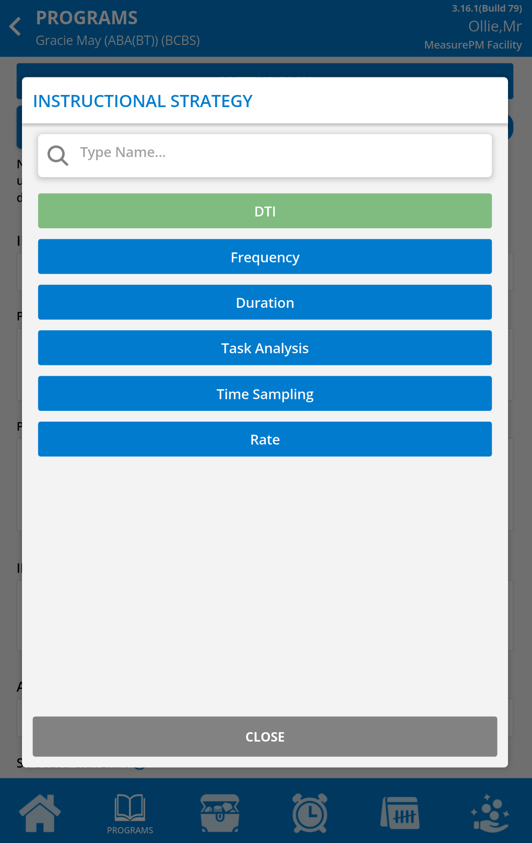
The selected measurement type/instructional strategy dictates the program configuration options. Each measurement type has a unique data collection interface. After making a change, review the remaining components of the program to ensure appropriate configurations have been made. For example, if you have changed a program from DTI to Task Analysis, you will need to enter task steps.
The options available are identical to those listed when adding new programs to the Program Library on the Web, which includes: Frequency, Duration, DTI, Task Analysis, Rate and Time Sampling.
 |  |
Phase Objective/STG
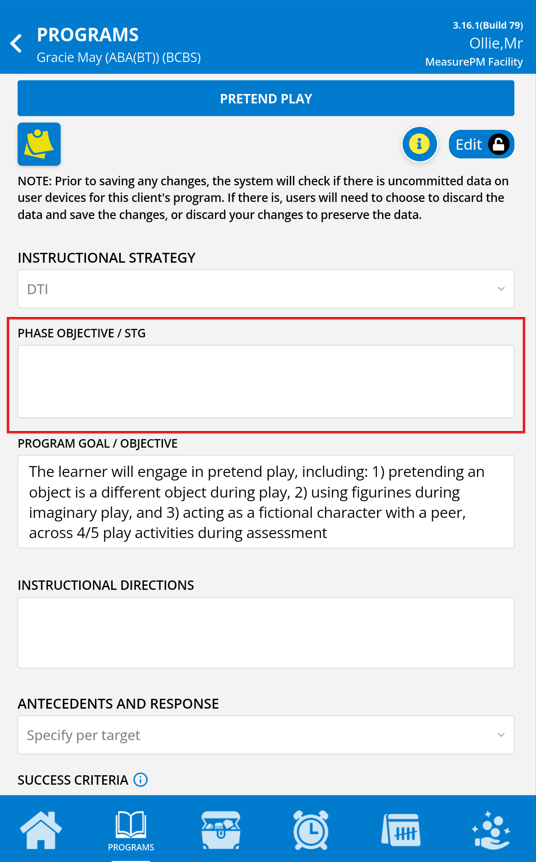
The phase objective/STG section is intended for indicating the various progression of phases within a program (e.g., baseline, acquisition, maintenance, reassessment, etc.). The configured phase objective will always be associated with the committed data and if desired, it can be auto-populated into phase line labels via the Web and Mobile-App graphing modules.
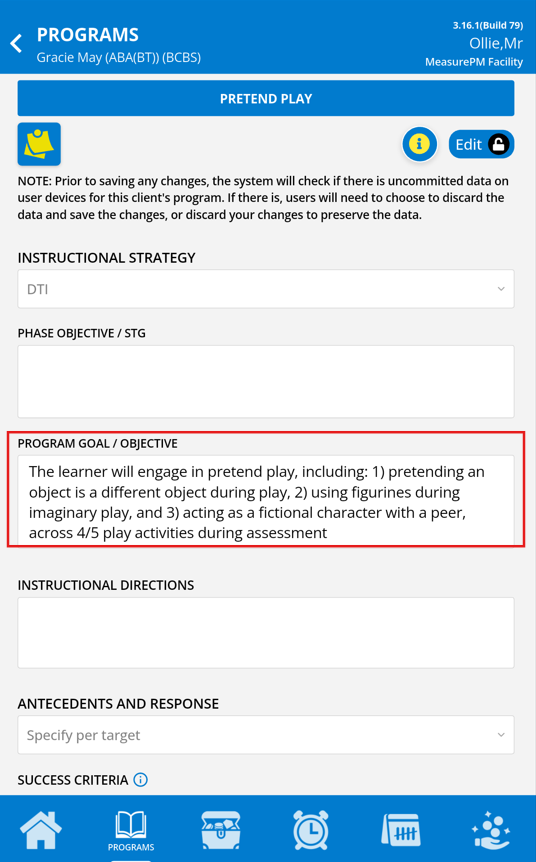
Program Goal/Objective
The program goal/objective indicates the observable and measurable outcome or skill to be acquired (e.g., Tina will tact at least 4 different coins and their values on at least 90% of discrete trial data opportunities for two consecutive sessions).
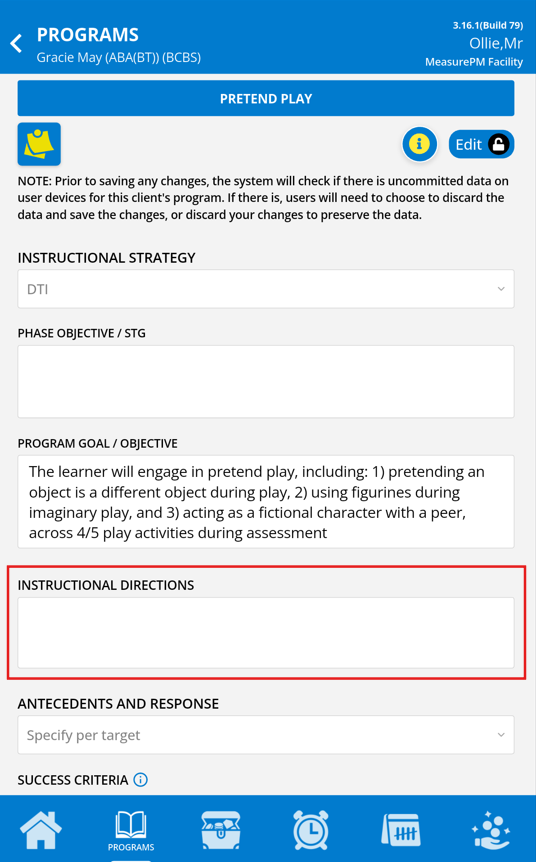
Instructional Directions
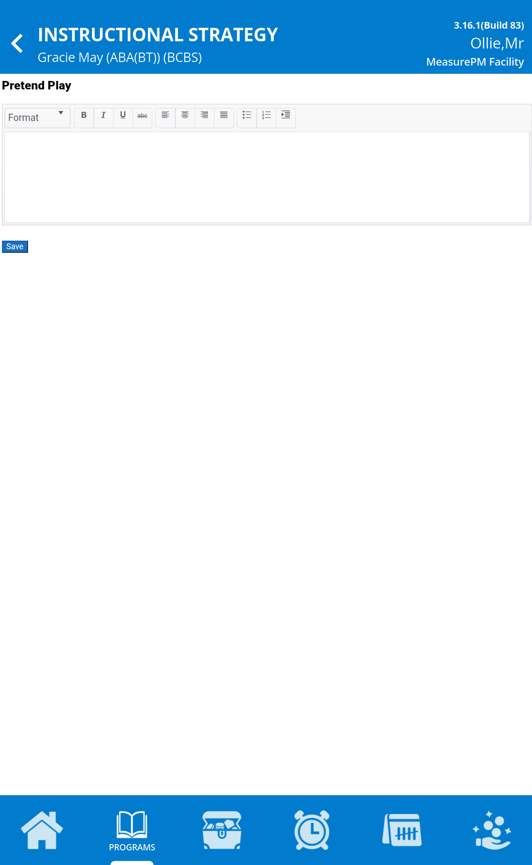
Instructional directions can include any relevant programming directions and additional information for providers to follow. For example, “Using picture cards, present the learner with one picture/image at a time. If the learner correctly labels the image, deliver praise and a single token. If the learner does not provide the correct name, or does not deliver a response within 3 seconds, model the correct response and prompt them to repeat it.”. Note that selecting the instructional directions box will open a new page as this sections includes additional formatting features.
 |  |
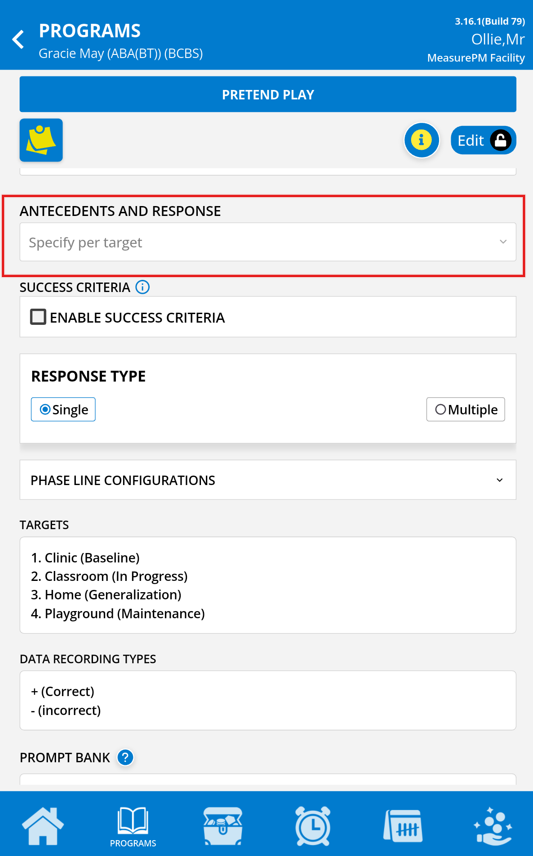
Antecedents and Responses
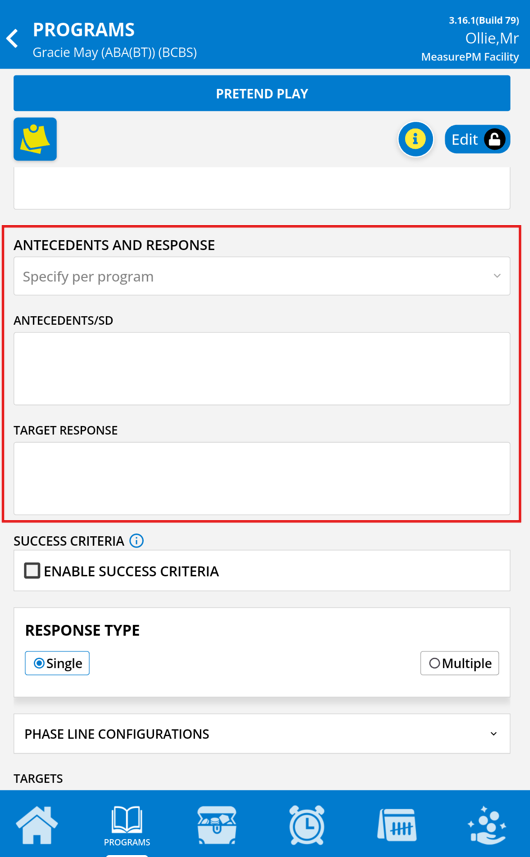
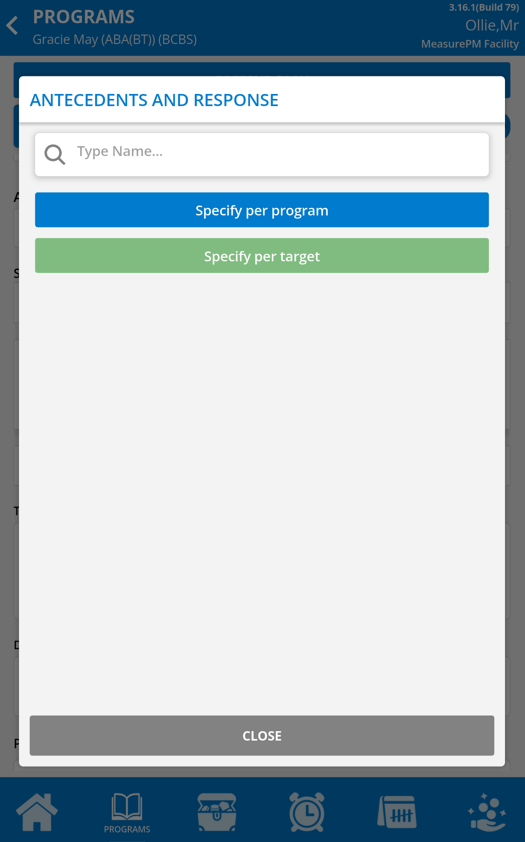
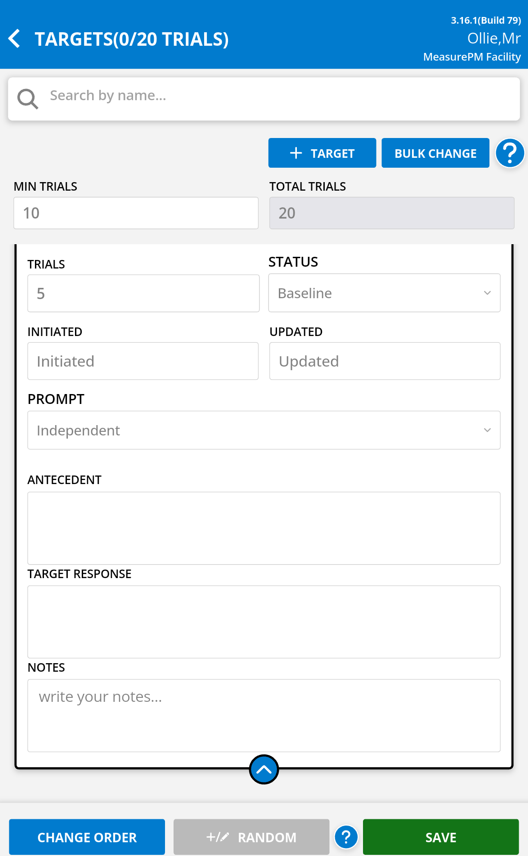
A program can have a single antecedent and target response specified, or it can have a different antecedent and target response for each target. You can choose either of the two available options: (i) specify per program, or (ii) specify per target. If per program is selected, you can edit the existing antecedent and response or if blank, you can add new text into the corresponding textboxes. If per target it selected, you will have to input the antecedents and responses within the Targets/Steps popup once selected (see more information within the Targets section).
 |  |  |
Success Criteria
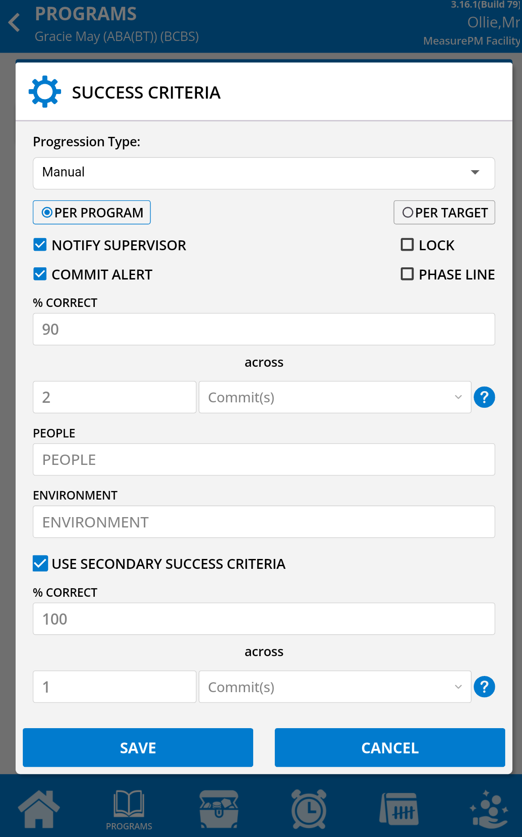
Success criteria (i.e., mastery criteria) is a measurement of mastery (e.g., 80% correct across 2 consecutive sessions). When configuring, the first choice to make is if you would like to use Manual or Automatic Criteria. To understand the difference between the two, simply select the "i" icon next to the Progression Type header. Note that certain Automatic Criteria can only be configured from the Web.
 | 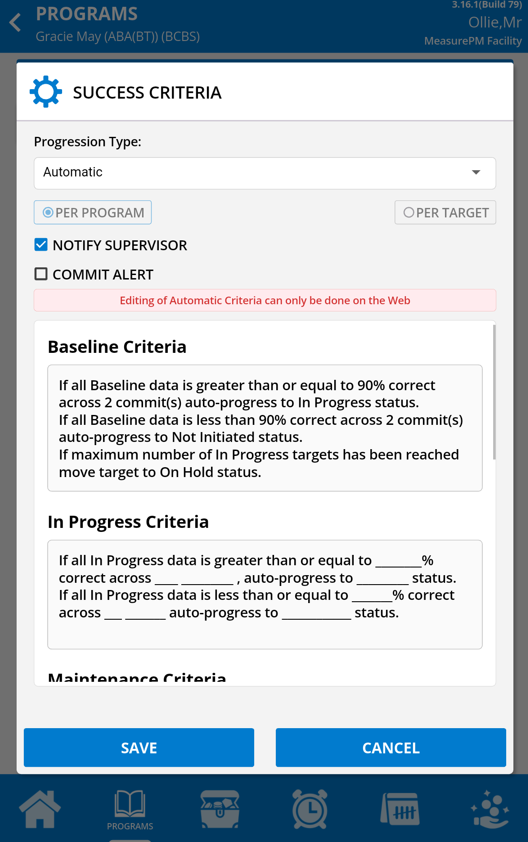 |
With Manual or Automatic detection you can have it detected on a per program or per target basis and there are certain action items that can occur for each.
| Manual | Automatic | |
|---|---|---|
| Per Program vs Per Target |
| Can only be configured from the Web |
| Action Items |
|
|
| Configurations | If Manual is selected, you can adjust the pass value and/or value type for the program. The two different criteria's can be configured to be detected at once (i.e., primary and secondary criteria). For example, I may configure my primary criteria as 90% correct across 2 appointments, and my secondary as 100% correct across 1 appointment. You can also add additional contextual information for clinicians (i.e., indicating People and Environment) in their respective sections. | Can only be configured from the Web |
| Additional Guides | Clinical Programming: Success Criteria | Success Criteria: Auto-progression of Targets and Prompts |
Response Types
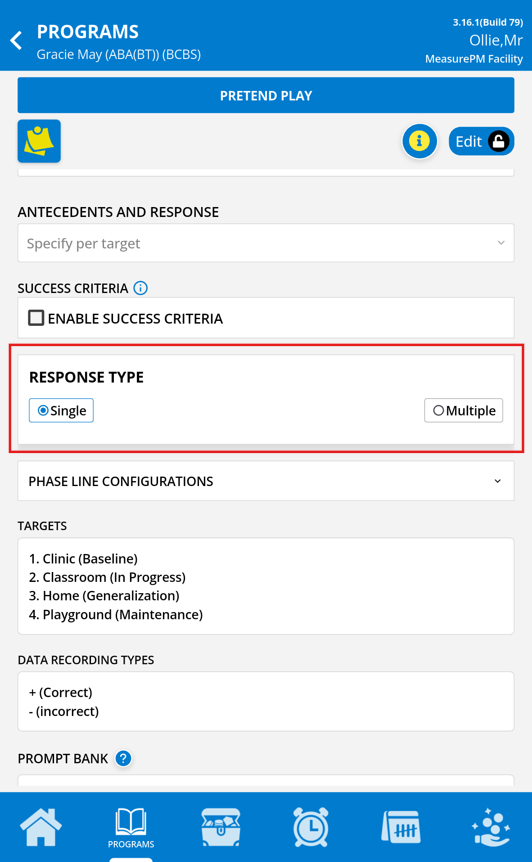
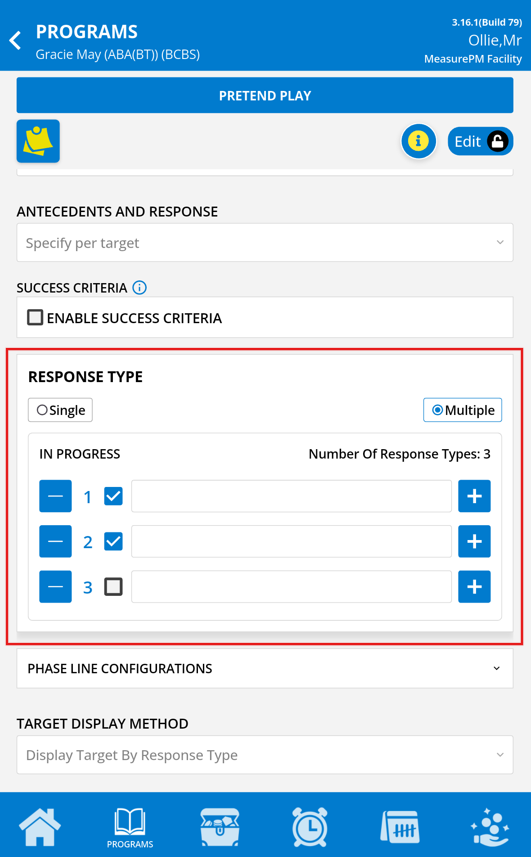
Response types as a program configuration option can be useful when employing multiple operant conditioning/training to teach a specific skill. You can establish whether you are targeting a single response type or multiple response types. If multiple response types is selected, you can proceed with typing each expected response. Note that a maximum of 4 response types can be active at one time. All In Progress and Maintenance status targets will rotate across the configured response types.
For example, if response 1 = tacting, response 2 = matching to sample (MTS), and the active targets include dog and cat, the following will be displayed on the Mobile-App’s data collection screen: (1) tacting – dog, (2) tacting – cat, (3) MTS – dog, and (4) MTS – cat.
 |  |
Phase Line Configurations
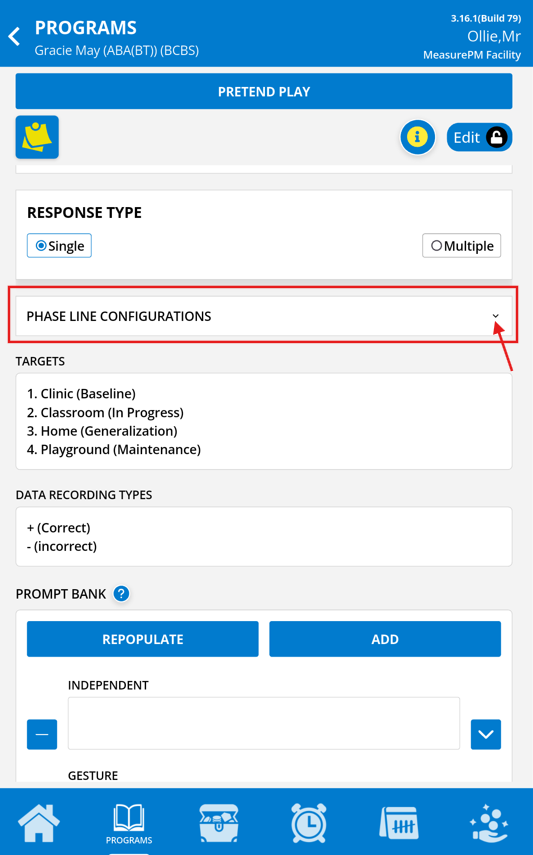
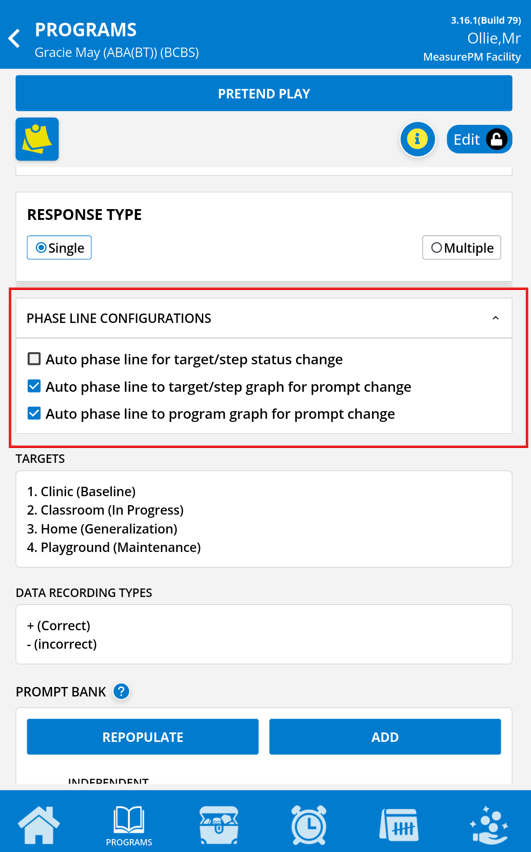
You can opt to have automated phase lines to your graph when certain actions occur. There are 3 different types of phase lines that can be added:
- Auto phase line for target status change: If chosen, an automated phase line will be automatically added to the individual target graph when a status change occurs with the status name. E.g., the label may say "In Progress" or "Maintenance". This line will only show when filtering by individual targets, it will not show when looking at the program graph (i.e., when filtering by "all" targets).
- Auto phase line to target graph for prompt change: If chosen, an automated phase line will be automatically added to the individual target graph when a prompt change occurs with the prompt name. E.g., the label may say "Full Physical" or "Verbal". This line will only show when filtering by individual targets, it will not show when looking at the program graph (i.e., when filtering by "all" targets).
- Auto phase line to program graph for prompt change: If chosen, an automated phase line will be automatically added to the program graph when a prompt change occurs. All prompt names will show when the line is populated. E.g., the label may say "Full Physical, Verbal, Gesture" or "Full Physical". This line will only show when filtering by "all" targets, it will not show when looking at individual target graphs (i.e., when filtering by specific targets).
To have these phase lines enabled, simply select the dropdown and corresponding checkbox beside each phase line type.
 |  |
Targets
Targets are only applicable to DTI, Rate, Time Sampling, Frequency and Duration programs. Once editing is unlocked, configuration changes can be made by selecting the target section, which will result in opening the targets popup. The first configuration to enter is your minimum number of trials for the program. This number is referencing the min. number of trials staff have to collect before being eligible to save program data. The second configuration is the total number of trials for the program, but this is not something that is manually entered. Trial counts are automatically summed based on the number of trial assignments across all active targets.
| DTI | Rate, Time Sampling, Frequency, & Duration |
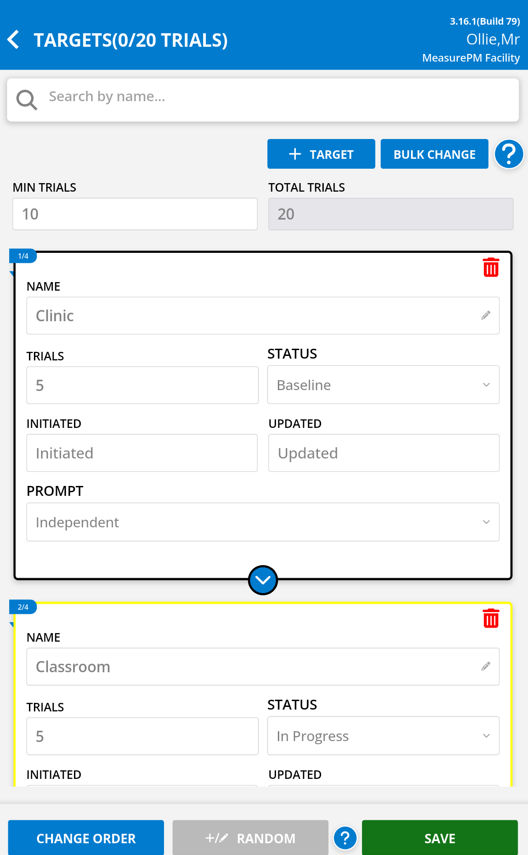 | 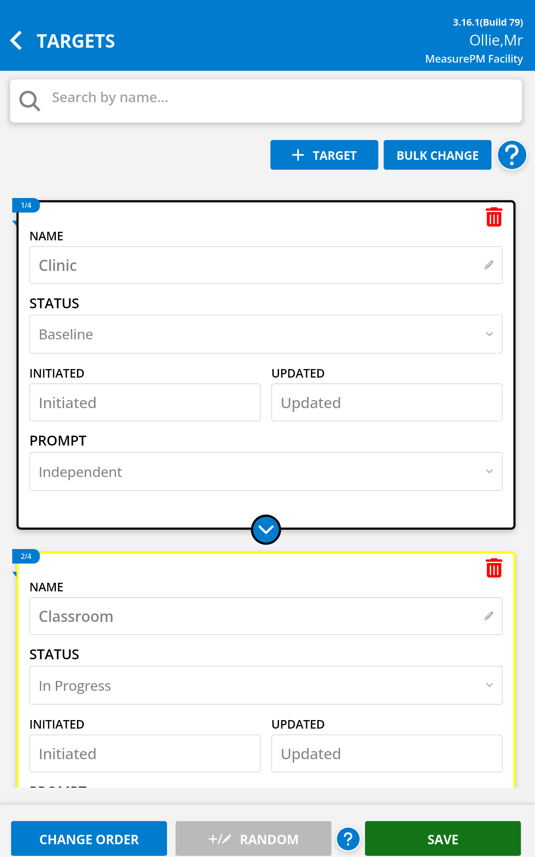 |
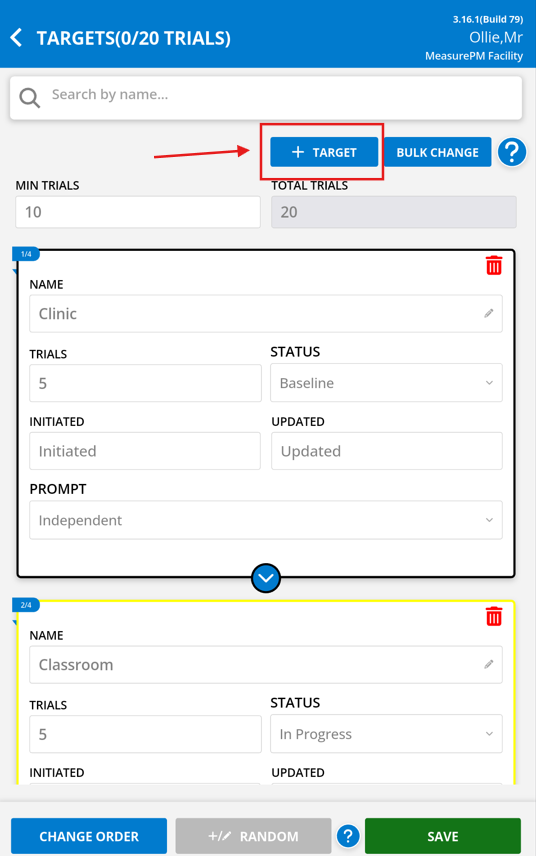
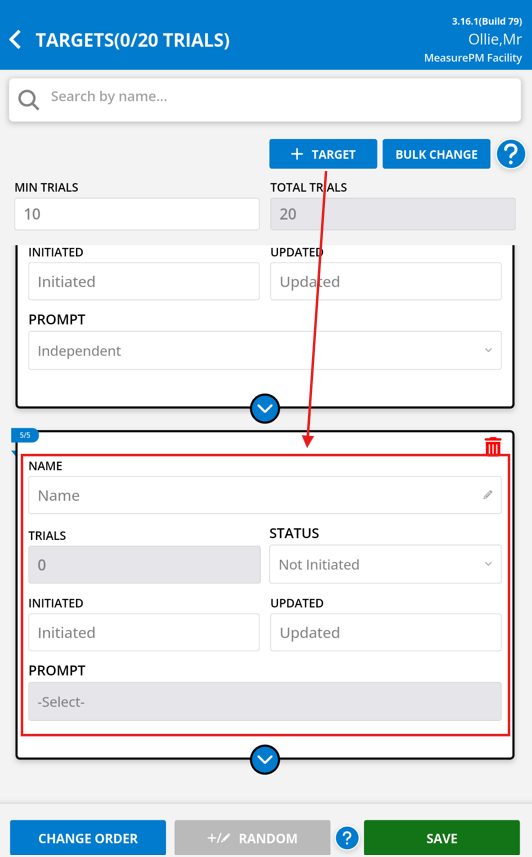
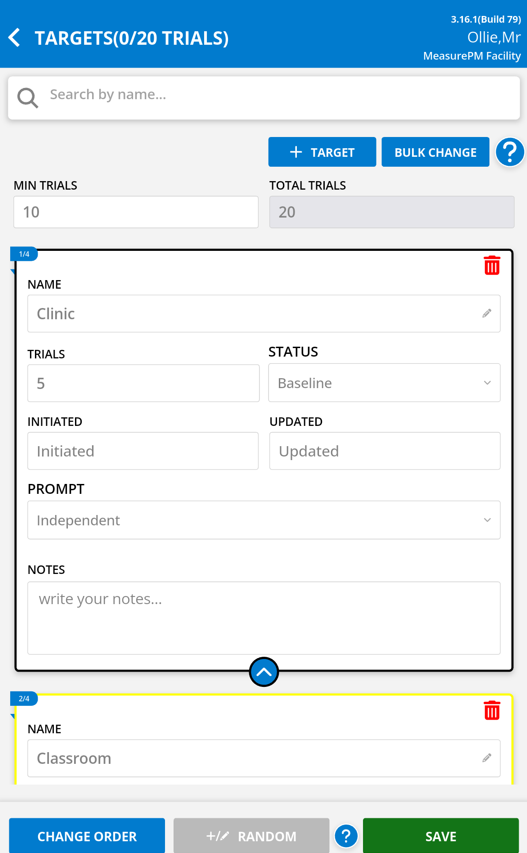
Using the search bars at the top of the target list, you can filter by target name or by status. When ready to add/edit targets to the program, you will simply select "+Add target" and enter the target name, assign it to a status, assign the number of trials expected for the target, and assign a prompt. For the target to be available for data collection, an active target status needs to be selected. Active target statuses include Baseline, In Progress, Maintenance, Generalization and Post Probe. If any inactive status is chosen, the target will not be available for data collection. Inactive statuses include Not Initiated, Mastered, On Hold, and Discontinued.
 |  |
Within the target information, there is the date in which the target was initiated and the most recent data of status change will show. Directly below the target prompt, are the target notes. The notes entered here will show on the data collection screen. If antecedents and responses are configured as per target, the antecedent and target response will be available to input directly above the target notes.
| Per Program | Per Target |
 |  |
Be sure to save the targets section using the Save button at the bottom of the popup. If Cancel is selected, all changes made will be reverted.
Randomizing Trials
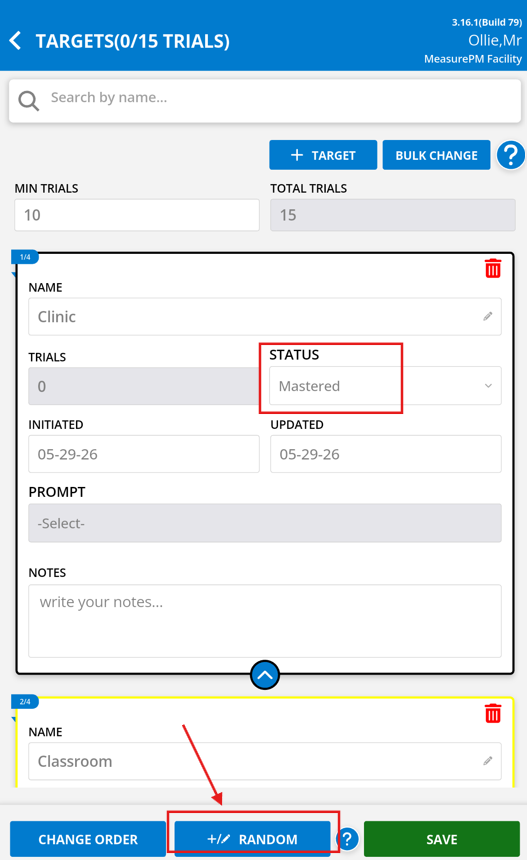
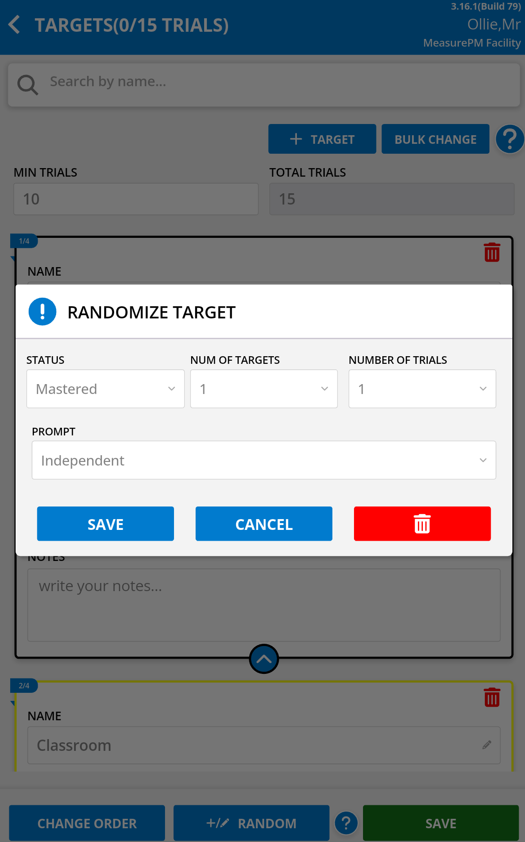
In addition to collecting data on active status targets, you can also collect data on mastered targets in a randomized fashion. When configuring trials, you will see an option to add a Randomize Target at the bottom of the target list by selecting the +Random button. The purpose of adding a randomize target is to randomly present mastered targets on the data recording page. Note that this option will only be available to you if you have one or more mastered targets in the list. When you assign a target to "Mastered" status, it is no longer active and does not show up for data collection. However, with randomize, data collection on mastered status targets becomes possible.
After selecting +Random, you will configure the number of mastered targets you would like to randomize and the number of trials (only relevant for DTI programs) to assign to each target. The maximum number of targets will correspond to how many mastered targets are in your target list. For instance, if you have 4 mastered targets, you can select up to 4 targets for randomization. Once the program data is committed or discarded, a new target from the bank of mastered targets will appear on the Mobile-App's data collection screen.
Refer to the specific rules below, outlined by measurement type, to know when you can introduce randomized targets:
- DTI, Duration, Frequency, and Rate:
- Randomize will only be selectable when there is at least 1 mastered target in the list.
- Time Sampling:
- Randomize will only be selectable when there is at least 1 mastered target in the list.
- Randomize will only be selectable when there are no other targets in an active status (i.e., baseline, in progress, maintenance, generalization, or post-probe).
If mastered targets have been removed (i.e., change to other status or delete target) after randomize has been configured, you will not be able to save the target section.
 |  |
Bulk Changes and Reorder
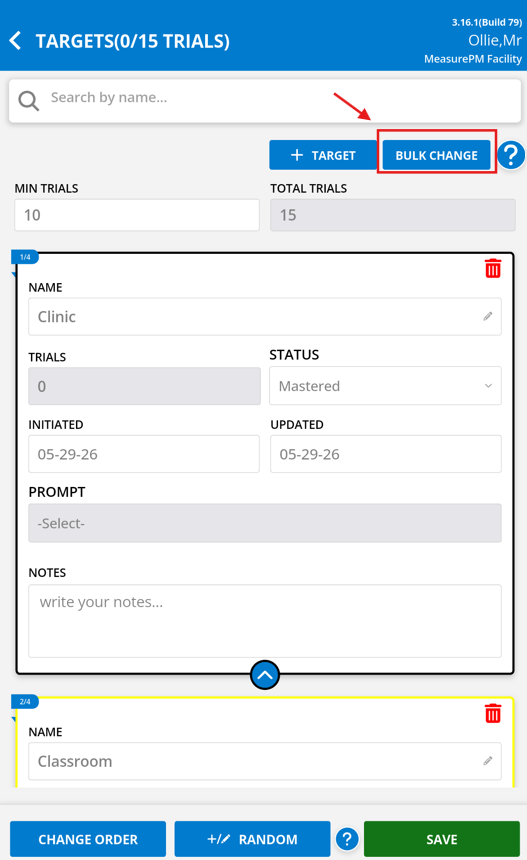
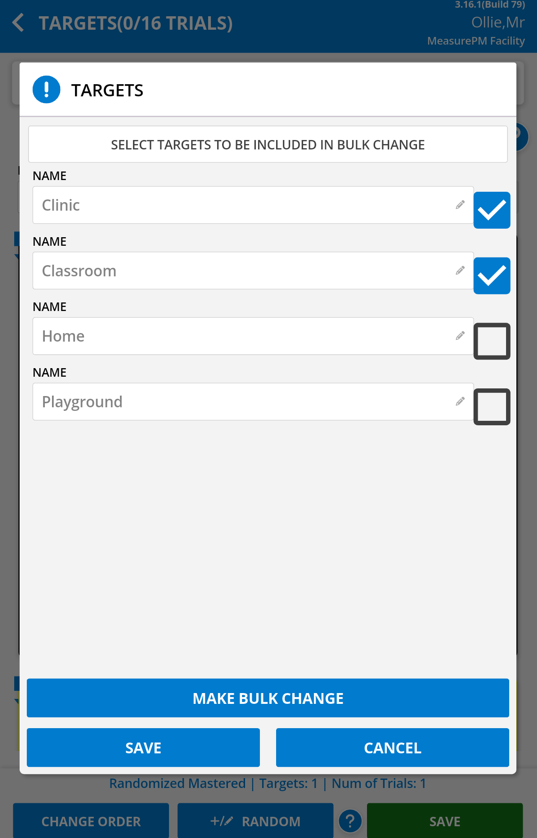
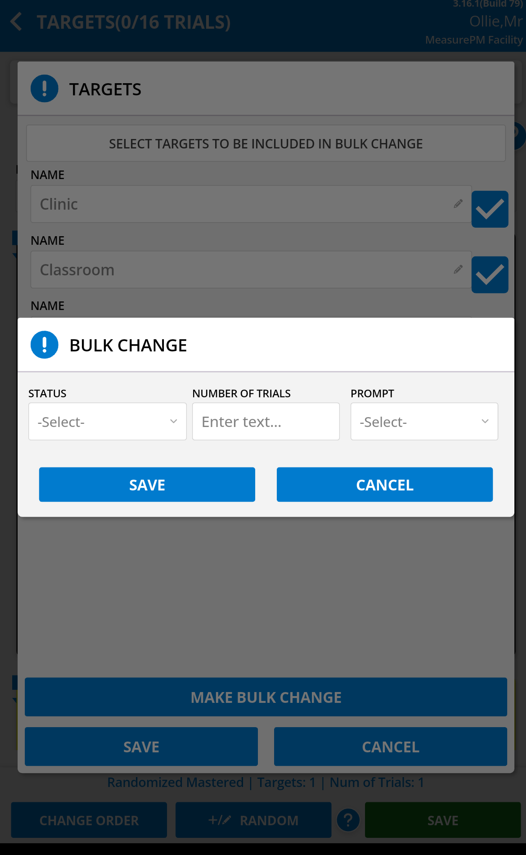
To make a bulk change, start by selecting the Bulk Change button. When selected, checkboxes will appear next to each target, allowing you to select individual targets or all at once. For selected targets, you may modify the following: Status, Trial count, and Prompt
| Bulk Change | ||
 |  |  |
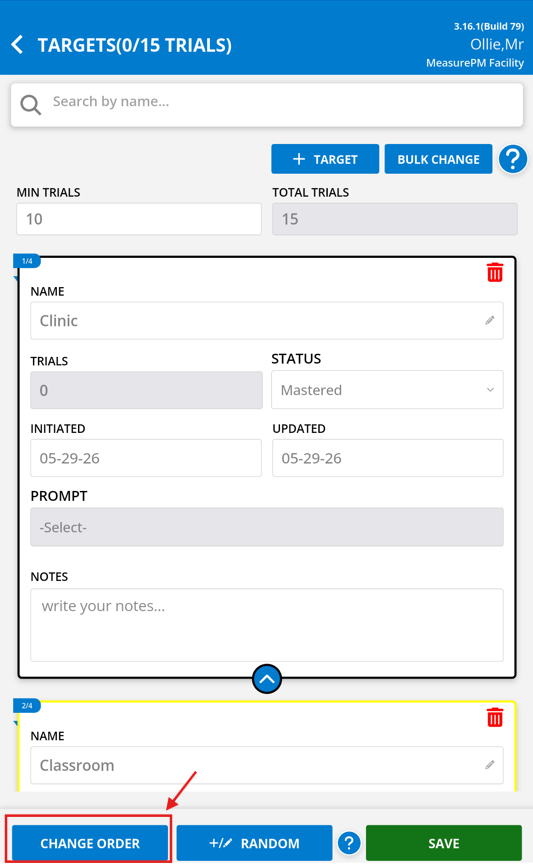
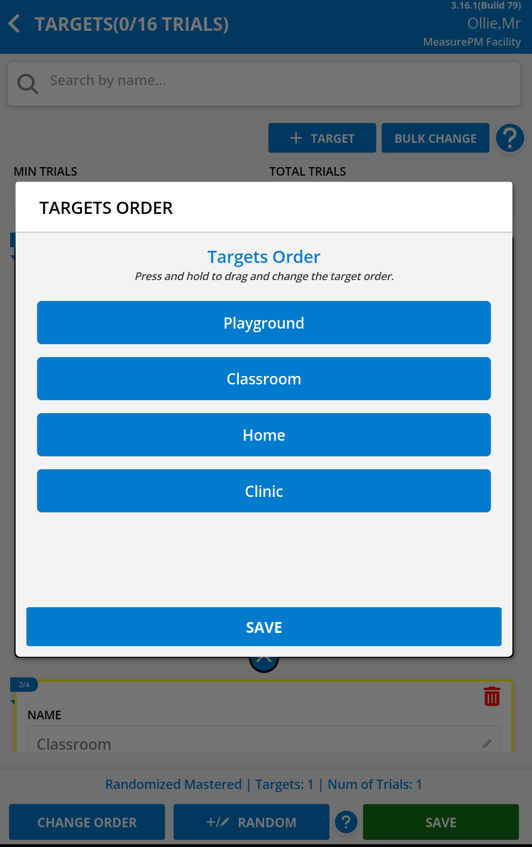
To reorder the targets, start by selecting the Change Order button. When selected a new popup will appear, where drag handles will display with the target names, allowing you to reorder targets via drag and drop. This order determines how targets appear on the data collection page.
| Change Order | |
 |  |
Task Steps
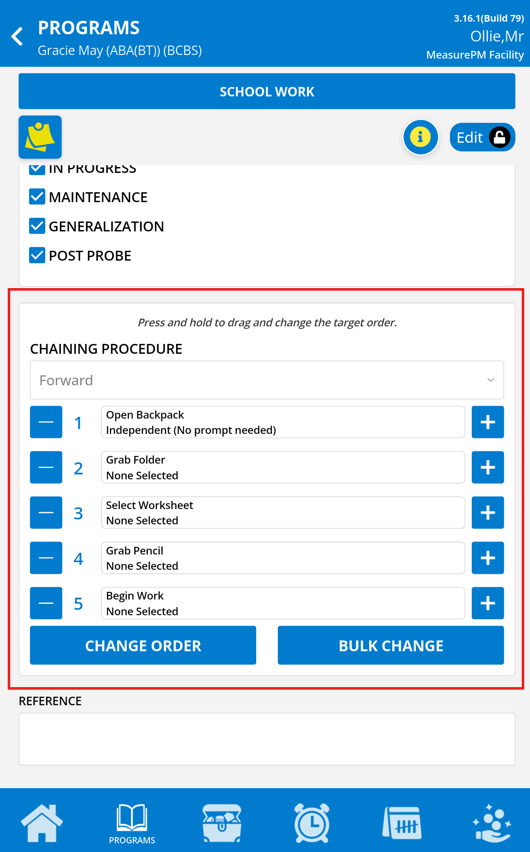
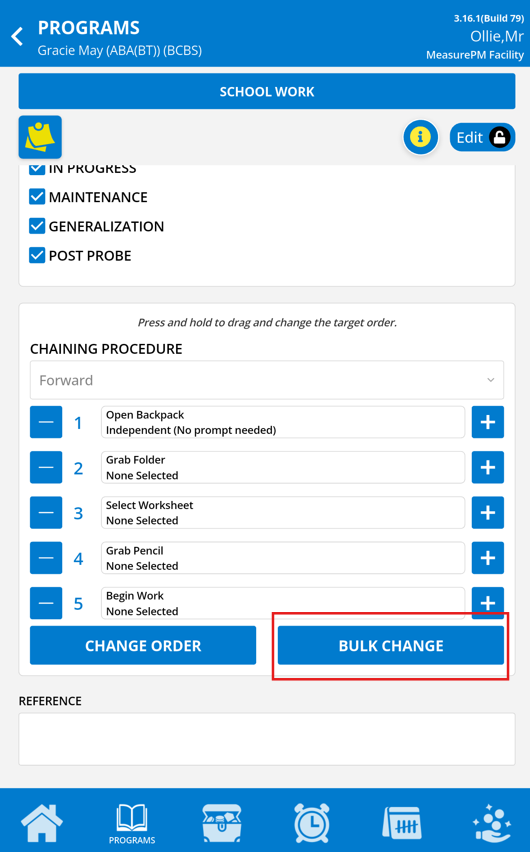
If Task Analysis is selected as the program measurement type, task steps will be available for configuration instead of targets. Once in edit mode, you can proceed with changing the chaining procedure if required. Note that the chaining procedure has no bearing on step progression, but instead acts as the guiding expectation for the person configuring the steps.
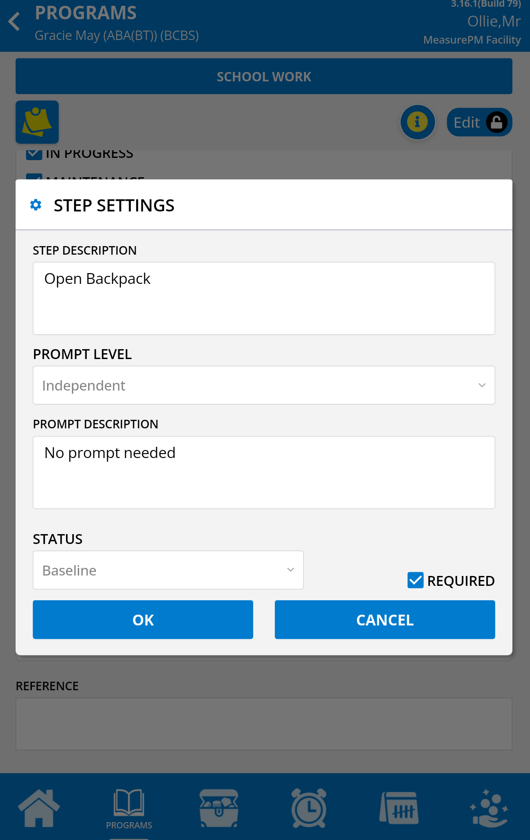
All steps will be listed below Chaining Procedure. From here you can edit the step names, change the step prompt and description, and indicate if the step should be in progress and required. To make any of these changes, start by selecting the desired step, which will result in opening a new popup for the specific step selected. Located at the bottom of the popup is a checkbox for Required. Selecting the Required checkbox ensures that the program data cannot be committed unless all required Task Analysis steps have been recorded. In other words, if there are steps that are optional in the chain, ensure Required is not selected.
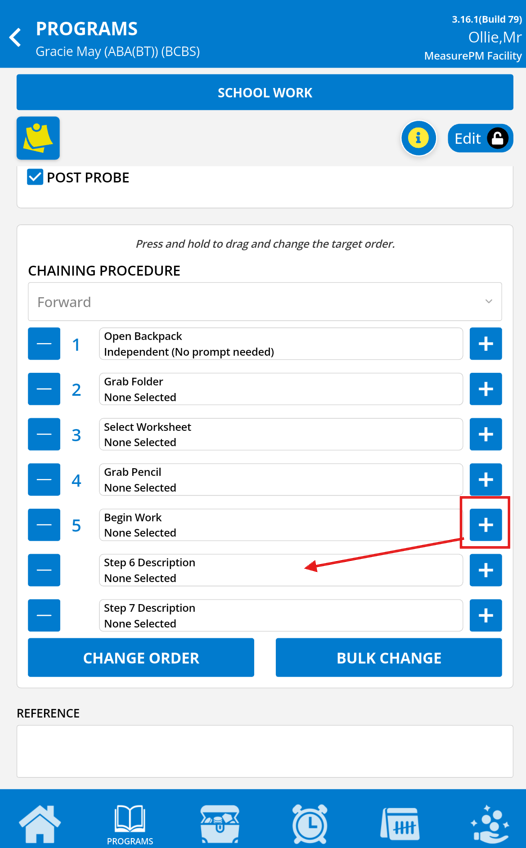
To add new task steps, select the + button located to the right of other steps added. Once selected, a new field will appear directly below the step + selected and from here, you can select the new step and proceed with configuring.
 |  |  |
Bulk Changes and Reorder
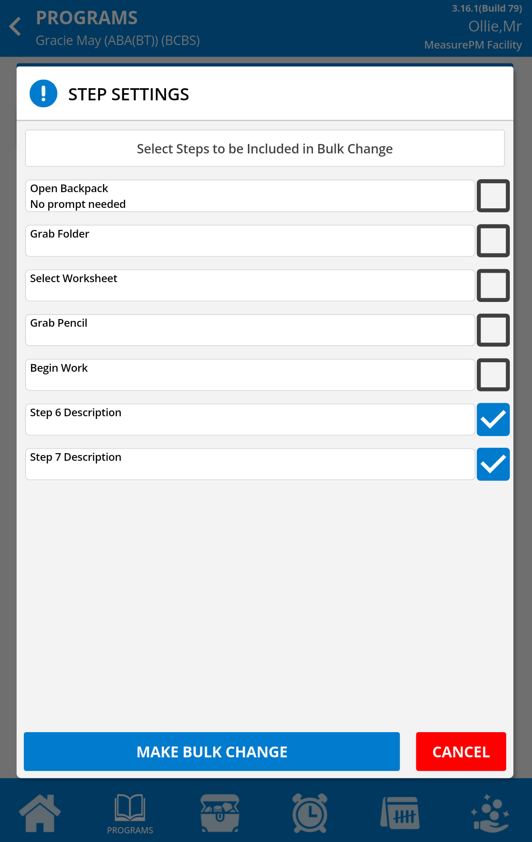
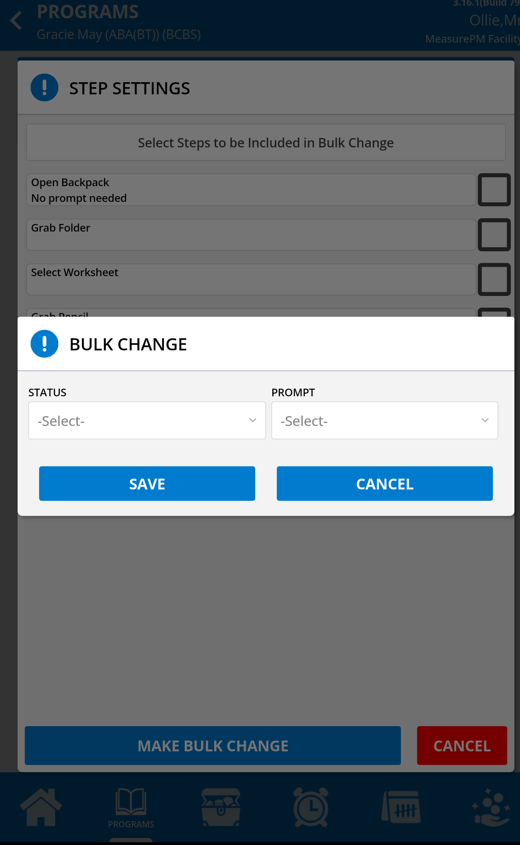
To make a bulk change, start by selecting the Bulk Change button. When selected, a new popup will open where checkboxes will appear next to each step, allowing you to select individual steps or all at once. For selected steps, you may modify the following: Status and Prompt
| Bulk Change | ||
 |  |  |
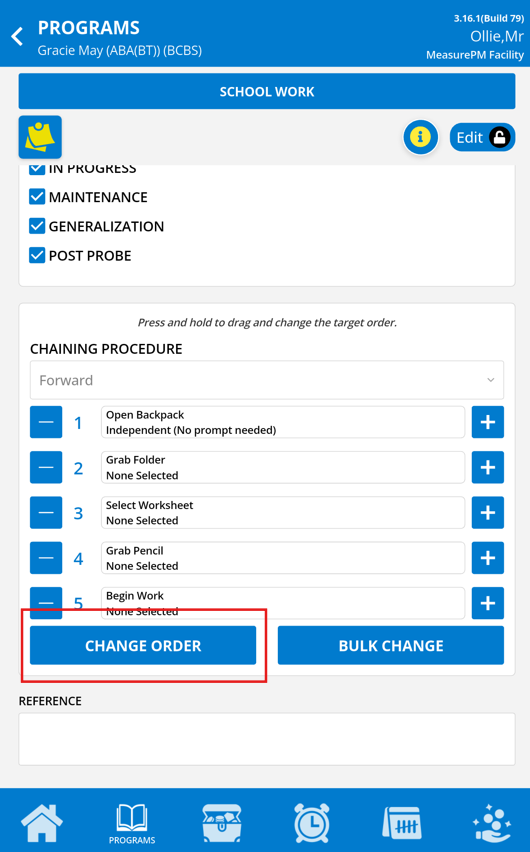
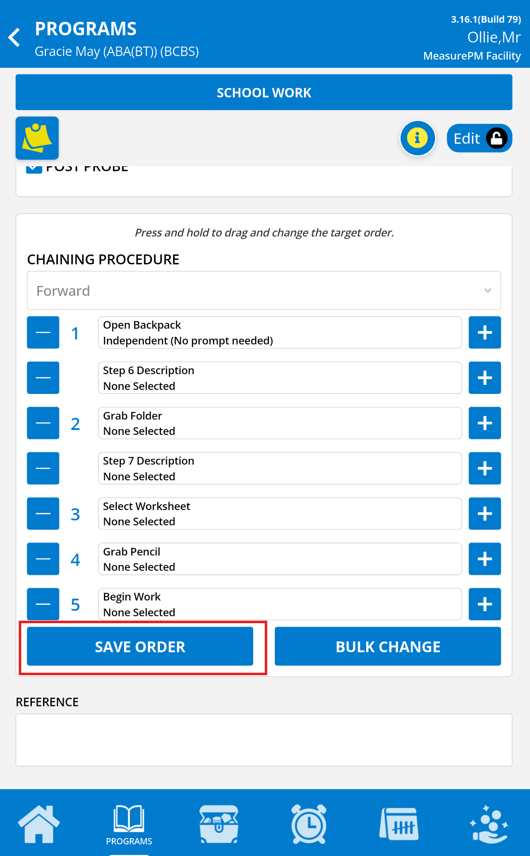
To reorder the steps, start by selecting the Change Order button. When selected, you will now be able to reorder steps via drag and drop. This order determines how steps appear on the data collection page. Selecting the Save Order button will save these changes.
| Change Order | |
 |  |
Data Recording Types
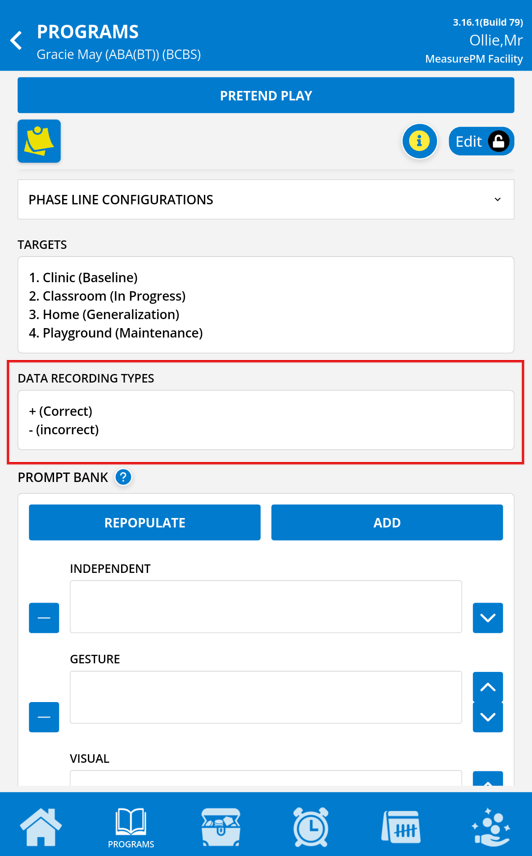
Data recording types (DRTs) are what is displayed on the Mobile-App’s data collection screen (e.g., “+” and “-”) for DTI, Task Analysis, and Frequency; Rate and Time Sampling programs are used for trial recording. In other words, these are the available options for selection when recording a trial. The options within the program configuration, and whether or not they are considered PASS or FAIL status, will depend on what the site has established.
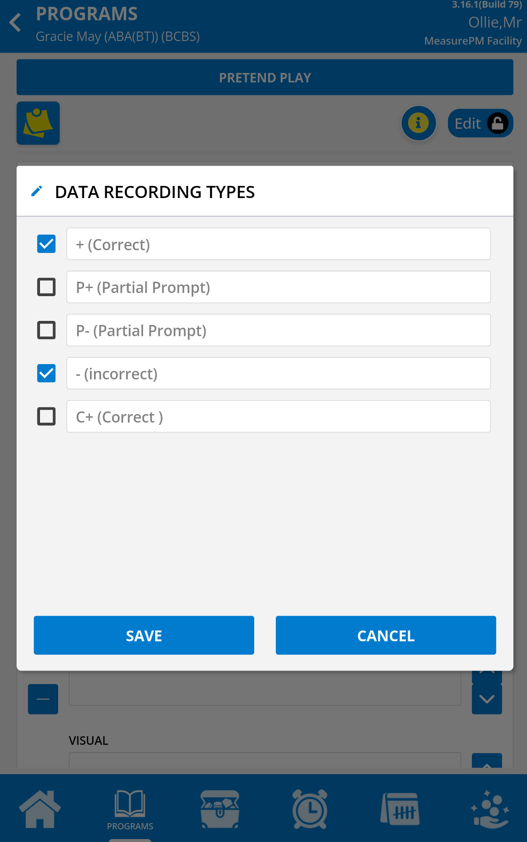
New DRTs can be added to the program and/or existing ones can be removed. To add, select the Data Recording Types section, which will then display a popup of all DRTs configured at the site level, then proceed with making specific selections. To remove DRTs, simply deselect the checkbox to the right of each DRT listed.
 |  |
Prompt Bank
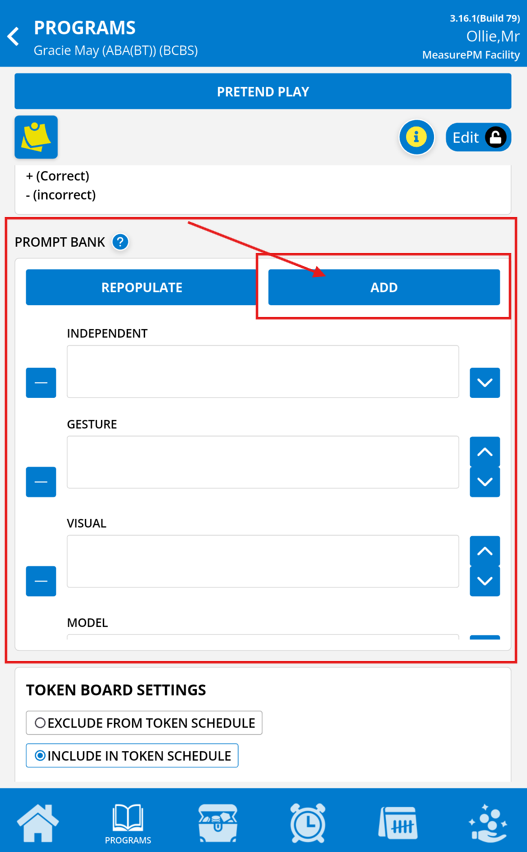
The prompt bank is where you can add all prompts needed as part of the program’s prompt progression. Note that prompts must first be set up in Clinical Settings before you can begin configuring them at the library and client levels.
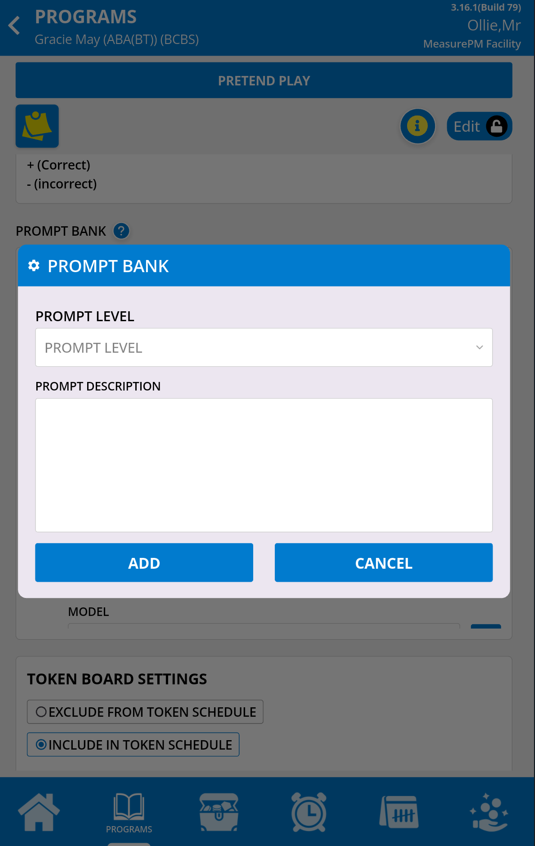
To add additional prompts to the bank, select “ADD”, which will open the Prompt Bank popup. From here, you can then select the prompt using the dropdown menu. All prompts configured in settings will show for selection. Alternative to adding prompts individually you can select "Repopulate". When selected, all prompts configured in settings will be added. The prompt description will copy over from settings as well, but you can edit the description at the client level at any time.
To delete a prompt, simply select the trashcan icon to tie right. After deleting, you can re-add any any time. Note that any prompts currently assigned to a target cannot be deleted, and you will receive an error popup: [Prompt Name] is currently in use by one of the targets. Please re-add [Prompt Name] before saving.
 |  |
Token Board Settings
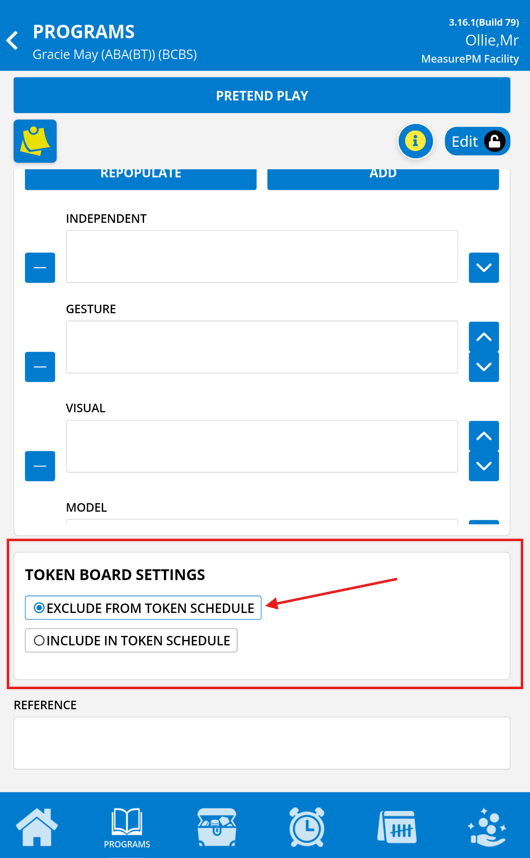
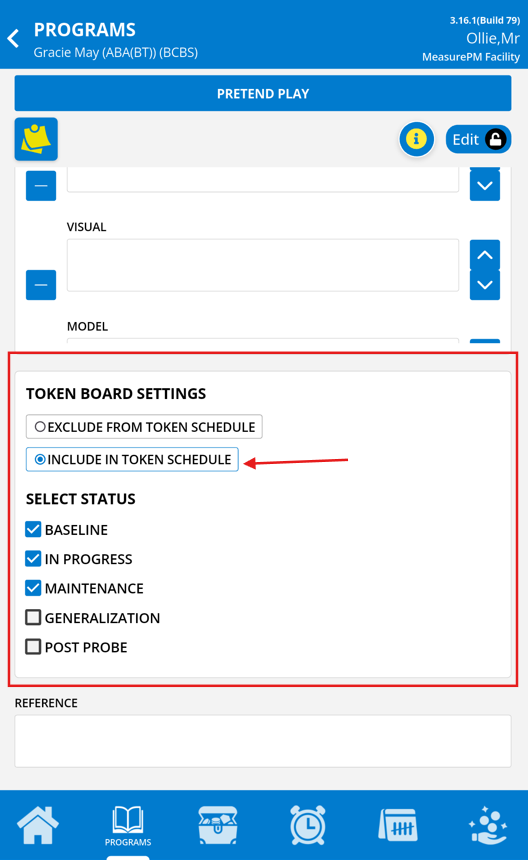
You can determine whether you want a program to be included or excluded from the token board reinforcement schedule by selecting the associated radio button. If you are opting to include the program in the reinforcement schedule you can specify which of the available active target statuses you would like to include in the schedule.
 |  |
Reference
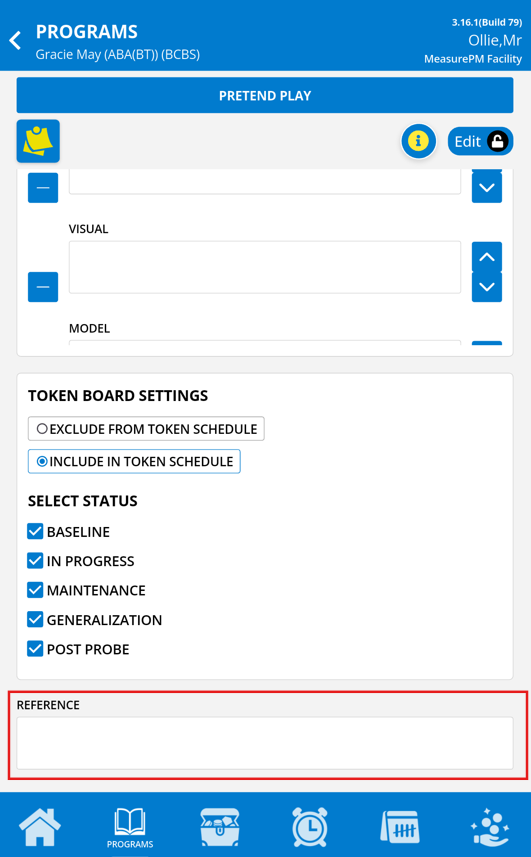
The purpose of this feature is to give reference to any specific curriculum/article/author of the program. Any linked reference here will be available to copy/paste similar to the external links feature on the Web. To make changes, you may enter any referenced link.
Uncommitted Data
When a change is being made on the Mobile-App to any of the previously mentioned program properties, a background check is automatically performed to determine whether uncommitted data exists for this specific client's program. If there is no data, you as the provider making changes can proceed with configuring the program. However, if uncommitted data is detected, you will receive a pop up asking if you would like to: (i) discard the data and proceed with making changes, or (ii) discard the changes and maintain the existing uncommitted data. The reason for this alert is that the changes made might be incompatible or conflict with the uncommitted data.
Additional Related Guides
- Configuring a Program from a Client Clinical Profile (Web-App)
- Clinical Settings - Settings
- Prompts vs Data Recording Types
- Token Board
- Option to Discard Uncommitted Data When Making Program Modifications
- Clinical Programming: Success Criteria
- Success Criteria: Auto-progression of Targets and Prompts
- Randomize Targets Feature (Web and Mobile-App)
- VB-MAPP & MPM
Reminders
- Only users with the applicable permission can map and configure programs at the client level.
- To make configurations to a program at the client level, the program must first be mapped to the Client Clinical Profile. Users can map and configure programs from both the Web and Mobile-App.
- To make changes to program settings, the user must first select the Unlock to Edit icon.
- Any change made to a program from the Mobile-App will sync to the Web and vice versa.
For any additional questions or concerns, please reach out to support@measurepm.com